Official Website — Est. 2003 — Community Built — Open Source

COINOPSThe Ultimate Retro Gaming Frontend

> Free arcade frontend for PC. Thousands of classics. Zero setup.
> Plug in. Power up. Play.

1000+
Curated Games
40+
Emulated Systems
50+
Main Themes
20+
Years of Community
⚠️Discord currently
unavailable
🐣 HAPPY EASTER 2026 — 10 NEW RELEASES
CoinOPS Happy Easter 2026 — retro gaming characters on an Easter egg hunt

Happy Easter from CoinOPS

The loss of our Discord server hit us hard — but we're not letting it slow us down! The ARISE series just laid 10 eggs in your basket.

ARISE BUILDS
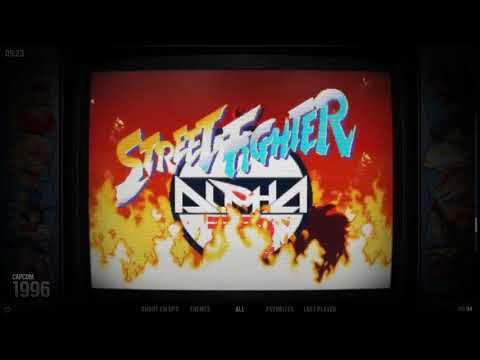
BP Edition Plus MAX Gems Micro Street Fighter
1UP EDITIONS
Evolution Evolution Micro Gems Gems Micro Street Fighter

Read release docs and compare builds or check the gameslists. But for now — download, unpack, and enjoy the egg hunt.

💡 Common Questions #

What is CoinOPS?

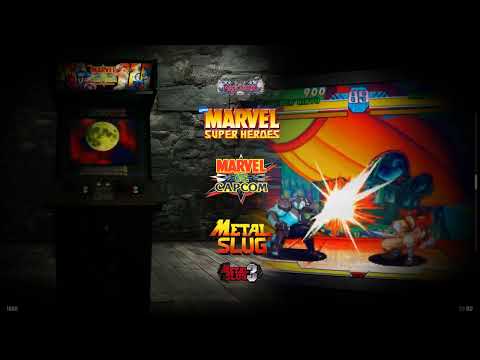
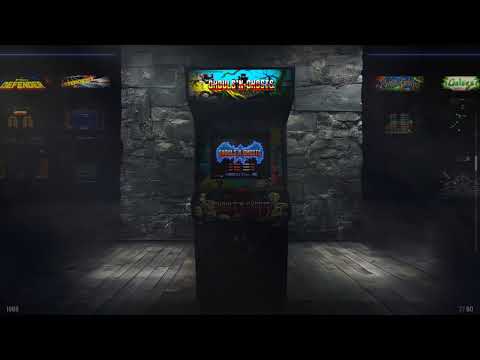
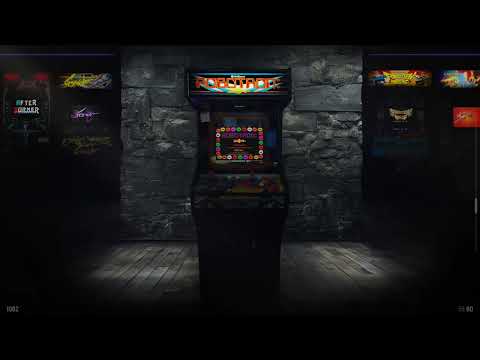
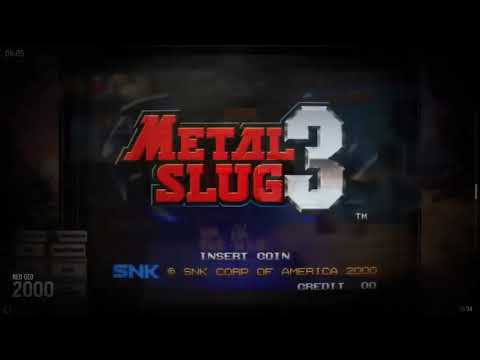
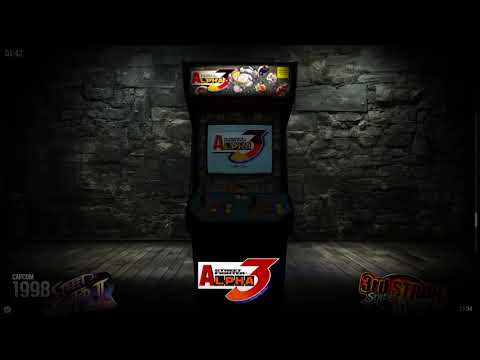
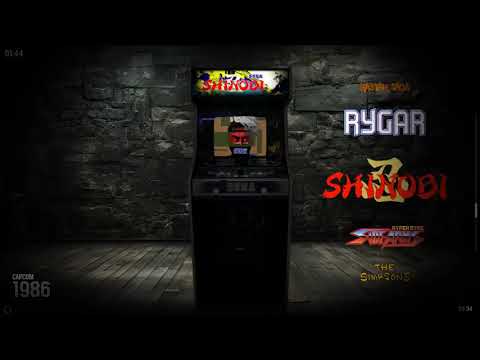
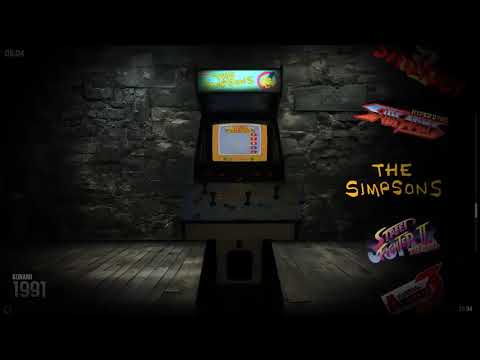
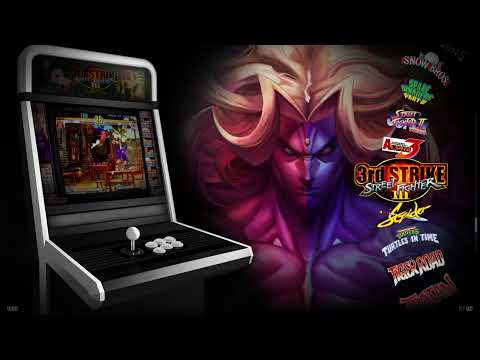
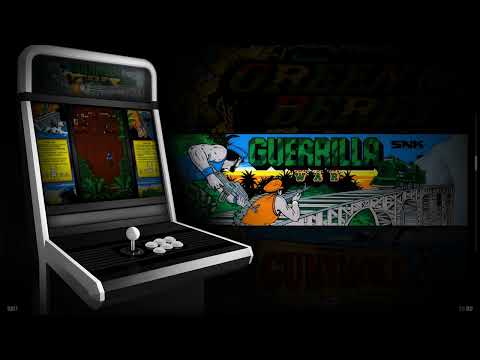
A free, plug-and-play retro gaming frontend for PC, built on RetroFE. Supports MAME, CPS1-3, Neo Geo, PlayStation, Dreamcast, SNES, and many more systems — each running dedicated emulators like RetroArch, Dolphin, and PCSX2. Every game comes with handcrafted artwork across dozens of visual themes — not scraped from databases. Download, extract, play. No configuration needed.

Learn more →

Which build should I get?

For most users: ARISE BP Edition PLUS (101 GB, 665 games, 42 themes) for curated quality, or ARISE Max (145 GB, 1252 games) for maximum game count. Want everything? Deluxe Universe (~512 GB). Got a vertical cabinet? EVO 2 Vertical. Low on storage? Micro BP Ed. PLUS (30 GB) or Gems (16.5 GB).

Why do builds have different game counts?

Each build is a fresh curation — not just "the old build plus more games". New themes require new artwork for every game (all hand-made), builds target specific sizes, and BritneysPAIRS keeps each release feeling fresh with deliberate mix-and-match.

Full explanation →

Can I add my own games or systems?

Yes — CoinOPS is fully moddable. Adding games to existing systems is straightforward (but requires artwork). Adding entirely new systems or modifying themes is more advanced. Everything is file-based and transparent.

Transfer & Modding →

Where do I download?

All official builds are exclusively on back-ups.me — access via the Back-ups Discord. Builds from other sources are not supported and may have been tampered with.

Getting Started guide →

Which games are in which build?

Browse the full game library across all builds. Filter by system or build, search by name, and see exactly which titles are included where — from Arcade classics to console favourites.

Explore the library →

⚠️ Not what you're looking for?

CoinOPS is about quality over quantity. If you're looking for a setup with 20,000+ games, automated artwork scraping, or massive multi-system ROM dumps, CoinOPS isn't built for that — and that's by design. Alternatives like Batocera, RetroBat, or LaunchBox are built around that approach and might be a better fit.

// What is CoinOPS? #

Retro Gaming Without the Frustration

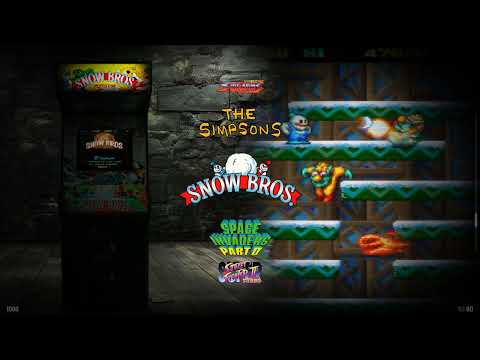
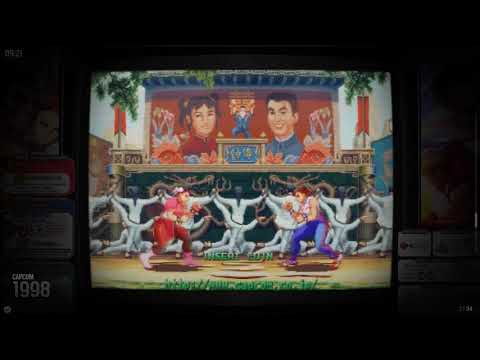
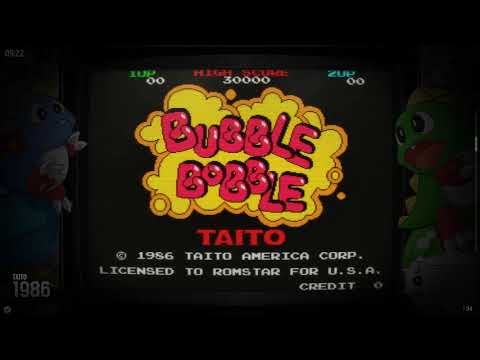
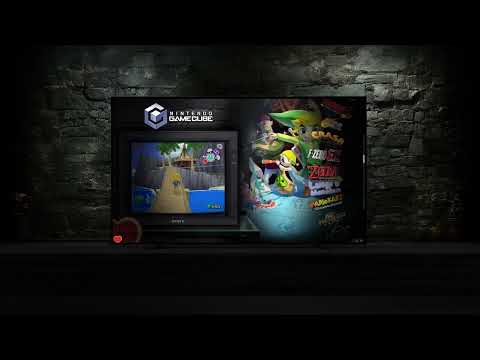
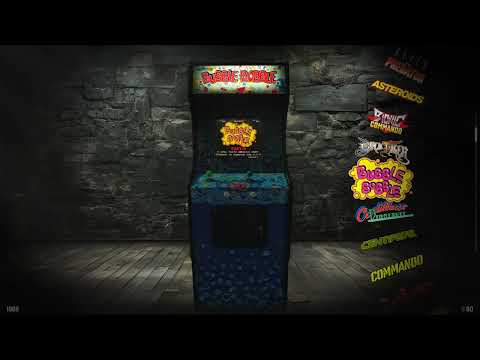
A community-driven emulation frontend that turns any Windows PC into a plug-and-play arcade and console machine — combining MAME, RetroArch, Dolphin, and dozens more emulators with handcrafted artwork you won't find anywhere else.

🎮 The Vision #

CoinOPS was created by BritneysPAIRS and a dedicated community of developers, designers, and retro gaming enthusiasts. The project started on the original Xbox around 2003 and has evolved through over 300 releases (incl. addons) across 10 generations into one of the most recognised retro gaming frontends on PC.

The core vision has never changed: retro gaming should be accessible to everyone. No complicated configuration, no fiddling with individual emulators, no hunting for artwork. Download, extract, plug in a controller, and play. CoinOPS isn't just a launcher — it's a complete, curated experience designed to feel like walking into your own personal arcade.

🎨 Quality Over Quantity #

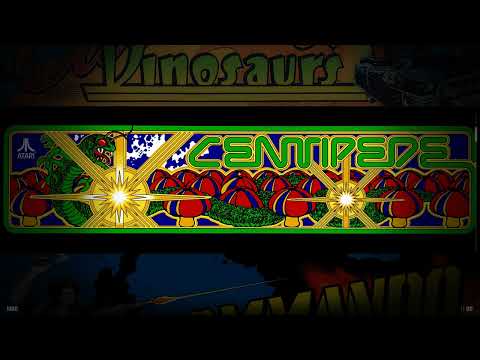
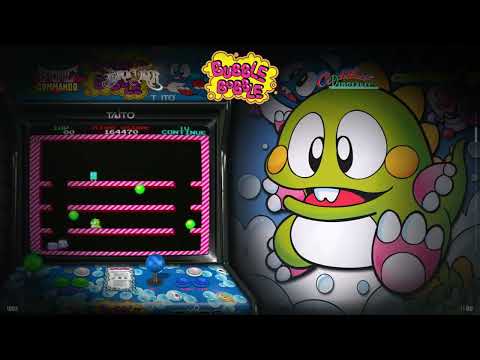
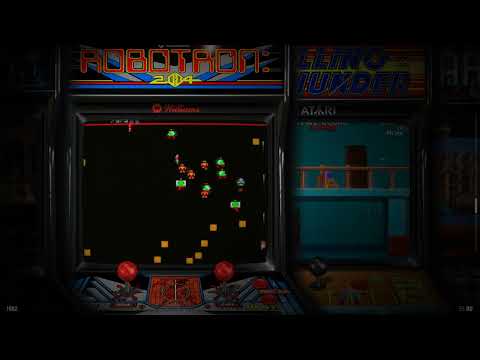
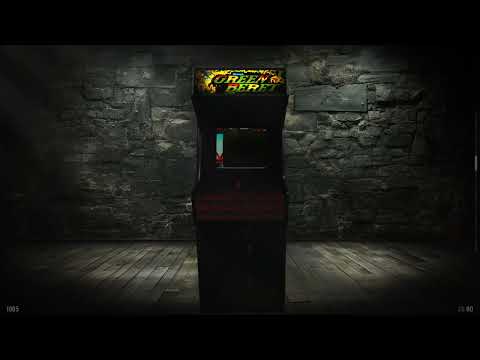
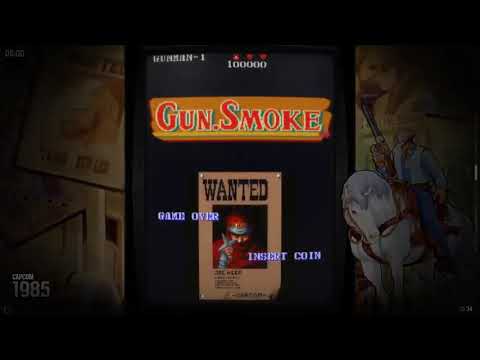
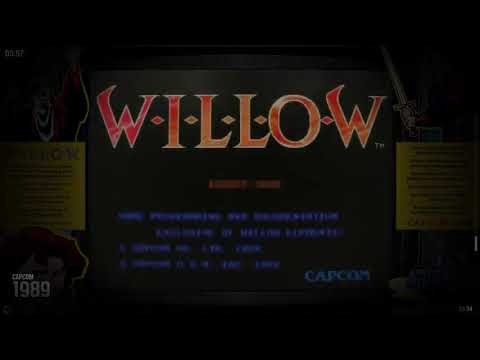
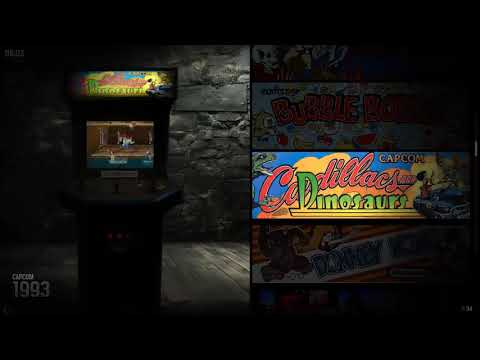
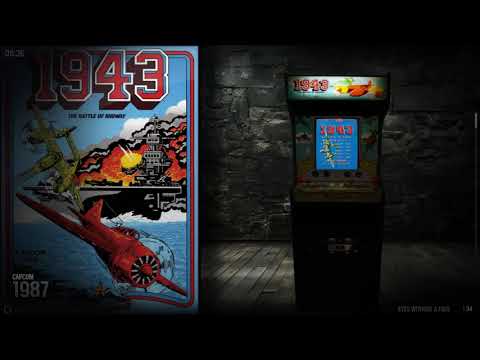
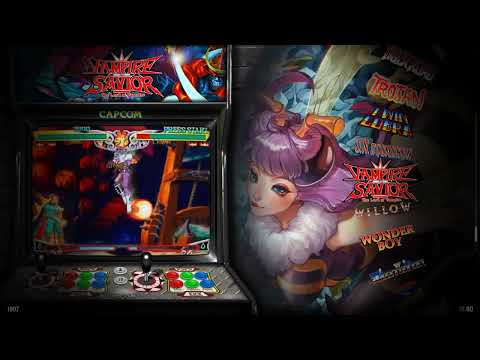
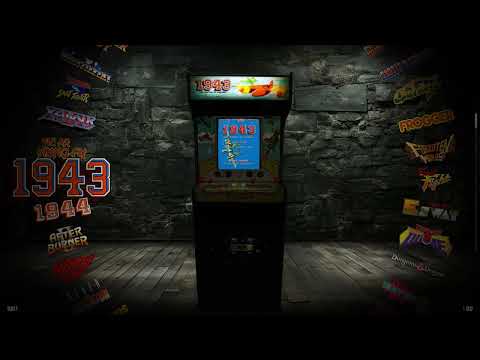
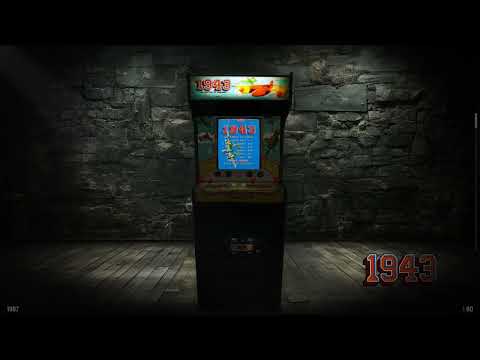
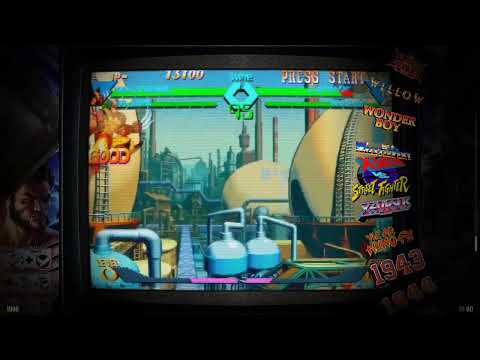
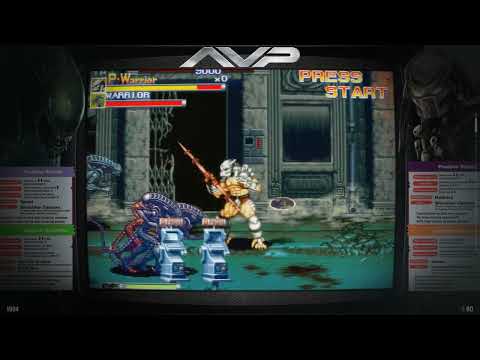
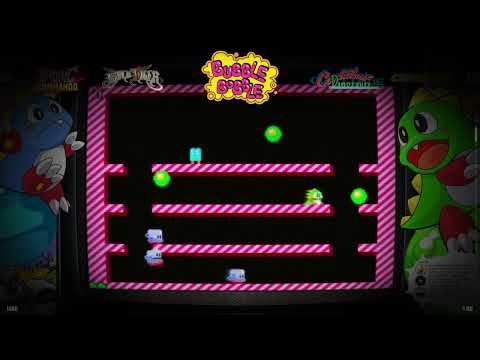
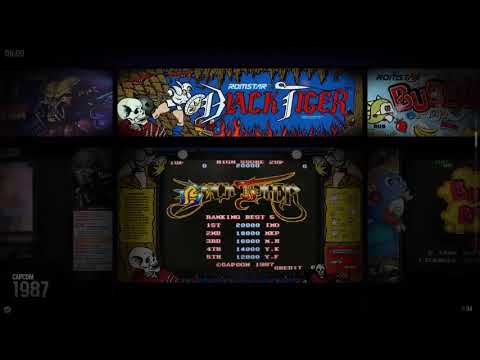
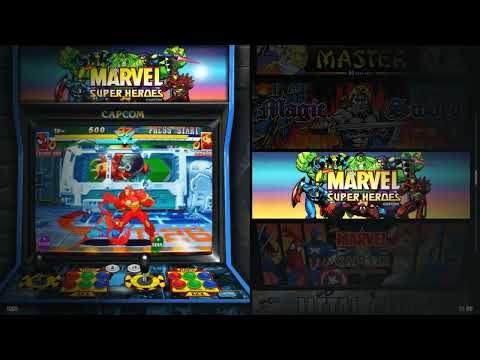
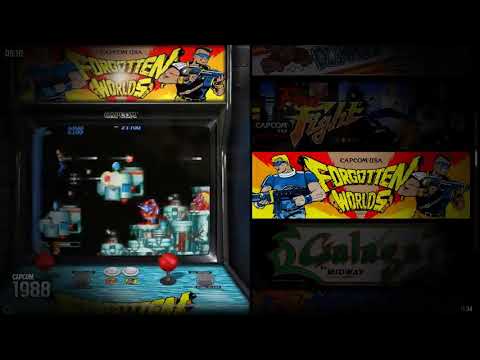
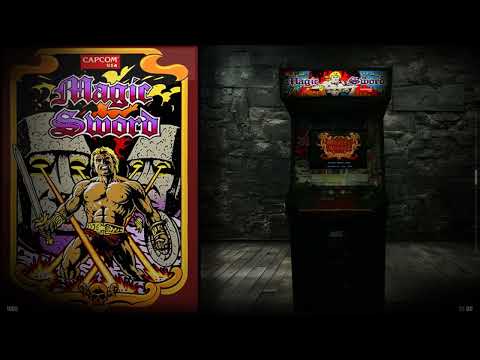
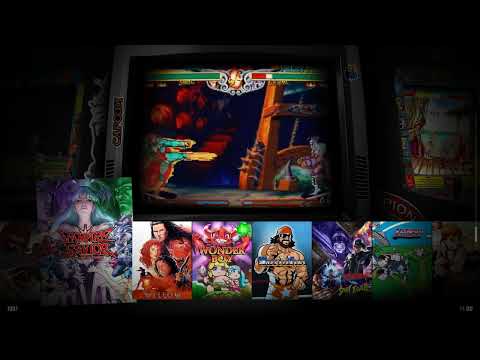
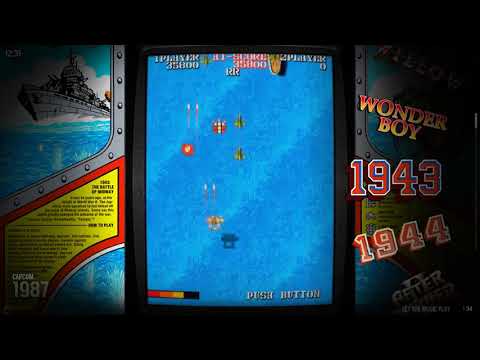
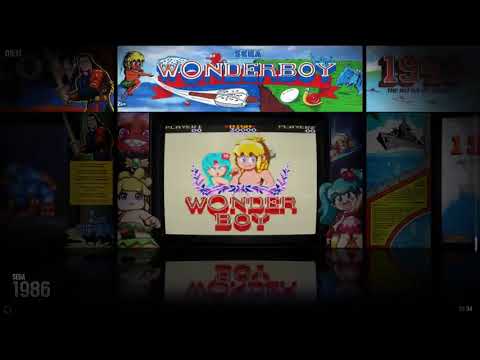
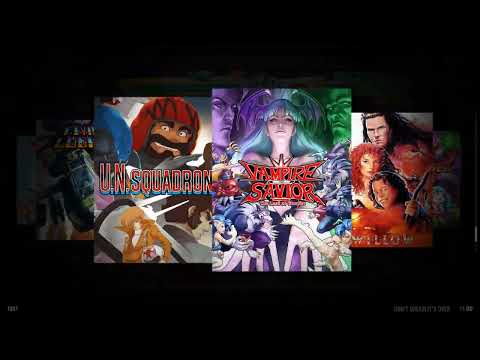
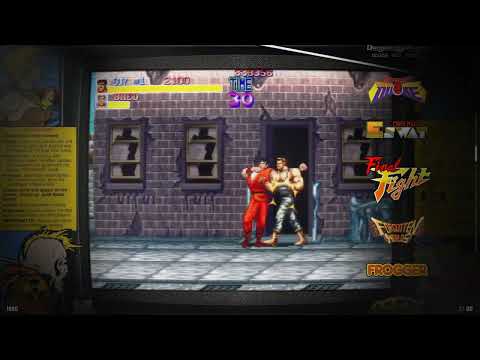
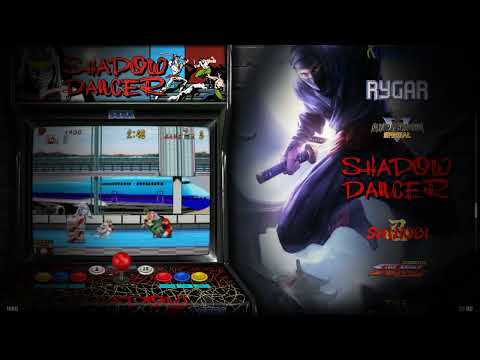
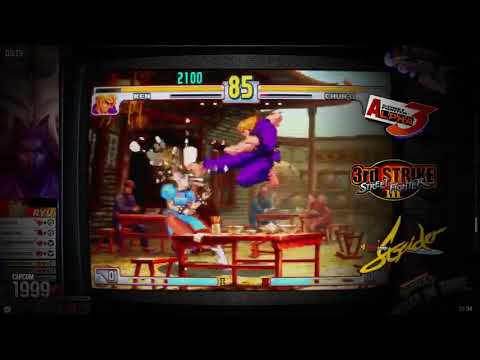
What sets CoinOPS apart from other frontends isn't the number of games — it's the presentation. Every single game in a CoinOPS build comes with handcrafted artwork created specifically for CoinOPS. These aren't generic scraped images from online databases. Every logo, every video, every marquee, every bezel has been individually designed or composited to work across dozens of visual themes.

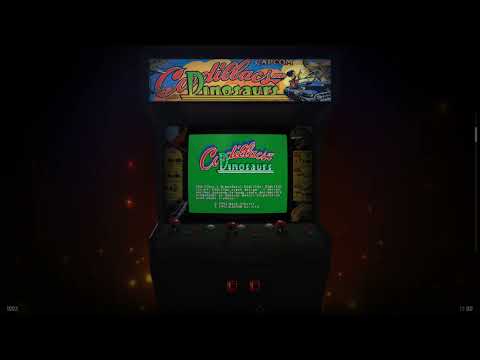
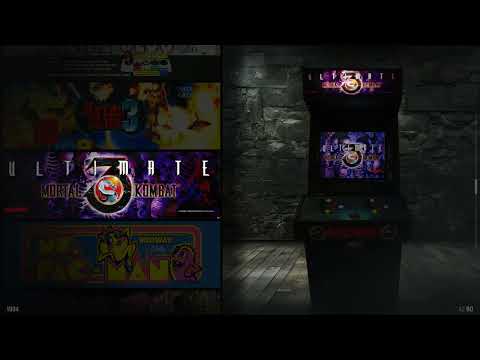
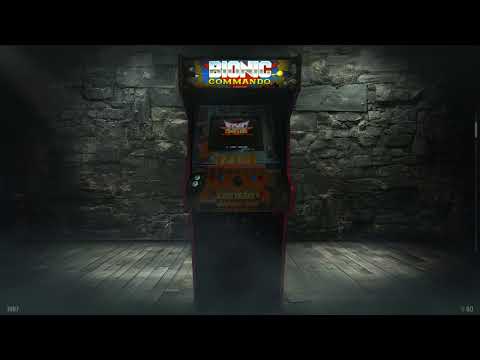
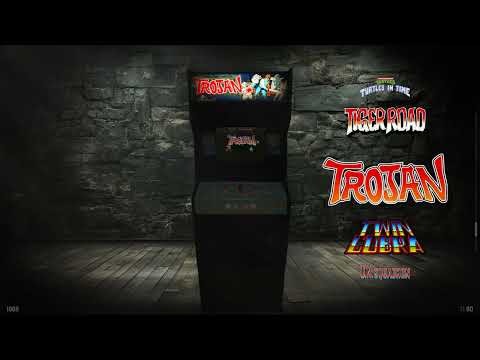
This obsession with visual quality means that switching between themes — from a slick modern arcade look to a nostalgic CRT aesthetic to a cabinet-style display — always looks polished. There are no placeholder images, no missing thumbnails, no broken layouts. Each game feels like it belongs, because someone made sure it does.

The trade-off is intentional: a CoinOPS build with 3,000 beautifully presented games is worth more than a ROM dump with 50,000 titles and no artwork. The developer's philosophy is simple — if it can't look right, it shouldn't be there.

🔧 Built on RetroFE #

Under the hood, CoinOPS runs on RetroFE — an open-source, cross-platform frontend for emulators, licensed under GPLv3. But the CoinOPS fork is hundreds of commits ahead of upstream, adding 64-bit support, DirectX 11 rendering, hardware-accelerated video decoding, VSync, and roughly 70% less RAM usage.

RetroFE's architecture is entirely file-based. There are no databases, no registries, no hidden state. Everything — from game lists to visual themes to emulator configurations — is driven by plain folders, XML layouts, and config files that you can open and study. This makes the system fully transparent: if you want to understand how something works, you can just look at the files. And if you want to change it, you can.

RetroFE also runs on Linux, macOS 11+, Raspberry Pi 4/5, and Steam Deck — though CoinOPS builds are primarily designed for Windows.

🏗️ What You Get #

Plug & Play

Download, extract, connect a controller, launch. No setup wizards, no emulator configuration, no artwork scraping. It just works.

🎨

Handcrafted Artwork

Every game has unique, purpose-built artwork across all themes — logos, videos, bezels, marquees, box art — not scraped from generic databases.

🖥️

Dozens of Themes

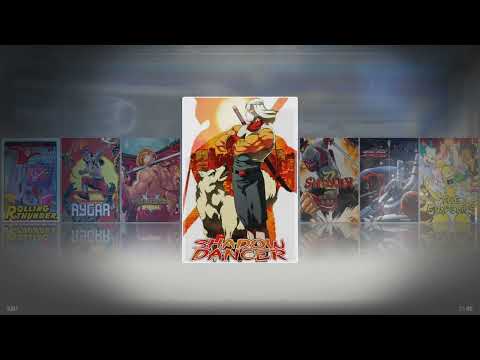
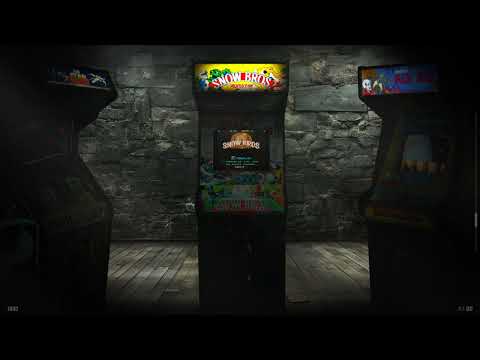
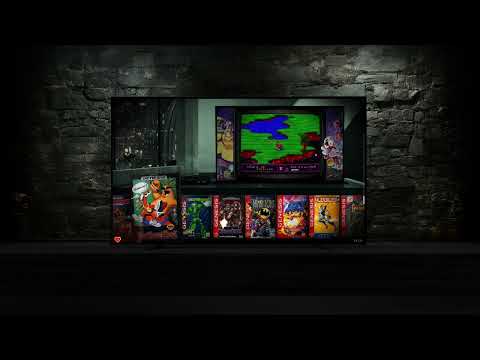
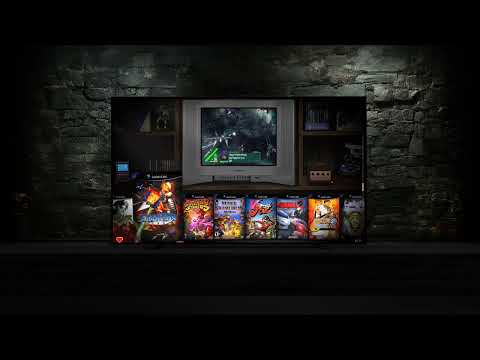
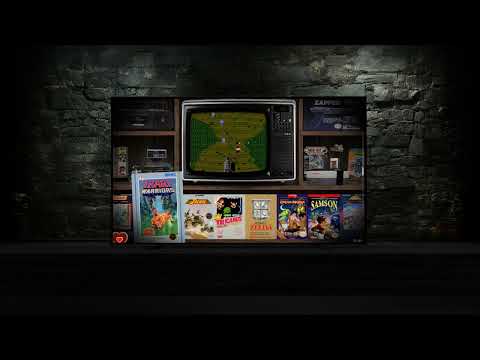
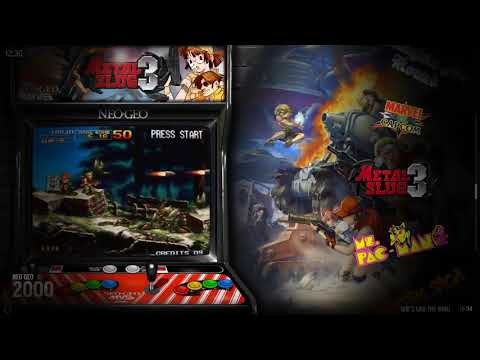
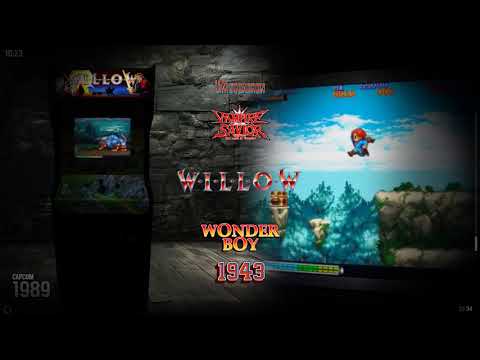
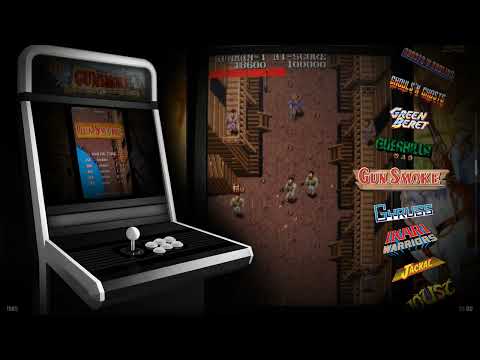
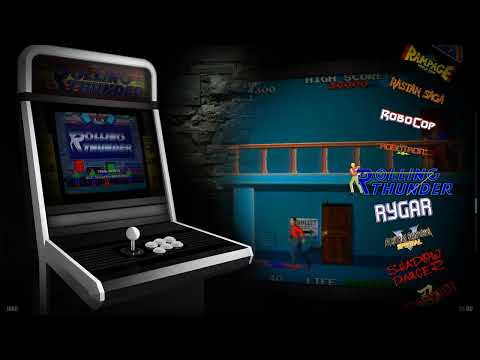
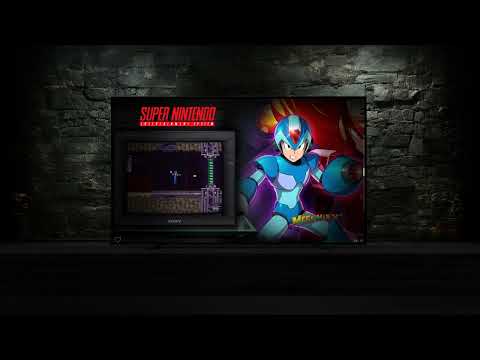
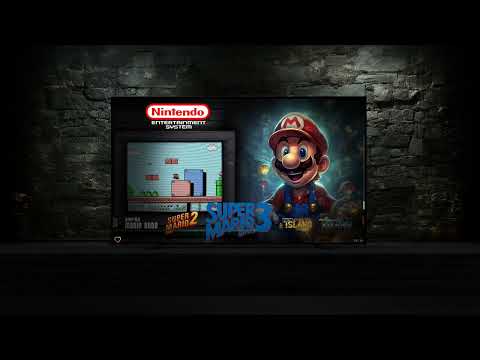
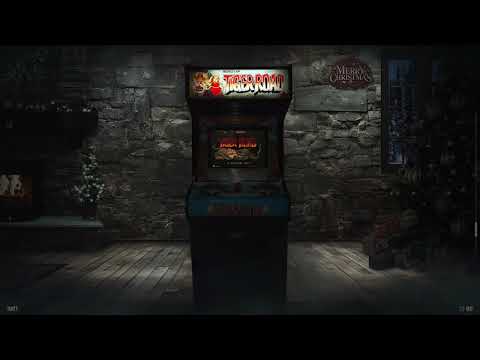
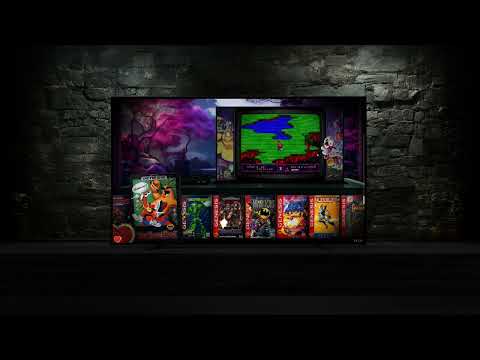
Switch visual styles instantly — from arcade cabinets to fullscreen gameplay to minimalist wheels. Each theme is a completely different visual experience.

🔀

Fully Moddable

Add your own games, systems, emulators, and themes. Everything is file-based and transparent — no locked binaries or hidden configs.

📦

Open Source Core

RetroFE is GPLv3 on GitHub. Fork it, contribute to it, build upon it freely.

📐

Builds for Every Setup

From a 7 GB Mini to a 376 GB Universe. Builds for 16:9, 4:3, vertical TATE, Raspberry Pi, macOS, and Linux.

🎨 Visual Experience #

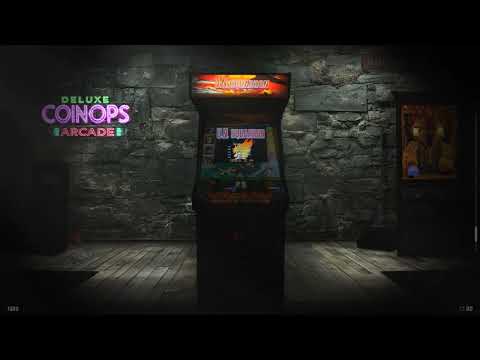
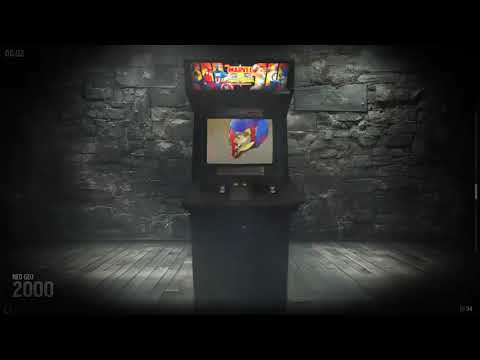
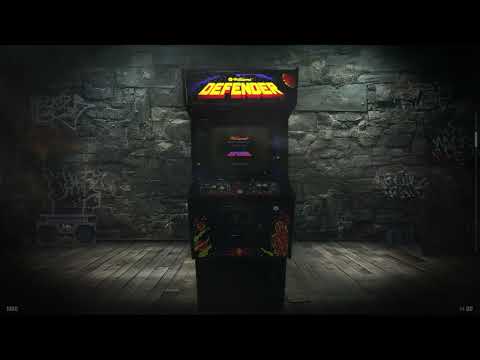
CoinOPS is a visual-first frontend. Every element is designed to create an immersive experience that rivals — and often exceeds — what you'd see in a real arcade.

🖼️

Handcrafted Artwork per Game

Every included game has unique artwork — logos, videos, bezels, marquees, posters, cabinet art — individually created for CoinOPS, not scraped from databases. This is the single biggest differentiator from other frontends.

🎭

Dozens of Switchable Themes

Each build ships with 20–70+ visual themes across arcade, console, and home screen categories. Switch instantly via the Customisation App — every game looks polished in every theme because all artwork was created to support them all.

🎬

Composite Video Artwork

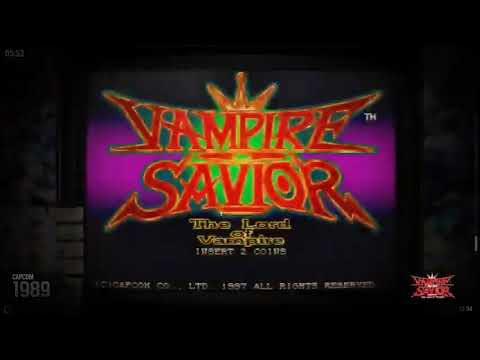
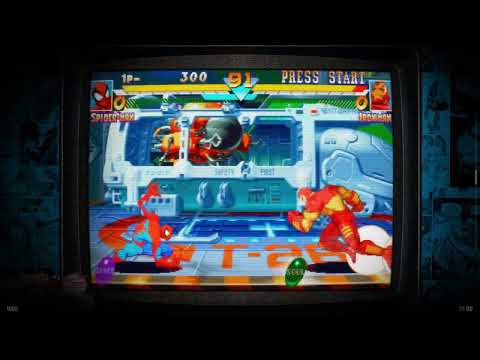
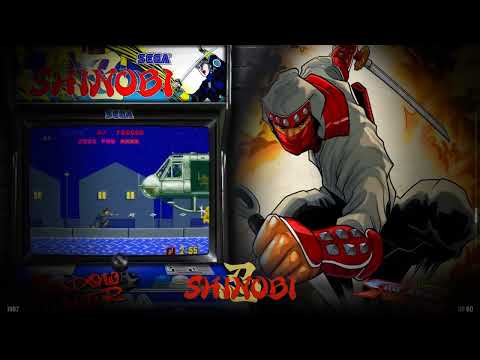
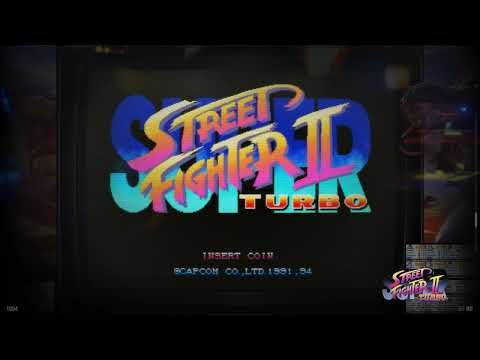
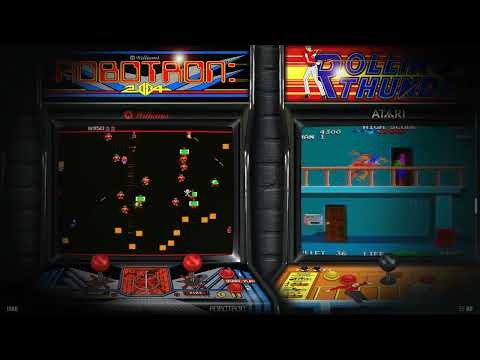
Game videos aren't simple screen recordings. They're composited productions — gameplay footage placed within themed backgrounds, bezels, cabinet frames, and TV surrounds. Each video is a mini visual production.

📺

Dynamic Marquee & 2nd Screen

Full support for secondary displays — animated marquees, glowing neon-effect marquees, gameplay videos on a second screen. Multiple 2nd screen themes for 16:9 and thin marquee displays.

Performance & Technology #

The CoinOPS fork of RetroFE has been rebuilt from the ground up for modern systems, with a focus on smooth performance even on modest hardware.

💻

64-Bit & DirectX 11

Native 64-bit code with DX11 rendering. Hardware-accelerated video decoding means silky smooth theme animations and video playback without hammering your CPU.

📉

70% Less RAM

Aggressive memory optimisation means the frontend itself stays lightweight, leaving resources for the emulators that need them. Themes use roughly 50% less CPU/GPU than earlier versions.

🔄

VSync & Smooth Scrolling

Tear-free scrolling through game lists with proper VSync support. Navigation feels responsive and fluid, even with large libraries.

🎯

Attract Mode

Leave CoinOPS idle and it becomes a living digital arcade museum — cycling through games with full video playback and themed transitions. Perfect for cabinet displays.

🕹️ Arcade Cabinet Features #

CoinOPS was born in the arcade cabinet community. These features reflect that heritage.

🕹️

ServoStik Auto-Switching

Automatically switches between 4-way and 8-way joystick modes based on game metadata. Pac-Man gets 4-way, Street Fighter gets 8-way — no manual switching needed.

🏆

Local Hi-Scores

Built-in high score tracking across games. Compete with friends on the same machine — just like a real arcade.

🎮

Controller Ready

Instant Xbox and XInput controller support out of the box. Arcade encoders (I-PAC, J-PAC, etc.) are fully supported. Keyboard navigation works too.

🔧

CRT & Display Filters

Batch files for authentic CRT scanline effects and display modes. Configure for real CRTs, LCD panels, or anything in between.

🛠️ Customisation & Flexibility #

Everything in CoinOPS can be changed, extended, or replaced. The entire system is transparent and file-based.

🛠️

Customisation App

A GUI application in the build root. Change themes, marquees, performance settings, monitor config, audio, bezels, and more — without ever editing a config file.

📁

Playlist System

Curated game lists by genre, era, player count, or any category you want. Create your own playlists by simply adding text files.

🎵

Music Player

Background music while browsing your collection. Configurable per-system or globally. Add your own tracks.

🎲

Random Start

Start on a random game each time you launch. Great for discover mode when you're not sure what to play.

📺

Multi-Aspect Ratio Builds

Dedicated builds for 16:9, 4:3, and vertical TATE setups. Each with aspect-ratio-appropriate artwork and layouts — not just cropped or stretched.

🔀

Fully Moddable

Add games, add entire systems, create themes, modify layouts — everything is accessible. XML layouts, config files, folder structures. See the Transfer & Modding section for details.

📐 Platform Support #

🪟

Windows

Primary platform. Win 7 minimum, Win 10/11 recommended. Full feature support including DX11.

🍓

Raspberry Pi

Dedicated Pi 4 and Pi 5 builds with optimised artwork and emulator configs for ARM.

🐧

Linux & macOS

RetroFE runs natively on Linux, macOS 11+, and Steam Deck. Community builds available.

🕹️ Arcade #

MAMECPS1CPS2CPS3Neo Geo MVSSega Model 2Sega Model 3NaomiAtomiswaveTaitoKonamiCaveToaplanDaphne

🎮 Consoles #

NESSNESNintendo 64GameCubeWiiMaster SystemGenesis / Mega DriveSaturnDreamcastPlayStationPlayStation 2TurboGrafx-16Neo Geo CD3DOAtari 2600

📱 Handhelds #

Game BoyGame Boy ColorGame Boy AdvancePSPGame GearNeo Geo PocketAtari LynxWonderSwan

💻 Computers #

AmigaCommodore 64ZX SpectrumMSXDOSScummVMAtari ST
Arcade
Console
Handheld
Computer
Still have questions? ⚠️ CoinOPS Discord currently unavailable
// Choose Your Build #

Which Build is Right for You?

CoinOPS comes in many flavours. Here's how to find the one that fits your setup, your taste, and your storage.

Why So Many Builds? #

A question that comes up constantly: why don't the builds just build on each other, adding more games with each release? The answer is a mix of factors:

Every new theme requires new art for every game. When a new visual theme is added that needs a new type of artwork (a new video angle, a new bezel style, a new marquee format), that artwork has to be individually created for every single game in the build. That's not a batch process — it's manual creative work. A smaller game list makes this manageable.

Targeted build sizes. BritneysPAIRS designs each build with a target size in mind. A 20 GB Micro build serves a very different audience than a 500 GB Universe build. The game selection is curated to fit the format.

Keeping things fresh. Each build gets a fresh mix of games — some overlap, some don't. This is an intentional creative choice, not a limitation. It keeps the experience feeling new and curated rather than just "the old build plus more stuff".

Individual creative vision. Ultimately, BritneysPAIRS curates each build personally. What goes in, what stays out, how it all fits together — that's a deliberate artistic decision, not a formula.

🧭 What Are You Looking For? #

🕹️ "I want the best arcade experience"

You care about arcade games first — fighters, shmups, beat-em-ups, classics. Maybe a handful of console favourites on the side.

→ ARISE BP Edition PLUS (101 GB, 665 games, 42 themes) — curated quality, "all killer, no filler." ARISE Max (145 GB, 1252 games, 15 themes) — maximum game count, fewer themes. Both run MAME 0.284 with all the latest features.

🎮 "I want arcades AND a big console library"

You want the full spectrum — arcades, consoles, handhelds, home computers. PlayStation, Dreamcast, N64, Amiga, you name it.

→ Deluxe Universe (~512 GB, 50+ systems) — the biggest build for collectors who want everything in one place.

📐 "I have a vertical/TATE cabinet"

You've built or bought a cabinet with a vertical monitor and need a build optimised for portrait display.

→ FW EVO 2 Vertical (61 GB, 994 games) — dedicated vertical themes, artwork, and correct display orientation.

💾 "I have limited storage"

You need something compact — maybe for a small PC, a travel setup, or just to try CoinOPS without committing 100+ GB.

→ ARISE Micro BP Ed. PLUS (~30 GB, 280 arcade games) — small footprint, full 42-theme BP experience. Even smaller: Gems BP Ed. PLUS (16.5 GB, 160 games).

🥊 "I just want one franchise"

You have a dedicated cabinet or just love one series. No distractions — just the games you care about.

→ ARISE Street Fighter (3.4 GB, 15 games) — every SF arcade release, 29 themes, runs from almost any drive.

⚠️ Is CoinOPS Right for You?

CoinOPS is a curated, quality-focused frontend. The largest build has a few thousand games, not tens of thousands. If you're looking for a setup with 20,000+ ROMs, massive multi-system libraries, or automatic scraping of online artwork databases, CoinOPS is not designed for that. You might be happier with alternatives like Batocera, RetroBat, or LaunchBox which are built around that approach.

CoinOPS is for people who value presentation and polish over raw game count.

📊 Build Comparison #

All currently supported releases at a glance. Builds marked SUPPORTED receive active community support. LEGACY builds still work but are no longer maintained.

Build Size Games Arcade Console Themes Focus
ARISE BP Edition PLUS 📋 docs NEW SUPPORTED 101 GB66555311242 + 26 Full BP experience, enhanced
ARISE Micro BP Ed. PLUS 📋 docs NEW SUPPORTED 29.8 GB28028042 + 26 Curated arcade best-of
ARISE Gems BP Ed. PLUS 📋 docs NEW SUPPORTED 16.5 GB1601362442 + 26 Compact curated gems
ARISE Max 📋 docs NEW SUPPORTED 145 GB1252115110115 + 21 Maximum game volume
ARISE Street Fighter 📋 docs NEW SUPPORTED 3.4 GB151529 + 21 Street Fighter collection
ARISE BP Edition 📋 docs SUPPORTED 90.5 GB6495539633 + 17 Arcade-first, best of the best
ARISE Micro 📋 docs SUPPORTED 19.5 GB28028015 Compact arcade-only
FW EVO 2 📋 docs SUPPORTED 147 GB9908639740 + 19 Full arcade + some console
FW EVO 2 Vertical 📋 docs SUPPORTED 61 GB9949137825 TATE / vertical cabinet
Deluxe Universe 📋 docs SUPPORTED ~512 GBthousandsmany50+ systems71 Everything — collector's build
FW EVO 1 📋 docs LEGACY 87 GB6225119440 + 16 Predecessor to EVO 2

Theme counts shown as Main + 2nd Screen where applicable. For full details see the Release Docs.

🔌 Add-On Packs #

Some builds support modular add-on packs — download a base build, then add system packs for additional platforms. This was especially common in the Next 2 and Collections generations. Check the Release Docs for your build to see what's available.

The Evolution of CoinOPS #

Over 310 releases in 7 years — a complete version history from the earliest builds to today.

Over 310 releases (incl. addons) in 7 years, driven by one developer — BritneysPAIRS — and a dedicated community of developers. Below is the complete generation history, from the original Xbox era to the current ARISE builds. Each generation brought new themes, new naming conventions, and (usually) a completely new visual identity.

· · · Current · · ·
JAN–APR 2026 — GEN 10

ARISE

The newest generation, launched January 2026 with the BP Edition and Micro, then massively expanded with the Easter 2026 release. The PLUS builds enhance their predecessors with more themes, games, and features. ARISE Max focuses on maximum game volume (1252 games), while Gems offers a compact curated selection. Street Fighter is a dedicated single-franchise build. The 1UP series provides simple one-file executables — run and play, no setup required. Built on the EVO 2 technical foundation with MAME v0.284 and further refinements.

Flagship: ARISE BP Edition PLUS — 101 GB
12 releases 5 1UP builds
BP Edition PLUS NEW Micro BP Edition PLUS NEW Gems BP Edition PLUS NEW Max NEW Street Fighter NEW BP Edition Micro 1UP Evolution 1UP Gems 1UP Micro Evolution 1UP Micro Gems 1UP Street Fighter
★ LATEST — ARISE 2026 · EASTER RELEASE · MAME 0.284 SUPPORTED
JUL 2025 — GEN 9

EVOLUTION (EVO)

A technical rebuild: 64-bit RetroFE, DirectX 11 rendering, hardware-accelerated video, 70% lower RAM usage. "Forgotten Worlds" naming returned for the arcade-focused builds. EVO 2 was declared "the new foundation for everything 2026 and beyond" — all older builds are now considered legacy.

Flagship: Forgotten Worlds EVO 2 — 133 GB
4 releases
EVO 2 EVO 2 Vertical Evolution Evolution Vertical
64-BIT · DX11 · HARDWARE VIDEO · NEW FOUNDATION SUPPORTED
NOV 2024 — GEN 8

CoinOPS DELUXE

Another visual leap — modern, clean aesthetics that moved away from the retro arcade-room look. Debuted with "Inspire" (a small preview build), then expanded into a clear size hierarchy: Mini → Play Vert → Arcade Edition → MAX → UNIVERSE. The UNIVERSE 2025 build at 376 GB was described as "the new CoinOps Next 2" — the most complete collection since that legendary generation. Raspberry Pi 5 support arrived with dedicated Pi5 builds.

Flagship: CoinOPS Deluxe UNIVERSE 2025 — 376 GB
11 releases
Inspire Deluxe MAX Deluxe UNIVERSE SUPPORTED Arcade Edition Mini Play Vert 4x3 Pi5 macOS
MODERN DESIGN · UNIVERSE · Pi5 LEGACY Only Deluxe Universe still supported
· · · The Modern Era · · ·
JUN 2023 — GEN 7

ATARASHII 新しい

"Atarashii" (新しい = "new/fresh" in Japanese) marked a major visual and technical overhaul. Builds got new premium theme designs and refined media. The naming convention combined old prefixes with the new generation name: "Forgotten Worlds ATARASHII" = arcade-focused, "ATARASHII Play" = general builds, "Forgotten Universe ATARASHII" = large collections. First macOS builds appeared. The 1UP Play sub-series offered small, focused builds for specific genres or 1UP arcade cabinets, with "2nd Screen" variants for dual-monitor setups.

Flagship: ATARASHII Forgotten Realms — 268 GB
51 releases 10 system packs
FW ATARASHII FW ATARASHII 2 ATARASHII Play II Forgotten Realms Forgotten Universe MAX Mini Vertical 4x3 Gems Player Fight Night 1UP Play macOS Linux
ATARASHII — 新しい · VISUAL OVERHAUL · macOS LEGACY
SEP 2022 — GEN 6

Forgotten Worlds

Arcade-cabinet-focused builds running parallel to Legends/Collections. "Forgotten Worlds" became the naming convention for arcade-first builds, while "Forgotten Universe" signaled larger arcade+console collections. The Wars sub-series (Bit Wars, 16Bit Wars) offered genre-focused fighting/action builds, and Fight Night zeroed in on fighting games.

Flagship: Bit Wars — 129 GB
15 releases
Forgotten Worlds REBORN Forgotten Universe Bit Wars 16Bit Wars Insert Coin Fight Night Pinball FX2/FX3 GameWatch
ARCADE-FIRST · CABINET BUILDS LEGACY
AUG 2022 — GEN 5

CoinOPS COLLECTIONS

A return to the modular philosophy — a 163 GB base build with multi-level menus, extended by official system packs (GameCube, Wii, PlayStation, Saturn, Dreamcast, PS3, etc.). In February 2023, 21 individual system packs dropped in a single day.

Flagship: CoinOPS Collections — 163 GB base
10+21 releases 21 system packs
Collections (base) Collections ARCADES Collections LEGENDS GameCube Pack Wii Pack PS1–PS3 Packs Saturn Pack Dreamcast Pack + 13 more system packs
MODULAR · MULTI-LEVEL MENUS · 2ND MOST DOWNLOADED LEGACY
MAY 2022 — GEN 4

CoinOPS LEGENDS

Self-contained builds in graduated sizes, from the 17 GB LEGENDS 3 ELITE to the mammoth 255 GB LEGENDS 4 Collector. Introduced themed sub-series like Bit Wars (fighting games) and Racer. First Linux and SteamDeck variants appeared here.

Flagship: CoinOPS LEGENDS 4 Collector — 255 GB
24 releases
LEGENDS 3 LEGENDS 4 LEGENDS 4 MAX Collector Elite Vertical 4x3 Bit Wars Racer Gems SteamDeck Linux
SELF-CONTAINED · MULTI-PLATFORM LEGACY
· · · The PC Era Begins · · ·
JUN 2021 — GEN 3

Retro ARCADE

A naming reboot — same DNA, fresh branding. Retro ARCADE and Retro ARCADE 2 were large pre-built collections with no modular pack system. Alongside came standalone utility builds: JukeBOX (music), BoxOFFICE (movies), ShowTIME (TV), and Player 2 (media player). The Arcade Gold+ series offered curated arcade-only experiences.

Flagship: Retro ARCADE 2 — 113 GB
16 releases
Retro ARCADE Retro ARCADE 2 Elites Micro Vertical Mame2003 (Low Spec) Arcade Gold+ JukeBOX Player 2
PRE-BUILT · MEDIA BUILDS LEGACY
MAY 2020 — GEN 2

CoinOPS NEXT 2

The most popular generation ever. NEXT 2 introduced a modular architecture — download a lightweight base, then add official "Trusted Packs" per system. On September 9, 2020 alone, over 30 system packs dropped simultaneously. Four standalone revisions (R1–R4) refined the core with RetroArch upgrades. Parallel to this, the Diamonds series offered arcade-cabinet-focused builds.

Flagship: CoinOPS Next 2 (Standalone) — 9.65 GB base
90 releases ~50 system packs
Standalone R1–R4 Arcade Standalone Gems BP Edition Cabinet & Art Diamonds 1–3 LightGunPack Star Wars GJSM
MODULAR PACKS · TRUSTED SYSTEM · MOST DOWNLOADED LEGACY
NOV 2019 — GEN 1

CoinOPS NEXT

The big leap to PC, built on RetroFE. NEXT was a massive standalone build at 145 GB with support for dozens of systems. Alongside came the Arcadia series — cabinet-focused builds with 4x3 and vertical variants for authentic arcade setups.

Flagship: Coinops NEXT — 145 GB
24 releases 10 system addon packs
NEXT Arcade Edition Mini Arcadia 4–6 Vertical 4x3
RETROFE · WINDOWS · MODULAR PACKS LEGACY
2003–2018 — ORIGINS

CoinOPS for Original Xbox

CoinOPS started as a community project on the original Xbox, combining arcade and console classics under a single easy-to-use frontend. Over the years it became the go-to emulation solution for modded Xboxes, with builds like CoinOPS 5, Massive, and Epic growing the game library and community.

ORIGINAL XBOX LEGACY

🖥️ Special Platforms #

While CoinOPS is primarily a Windows PC project, several generations have included builds for other platforms.

🍓 Raspberry Pi 5

Dedicated Pi5 builds arrived with the Deluxe generation. Optimised for the Pi5's GPU and limited storage. Available as standard and mini variants.

Pi5 FWA v2.2 (41 GB) Pi5 FWA Vertical (18 GB) Pi5 Deluxe 2025 (32 GB) Pi5 Deluxe Mini (18 GB)

🍎 macOS

First appeared in the ATARASHII generation (Jan 2024). Smaller builds focused on arcade games and dynamic bezels. Limited system support compared to Windows builds.

ATARASHII Play macOS (33 GB) 1UP Deluxe macOS (3 GB) Dynamic Bezels macOS (1.8 GB)

🐧 Linux / SteamDeck

Linux support started with the LEGENDS generation. SteamDeck-specific builds appeared in late 2022. Typically based on standalone RetroArch rather than RetroFE.

LEGENDS 3 SteamDeck v1.0 (21 GB) Legends-4-Deck (50 GB) Legends Linux 4 v1.1 (80 GB) FW Atarashii Linux v1.0 (103 GB)

📖 Understanding the Naming System #

CoinOPS naming can be confusing. Here's how to decode it: the first part is the generation name (e.g. ARISE, Deluxe, ATARASHII). Then comes an optional focus prefix — "Forgotten Worlds" means arcade-focused, "Forgotten Universe" or "Collections" means everything including consoles. Finally there's a size modifier: Micro/Mini is the smallest, then standard (no suffix), then MAX, then UNIVERSE/Collector for the absolute largest builds. Format modifiers like Vertical, 4x3, or Arcade Edition describe the target display or content focus.

Release Documentation #

Detailed changelogs and feature documentation for each build.

CoinOPS ARISE BP Edition PLUS
Easter 2026 Release — Full BP Experience Enhanced
📅 April 2026

Building upon the acclaimed ARISE BP Edition, the PLUS release includes everything from the previous version — plus more themes, a few more games, and new tweaks and features. "All killer, no filler — now with even more!"

665
Total Games
553
Arcade
112
Console
101 GB
Build Size
42
Main Themes
26
2nd Screen Themes
Features & Improvements
🖥️

Windows 10 & 11

Full support for modern Windows operating systems.

🎮

MAME 0.284

Easily save control configurations. Speed improvements, numerous fixes, and legacy CoinOPS bugs resolved.

📉

50% Less CPU/GPU

UI themes now utilise significantly less processing power for smoother performance.

🔘

Popup Button Helper

New graphic support for popup button helpers during gameplay.

📺

Multi-Screen Extended

Support extended for 2nd thin displays and all 3rd screens too.

Latest Tweaks & Bugfixes

All the latest tweaks and bugfixes integrated from ongoing development.

Enhanced User Experience
🎵

Ambience Music Player

Improved player with 4 mixtape playlists to set the perfect arcade mood.

🛠️

Customisation Utility

New simplified way to tailor user options without editing config files.

🏆

Local Hi-Scores

Track scores locally for social and competitive gaming sessions. Requires HiScore Addon Patch from the Helpers folder.

🌐

Online Hi-Scores

Hall of Fame, Game of the Month, and automatic updating Hi-Scores via the internet. Compete in the #hiscore-speedrun-playoffs Discord channel.

🎨 Visual Upgrades & Themes
🖼️

New Art & Themes

Fresh artwork, themes, and animated marquees across the build.

📜

Enhanced Auto-Scroll

Improved auto-scroll with game launch features for a polished browsing experience.

🎬

In-Game Video Samples

3-minute video samples added for attract-mode and gameplay themes.

🎞️

Animated Playlists

New video overlays and animated playlist presentations.

🪟

Switchable Bezels

MAME switchable on-the-fly bezels and reflective bezel options.

📊

2nd Screen Hi-Scores

Hi-Scores supported on 2nd screen with 9:16 or thin display format.

🕹️ Improved Controls
🏗️

Arcade Cabinet Controls

Control type assignments designed specifically for arcade cabinet setups.

🔒

True Lockdown

Precision and consistency with true lockdown control functionality.

⌨️

In-Game Config

Configure controls via TAB and MAME menu while in-game.

🎮

Revamped Controller Support

Seamless gameplay with ability to switch between control panel and game controllers.

🔄

ServoStik & TRS GRS

Custom support for 4-way to 8-way joystick automatic switching.

⚙️ Customisation App

The CoinOPS exclusive GUI-based customisation app (customisation.exe) is located in the root directory. It's a graphical interface that lets you configure themes, marquees, and advanced features without touching config files.

🎨

Theme & Marquee Previews

Browse and select themes with live previews before applying.

Performance Configs

Advanced performance configurations controlled through a simple interface.

🔍

Game Filtering

Filter games by control types (8-way, 4-way, analog, trackball, twin stick, lightgun) and orientation.

🏆

Hi-Score Toggle

Easily enable or disable Hi-Score displays from the app.

🚀 Start-Up Tips
1

Install to Root Directory

Unpack CoinOPS into the top/root directory of your drive to avoid errors from excessively long directory path lengths.

2

Whitelist in Antivirus

The RetroFE.exe file is customised and may give false positives from AV scans. Create folder exceptions in your security software for the CoinOPS directory.

3

Install C++ Redistributables

Check the included - Fixes when not working!! folder. Install/reinstall the Microsoft C++ redistributables provided there. Restart your computer after applying.

4

Restart on First Boot Failure

If the initial boot fails, restart your computer and try again — the build sets up needed dependencies automatically on first run.

5

Explore Advanced Configs

The Advanced Configs folder has controls for different monitor setups, UI customisations, and performance configurations. Also see the Customisation App above.

6

Check the Helper Graphic

Review Helper.jpg in the root of your build for a visual list of all navigation, music, Hi-Score and other controls.

7

Moving to Another PC

Copying CoinOPS works fine, but you may need to adjust Windows administrator privileges on the new machine.

8

Disable Xbox Game Bar

Odd video or sound issues may occur when Xbox Game Bar is running in the background. It's bundled with Windows — consider disabling it.

🔧 Troubleshooting
!

Extraction Issues

Use WinRAR (rarlab.com) for the most reliable extraction of archive files.

!

Controller Problems

Check the wiring diagrams in this doc and visit the CoinOPS Discord. Use Discord search before posting!

!

Change Default Keys

Modify controls.conf in the CoinOPS root directory. Note: This changes front-end controls, not individual emulator controls.

!

MAME on Wrong Screen

Run SWAP MAME SCREEN Cycle Screen Choice.bat in the - Advanced Configs folder until MAME displays on the correct screen.

!

"Invalid file or folder"

Re-unpack the RAR archive directly to the root of your drive to reduce excessive directory tree path length.

!

Save Game Progress

MAME save state: Shift+F7 then a slot key. Load state: F7 then the same slot key.

!

Reset Everything

Run - Restore Defaults.bat in the root to fix problems and reset all settings to initial state.

🎮 Controller Reference

XBOX CONTROLLER / KEYBOARD MAPPING

Launch GameA Button
Sort Skip ForwardB / R Shoulder
Sort Skip BackX / L Shoulder
Change GameUp / Down
Change PlaylistLeft / Right
Random Game SkipY Button
Favorite On/OffStart
In Game OptionsL+R Thumbstick Click
Quit GameBack+Start
Quit CoinOPSESC / Back+Select+Start
Music ChangeR Thumbstick L/R
Music VolumeR Thumbstick Up/Down
Music PauseR Thumbstick Click
Lights Out BezelL Thumbstick Click (In Game)
Dusk BezelR Thumbstick Click (In Game)
Hi-Score ToggleX Button (Theme)
Hi-Score OffB Button (Theme)
Game Button PopupOrb Button
🔌 Arcade Cabinet Wiring (D/XInput)

Default wiring for D/XInput devices used in CoinOPS. The table shows the button value, Zero Delay port mapping, and iPac port mapping.

ButtonZD PortiPac Port
A11SW1
B21SW2
X31SW3
Y41SW4
L Shoulder51SW5
R Shoulder61SW6
Select71COIN
Start81STRT
L3 Thumb9Custom*
R3 Thumb10Custom*
L2 Trigger111SW7
R2 Trigger121SW8

* iPac buttons 9 & 10 require D/XInput "customisable" mode (mode 4 for D or 5 for X) via WinIPac.

Supported encoder boards:

Zero Delay / Generic

Most common boards purchased online. Use slot 1-12 in ascending order from K1 to K12.

iPac2 / Ultimarc

iPac 2/4/Ultimate boards using DInput or XInput mode. See Discord #hardware-specific channel.

Xin-Mo Dual Player

Confirm your model before wiring — different models have different pin layouts despite similar appearance.

Pacto Tech 2000T/2000H/4000T

Spring terminal or header pin connectors. XInput with twinstick mode. Ships worldwide from Alberta, Canada.

📥 Download & Community

Always download builds from back-ups.me — the only official source. Builds from other sources may be tampered with and will not receive support from the CoinOPS Discord.

Tip: Create the same username on Back-ups.me as your Discord name for faster verification. Processing can take from several minutes to several hours.

CoinOPS ARISE Micro BP Edition PLUS
Easter 2026 Release — Curated Arcade Best-Of
📅 April 2026

Micro has all the features of the main ARISE BP Edition PLUS, but with a focused, curated 'best of' list of arcade games. Compact, polished, and arcade-pure.

280
Arcade Games
29.8 GB
Build Size
42
Main Themes
26
2nd Screen Themes
11
Playlist EXEs
v0.284
MAME
Features & Improvements
🖥️

Windows 10 & 11

Full support for modern Windows operating systems.

🎮

MAME 0.284

Easily save control configurations. Speed improvements, numerous fixes, and legacy CoinOPS bugs resolved.

📉

50% Less CPU/GPU

UI themes now utilise significantly less processing power for smoother performance.

🔘

Popup Button Helper

New graphic support for popup button helpers during gameplay.

📺

Multi-Screen Extended

Support extended for 2nd thin displays and all 3rd screens too.

Latest Tweaks & Bugfixes

All the latest tweaks and bugfixes integrated from ongoing development.

Enhanced User Experience
🛠️

Customisation Utility

New simplified way to tailor user options without editing config files.

🎨 Visual Upgrades & Themes
🖼️

New Art & Themes

Fresh artwork, themes, and animated marquees across the build.

📜

Enhanced Auto-Scroll

Improved auto-scroll with game launch features for a polished browsing experience.

🎬

In-Game Video Samples

3-minute video samples added for attract-mode and gameplay themes.

🎞️

Animated Playlists

New video overlays and animated playlist presentations.

🪟

Switchable Bezels

MAME switchable on-the-fly bezels and reflective bezel options.

🕹️ Improved Controls
🏗️

Arcade Cabinet Controls

Control type assignments designed specifically for arcade cabinet setups.

🔒

True Lockdown

Precision and consistency with true lockdown control functionality.

⌨️

In-Game Config

Configure controls via TAB and MAME menu while in-game.

🎮

Revamped Controller Support

Seamless gameplay with ability to switch between control panel and game controllers.

🔄

ServoStik & TRS GRS

Custom support for 4-way to 8-way joystick automatic switching.

⚙️ Customisation App

The CoinOPS exclusive GUI-based customisation app (customisation.exe) is located in the root directory. It's a graphical interface that lets you configure themes, marquees, and advanced features without touching config files.

🎨

Theme & Marquee Previews

Browse and select themes with live previews before applying.

Performance Configs

Advanced performance configurations controlled through a simple interface.

🔍

Game Filtering

Filter games by control types (8-way, 4-way, analog, trackball, twin stick, lightgun) and orientation.

🚀 Start-Up Tips
1

Install to Root Directory

Unpack CoinOPS into the top/root directory of your drive to avoid errors from excessively long directory path lengths.

2

Whitelist in Antivirus

The RetroFE.exe file is customised and may give false positives from AV scans. Create folder exceptions in your security software for the CoinOPS directory.

3

Install C++ Redistributables

Check the included - Fixes when not working!! folder. Install/reinstall the Microsoft C++ redistributables provided there. Restart your computer after applying.

4

Restart on First Boot Failure

If the initial boot fails, restart your computer and try again — the build sets up needed dependencies automatically on first run.

5

Explore Advanced Configs

The Advanced Configs folder has controls for different monitor setups, UI customisations, and performance configurations. Also see the Customisation App above.

6

Check the Helper Graphic

Review Helper.jpg in the root of your build for a visual list of all navigation, music, Hi-Score and other controls.

7

Moving to Another PC

Copying CoinOPS works fine, but you may need to adjust Windows administrator privileges on the new machine.

8

Disable Xbox Game Bar

Odd video or sound issues may occur when Xbox Game Bar is running in the background. It's bundled with Windows — consider disabling it.

🔧 Troubleshooting
!

Extraction Issues

Use WinRAR (rarlab.com) for the most reliable extraction of archive files.

!

Controller Problems

Check the wiring diagrams in this doc and visit the CoinOPS Discord. Use Discord search before posting!

!

Change Default Keys

Modify controls.conf in the CoinOPS root directory. Note: This changes front-end controls, not individual emulator controls.

!

MAME on Wrong Screen

Run SWAP MAME SCREEN Cycle Screen Choice.bat in the - Advanced Configs folder until MAME displays on the correct screen.

!

"Invalid file or folder"

Re-unpack the RAR archive directly to the root of your drive to reduce excessive directory tree path length.

!

Save Game Progress

MAME save state: Shift+F7 then a slot key. Load state: F7 then the same slot key.

!

Reset Everything

Run - Restore Defaults.bat in the root to fix problems and reset all settings to initial state.

🎮 Controller Reference

XBOX CONTROLLER / KEYBOARD MAPPING

Launch GameA Button
Sort Skip ForwardB / R Shoulder
Sort Skip BackX / L Shoulder
Change GameUp / Down
Change PlaylistLeft / Right
Random Game SkipY Button
Favorite On/OffStart
In Game OptionsL+R Thumbstick Click
Quit GameBack+Start
Quit CoinOPSESC / Back+Select+Start
Music ChangeR Thumbstick L/R
Music VolumeR Thumbstick Up/Down
Music PauseR Thumbstick Click
Lights Out BezelL Thumbstick Click (In Game)
Dusk BezelR Thumbstick Click (In Game)
Hi-Score ToggleX Button (Theme)
Hi-Score OffB Button (Theme)
Game Button PopupOrb Button
🔌 Arcade Cabinet Wiring (D/XInput)

Default wiring for D/XInput devices used in CoinOPS. The table shows the button value, Zero Delay port mapping, and iPac port mapping.

ButtonZD PortiPac Port
A11SW1
B21SW2
X31SW3
Y41SW4
L Shoulder51SW5
R Shoulder61SW6
Select71COIN
Start81STRT
L3 Thumb9Custom*
R3 Thumb10Custom*
L2 Trigger111SW7
R2 Trigger121SW8

* iPac buttons 9 & 10 require D/XInput "customisable" mode (mode 4 for D or 5 for X) via WinIPac.

Supported encoder boards:

Zero Delay / Generic

Most common boards purchased online. Use slot 1-12 in ascending order from K1 to K12.

iPac2 / Ultimarc

iPac 2/4/Ultimate boards using DInput or XInput mode. See Discord #hardware-specific channel.

Xin-Mo Dual Player

Confirm your model before wiring — different models have different pin layouts despite similar appearance.

Pacto Tech 2000T/2000H/4000T

Spring terminal or header pin connectors. XInput with twinstick mode. Ships worldwide from Alberta, Canada.

📥 Download & Community

Always download builds from back-ups.me — the only official source. Builds from other sources may be tampered with and will not receive support from the CoinOPS Discord.

Tip: Create the same username on Back-ups.me as your Discord name for faster verification. Processing can take from several minutes to several hours.

CoinOPS ARISE Gems BP Edition PLUS
Easter 2026 Release — Curated Gems Selection
📅 April 2026

Gems has all the features of the main ARISE BP Edition PLUS, but with a focus on a simple 'best of' curated list of games. A compact build that packs all the essentials into a smaller footprint.

160
Total Games
136
Arcade
24
Console
16.5 GB
Build Size
42
Main Themes
26
2nd Screen Themes
Features & Improvements
🖥️

Windows 10 & 11

Full support for modern Windows operating systems.

🎮

MAME 0.284

Easily save control configurations. Speed improvements, numerous fixes, and legacy CoinOPS bugs resolved.

📉

50% Less CPU/GPU

UI themes now utilise significantly less processing power for smoother performance.

🔘

Popup Button Helper

New graphic support for popup button helpers during gameplay.

📺

Multi-Screen Extended

Support extended for 2nd thin displays and all 3rd screens too.

Latest Tweaks & Bugfixes

All the latest tweaks and bugfixes integrated from ongoing development.

Enhanced User Experience
🛠️

Customisation Utility

New simplified way to tailor user options without editing config files.

🎨 Visual Upgrades & Themes
🖼️

New Art & Themes

Fresh artwork, themes, and animated marquees across the build.

📜

Enhanced Auto-Scroll

Improved auto-scroll with game launch features for a polished browsing experience.

🎬

In-Game Video Samples

3-minute video samples added for attract-mode and gameplay themes.

🎞️

Animated Playlists

New video overlays and animated playlist presentations.

🪟

Switchable Bezels

MAME switchable on-the-fly bezels and reflective bezel options.

🕹️ Improved Controls
🏗️

Arcade Cabinet Controls

Control type assignments designed specifically for arcade cabinet setups.

🔒

True Lockdown

Precision and consistency with true lockdown control functionality.

⌨️

In-Game Config

Configure controls via TAB and MAME menu while in-game.

🎮

Revamped Controller Support

Seamless gameplay with ability to switch between control panel and game controllers.

🔄

ServoStik & TRS GRS

Custom support for 4-way to 8-way joystick automatic switching.

⚙️ Customisation App

The CoinOPS exclusive GUI-based customisation app (customisation.exe) is located in the root directory. It's a graphical interface that lets you configure themes, marquees, and advanced features without touching config files.

🎨

Theme & Marquee Previews

Browse and select themes with live previews before applying.

Performance Configs

Advanced performance configurations controlled through a simple interface.

🔍

Game Filtering

Filter games by control types (8-way, 4-way, analog, trackball, twin stick, lightgun) and orientation.

🚀 Start-Up Tips
1

Install to Root Directory

Unpack CoinOPS into the top/root directory of your drive to avoid errors from excessively long directory path lengths.

2

Whitelist in Antivirus

The RetroFE.exe file is customised and may give false positives from AV scans. Create folder exceptions in your security software for the CoinOPS directory.

3

Install C++ Redistributables

Check the included - Fixes when not working!! folder. Install/reinstall the Microsoft C++ redistributables provided there. Restart your computer after applying.

4

Restart on First Boot Failure

If the initial boot fails, restart your computer and try again — the build sets up needed dependencies automatically on first run.

5

Explore Advanced Configs

The Advanced Configs folder has controls for different monitor setups, UI customisations, and performance configurations. Also see the Customisation App above.

6

Check the Helper Graphic

Review Helper.jpg in the root of your build for a visual list of all navigation, music, Hi-Score and other controls.

7

Moving to Another PC

Copying CoinOPS works fine, but you may need to adjust Windows administrator privileges on the new machine.

8

Disable Xbox Game Bar

Odd video or sound issues may occur when Xbox Game Bar is running in the background. It's bundled with Windows — consider disabling it.

🔧 Troubleshooting
!

Extraction Issues

Use WinRAR (rarlab.com) for the most reliable extraction of archive files.

!

Controller Problems

Check the wiring diagrams in this doc and visit the CoinOPS Discord. Use Discord search before posting!

!

Change Default Keys

Modify controls.conf in the CoinOPS root directory. Note: This changes front-end controls, not individual emulator controls.

!

MAME on Wrong Screen

Run SWAP MAME SCREEN Cycle Screen Choice.bat in the - Advanced Configs folder until MAME displays on the correct screen.

!

"Invalid file or folder"

Re-unpack the RAR archive directly to the root of your drive to reduce excessive directory tree path length.

!

Save Game Progress

MAME save state: Shift+F7 then a slot key. Load state: F7 then the same slot key.

!

Reset Everything

Run - Restore Defaults.bat in the root to fix problems and reset all settings to initial state.

🎮 Controller Reference

XBOX CONTROLLER / KEYBOARD MAPPING

Launch GameA Button
Sort Skip ForwardB / R Shoulder
Sort Skip BackX / L Shoulder
Change GameUp / Down
Change PlaylistLeft / Right
Random Game SkipY Button
Favorite On/OffStart
In Game OptionsL+R Thumbstick Click
Quit GameBack+Start
Quit CoinOPSESC / Back+Select+Start
Music ChangeR Thumbstick L/R
Music VolumeR Thumbstick Up/Down
Music PauseR Thumbstick Click
Lights Out BezelL Thumbstick Click (In Game)
Dusk BezelR Thumbstick Click (In Game)
Hi-Score ToggleX Button (Theme)
Hi-Score OffB Button (Theme)
Game Button PopupOrb Button
🔌 Arcade Cabinet Wiring (D/XInput)

Default wiring for D/XInput devices used in CoinOPS. The table shows the button value, Zero Delay port mapping, and iPac port mapping.

ButtonZD PortiPac Port
A11SW1
B21SW2
X31SW3
Y41SW4
L Shoulder51SW5
R Shoulder61SW6
Select71COIN
Start81STRT
L3 Thumb9Custom*
R3 Thumb10Custom*
L2 Trigger111SW7
R2 Trigger121SW8

* iPac buttons 9 & 10 require D/XInput "customisable" mode (mode 4 for D or 5 for X) via WinIPac.

Supported encoder boards:

Zero Delay / Generic

Most common boards purchased online. Use slot 1-12 in ascending order from K1 to K12.

iPac2 / Ultimarc

iPac 2/4/Ultimate boards using DInput or XInput mode. See Discord #hardware-specific channel.

Xin-Mo Dual Player

Confirm your model before wiring — different models have different pin layouts despite similar appearance.

Pacto Tech 2000T/2000H/4000T

Spring terminal or header pin connectors. XInput with twinstick mode. Ships worldwide from Alberta, Canada.

📥 Download & Community

Always download builds from back-ups.me — the only official source. Builds from other sources may be tampered with and will not receive support from the CoinOPS Discord.

Tip: Create the same username on Back-ups.me as your Discord name for faster verification. Processing can take from several minutes to several hours.

CoinOPS ARISE Max
Easter 2026 Release — Maximum Game Volume
📅 April 2026

This is NOT a BP Edition build. Instead, ARISE Max focuses purely on maximising the number of playable games, utilising fewer themes to keep the sheer volume of content at the forefront.

1252
Total Games
1151
Arcade
101
Console
145 GB
Build Size
15
Main Themes
21
2nd Screen Themes
Features & Improvements
🖥️

Windows 10 & 11

Full support for modern Windows operating systems.

🎮

MAME 0.283

Easily save control configurations. Speed improvements, numerous fixes, and legacy CoinOPS bugs resolved.

📉

50% Less CPU/GPU

UI themes now utilise significantly less processing power for smoother performance.

🔘

Popup Button Helper

New graphic support for popup button helpers during gameplay.

📺

Multi-Screen Extended

Support extended for 2nd thin displays and all 3rd screens too.

Latest Tweaks & Bugfixes

All the latest tweaks and bugfixes integrated from ongoing development.

Enhanced User Experience
🎵

Ambience Music Player

Improved player with 4 mixtape playlists to set the perfect arcade mood.

🛠️

Customisation Utility

New simplified way to tailor user options without editing config files.

🏆

Local Hi-Scores

Track scores locally for social and competitive gaming sessions.

🌐

Online Hi-Scores

Hall of Fame, Game of the Month, and automatic updating Hi-Scores via the internet. Compete in the #hiscore-speedrun-playoffs Discord channel.

🎨 Visual Upgrades & Themes
🖼️

New Art & Themes

Fresh artwork, themes, and animated marquees across the build.

📜

Enhanced Auto-Scroll

Improved auto-scroll with game launch features for a polished browsing experience.

🎬

In-Game Video Samples

3-minute video samples added for attract-mode and gameplay themes.

🎞️

Animated Playlists

New video overlays and animated playlist presentations.

🪟

Switchable Bezels

MAME switchable on-the-fly bezels and reflective bezel options.

📊

2nd Screen Hi-Scores

Hi-Scores supported on 2nd screen with 9:16 or thin display format.

🕹️ Improved Controls
🏗️

Arcade Cabinet Controls

Control type assignments designed specifically for arcade cabinet setups.

🔒

True Lockdown

Precision and consistency with true lockdown control functionality.

⌨️

In-Game Config

Configure controls via TAB and MAME menu while in-game.

🎮

Revamped Controller Support

Seamless gameplay with ability to switch between control panel and game controllers.

🔄

ServoStik & TRS GRS

Custom support for 4-way to 8-way joystick automatic switching.

⚙️ Customisation App

The CoinOPS exclusive GUI-based customisation app (customisation.exe) is located in the root directory. It's a graphical interface that lets you configure themes, marquees, and advanced features without touching config files.

🎨

Theme & Marquee Previews

Browse and select themes with live previews before applying.

Performance Configs

Advanced performance configurations controlled through a simple interface.

🔍

Game Filtering

Filter games by control types (8-way, 4-way, analog, trackball, twin stick, lightgun) and orientation.

🏆

Hi-Score Toggle

Easily enable or disable Hi-Score displays from the app.

🚀 Start-Up Tips
1

Install to Root Directory

Unpack CoinOPS into the top/root directory of your drive to avoid errors from excessively long directory path lengths.

2

Whitelist in Antivirus

The RetroFE.exe file is customised and may give false positives from AV scans. Create folder exceptions in your security software for the CoinOPS directory.

3

Install C++ Redistributables

Check the included - Fixes when not working!! folder. Install/reinstall the Microsoft C++ redistributables provided there. Restart your computer after applying.

4

Restart on First Boot Failure

If the initial boot fails, restart your computer and try again — the build sets up needed dependencies automatically on first run.

5

Explore Advanced Configs

The Advanced Configs folder has controls for different monitor setups, UI customisations, and performance configurations. Also see the Customisation App above.

6

Check the Helper Graphic

Review Helper.jpg in the root of your build for a visual list of all navigation, music, Hi-Score and other controls.

7

Moving to Another PC

Copying CoinOPS works fine, but you may need to adjust Windows administrator privileges on the new machine.

8

Disable Xbox Game Bar

Odd video or sound issues may occur when Xbox Game Bar is running in the background. It's bundled with Windows — consider disabling it.

🔧 Troubleshooting
!

Extraction Issues

Use WinRAR (rarlab.com) for the most reliable extraction of archive files.

!

Controller Problems

Check the wiring diagrams in this doc and visit the CoinOPS Discord. Use Discord search before posting!

!

Change Default Keys

Modify controls.conf in the CoinOPS root directory. Note: This changes front-end controls, not individual emulator controls.

!

MAME on Wrong Screen

Run SWAP MAME SCREEN Cycle Screen Choice.bat in the - Advanced Configs folder until MAME displays on the correct screen.

!

"Invalid file or folder"

Re-unpack the RAR archive directly to the root of your drive to reduce excessive directory tree path length.

!

Save Game Progress

MAME save state: Shift+F7 then a slot key. Load state: F7 then the same slot key.

!

Reset Everything

Run - Restore Defaults.bat in the root to fix problems and reset all settings to initial state.

🎮 Controller Reference

XBOX CONTROLLER / KEYBOARD MAPPING

Launch GameA Button
Sort Skip ForwardB / R Shoulder
Sort Skip BackX / L Shoulder
Change GameUp / Down
Change PlaylistLeft / Right
Random Game SkipY Button
Favorite On/OffStart
In Game OptionsL+R Thumbstick Click
Quit GameBack+Start
Quit CoinOPSESC / Back+Select+Start
Music ChangeR Thumbstick L/R
Music VolumeR Thumbstick Up/Down
Music PauseR Thumbstick Click
Lights Out BezelL Thumbstick Click (In Game)
Dusk BezelR Thumbstick Click (In Game)
Hi-Score ToggleX Button (Theme)
Hi-Score OffB Button (Theme)
Game Button PopupOrb Button
🔌 Arcade Cabinet Wiring (D/XInput)

Default wiring for D/XInput devices used in CoinOPS. The table shows the button value, Zero Delay port mapping, and iPac port mapping.

ButtonZD PortiPac Port
A11SW1
B21SW2
X31SW3
Y41SW4
L Shoulder51SW5
R Shoulder61SW6
Select71COIN
Start81STRT
L3 Thumb9Custom*
R3 Thumb10Custom*
L2 Trigger111SW7
R2 Trigger121SW8

* iPac buttons 9 & 10 require D/XInput "customisable" mode (mode 4 for D or 5 for X) via WinIPac.

Supported encoder boards:

Zero Delay / Generic

Most common boards purchased online. Use slot 1-12 in ascending order from K1 to K12.

iPac2 / Ultimarc

iPac 2/4/Ultimate boards using DInput or XInput mode. See Discord #hardware-specific channel.

Xin-Mo Dual Player

Confirm your model before wiring — different models have different pin layouts despite similar appearance.

Pacto Tech 2000T/2000H/4000T

Spring terminal or header pin connectors. XInput with twinstick mode. Ships worldwide from Alberta, Canada.

📥 Download & Community

Always download builds from back-ups.me — the only official source. Builds from other sources may be tampered with and will not receive support from the CoinOPS Discord.

Tip: Create the same username on Back-ups.me as your Discord name for faster verification. Processing can take from several minutes to several hours.

CoinOPS ARISE Street Fighter
Easter 2026 Release — Street Fighter Collection
📅 April 2026

A dedicated release focused entirely on Street Fighter games. Compact, themed, and built for fans of the legendary fighting franchise.

15
Street Fighter Games
3.4 GB
Build Size
29
Main Themes
21
2nd Screen Themes
3
Playlist EXEs
v0.279
MAME
Features & Improvements
🖥️

Windows 10 & 11

Full support for modern Windows operating systems.

🎮

MAME 0.279

Support for easily saving control configurations. Speed improvements and legacy CoinOPS bugs resolved.

📉

50% Less CPU/GPU

UI themes now utilise significantly less processing power for smoother performance.

🔘

Popup Button Helper

New graphic support for popup button helpers during gameplay.

📺

Multi-Screen Extended

Support extended for 2nd thin displays and all 3rd screens too.

Enhanced User Experience
🛠️

Customisation Utility

New simplified way to tailor user options without editing config files.

🎨 Visual Upgrades & Themes
🖼️

New Art & Themes

Fresh artwork, themes, and animated marquees across the build.

📜

Enhanced Auto-Scroll

Improved auto-scroll with game launch features for a polished browsing experience.

🎬

In-Game Video Samples

3-minute video samples added for attract-mode and gameplay themes.

🎞️

Animated Playlists

New video overlays and animated playlist presentations.

🪟

Switchable Bezels

MAME switchable on-the-fly bezels and reflective bezel options.

⚙️ Customisation App

The CoinOPS exclusive GUI-based customisation app (customisation.exe) is located in the root directory. It's a graphical interface that lets you configure themes, marquees, and advanced features without touching config files.

🎨

Theme & Marquee Previews

Browse and select themes with live previews before applying.

Performance Configs

Advanced performance configurations controlled through a simple interface.

🔍

Game Filtering

Filter games by control types and orientation.

🚀 Start-Up Tips
1

Install to Root Directory

Unpack CoinOPS into the top/root directory of your drive to avoid errors from excessively long directory path lengths.

2

Whitelist in Antivirus

The RetroFE.exe file is customised and may give false positives from AV scans. Create folder exceptions in your security software for the CoinOPS directory.

3

Install C++ Redistributables

Check the included - Fixes when not working!! folder. Install/reinstall the Microsoft C++ redistributables provided there. Restart your computer after applying.

4

Restart on First Boot Failure

If the initial boot fails, restart your computer and try again — the build sets up needed dependencies automatically on first run.

5

Explore Advanced Configs

The Advanced Configs folder has controls for different monitor setups, UI customisations, and performance configurations. Also see the Customisation App above.

6

Check the Helper Graphic

Review Helper.jpg in the root of your build for a visual list of all navigation, music, Hi-Score and other controls.

7

Moving to Another PC

Copying CoinOPS works fine, but you may need to adjust Windows administrator privileges on the new machine.

8

Disable Xbox Game Bar

Odd video or sound issues may occur when Xbox Game Bar is running in the background. It's bundled with Windows — consider disabling it.

🔧 Troubleshooting
!

Extraction Issues

Use WinRAR (rarlab.com) for the most reliable extraction of archive files.

!

Controller Problems

Check the wiring diagrams in this doc and visit the CoinOPS Discord. Use Discord search before posting!

!

Change Default Keys

Modify controls.conf in the CoinOPS root directory. Note: This changes front-end controls, not individual emulator controls.

!

MAME on Wrong Screen

Run SWAP MAME SCREEN Cycle Screen Choice.bat in the - Advanced Configs folder until MAME displays on the correct screen.

!

"Invalid file or folder"

Re-unpack the RAR archive directly to the root of your drive to reduce excessive directory tree path length.

!

Save Game Progress

MAME save state: Shift+F7 then a slot key. Load state: F7 then the same slot key.

!

Reset Everything

Run - Restore Defaults.bat in the root to fix problems and reset all settings to initial state.

🎮 Controller Reference

XBOX CONTROLLER / KEYBOARD MAPPING

Launch GameA Button
Sort Skip ForwardB / R Shoulder
Sort Skip BackX / L Shoulder
Change GameUp / Down
Change PlaylistLeft / Right
Random Game SkipY Button
Favorite On/OffStart
In Game OptionsL+R Thumbstick Click
Quit GameBack+Start
Quit CoinOPSESC / Back+Select+Start
Music ChangeR Thumbstick L/R
Music VolumeR Thumbstick Up/Down
Music PauseR Thumbstick Click
Lights Out BezelL Thumbstick Click (In Game)
Dusk BezelR Thumbstick Click (In Game)
Hi-Score ToggleX Button (Theme)
Hi-Score OffB Button (Theme)
Game Button PopupOrb Button
🔌 Arcade Cabinet Wiring (D/XInput)

Default wiring for D/XInput devices used in CoinOPS. The table shows the button value, Zero Delay port mapping, and iPac port mapping.

ButtonZD PortiPac Port
A11SW1
B21SW2
X31SW3
Y41SW4
L Shoulder51SW5
R Shoulder61SW6
Select71COIN
Start81STRT
L3 Thumb9Custom*
R3 Thumb10Custom*
L2 Trigger111SW7
R2 Trigger121SW8

* iPac buttons 9 & 10 require D/XInput "customisable" mode (mode 4 for D or 5 for X) via WinIPac.

Supported encoder boards:

Zero Delay / Generic

Most common boards purchased online. Use slot 1-12 in ascending order from K1 to K12.

iPac2 / Ultimarc

iPac 2/4/Ultimate boards using DInput or XInput mode. See Discord #hardware-specific channel.

Xin-Mo Dual Player

Confirm your model before wiring — different models have different pin layouts despite similar appearance.

Pacto Tech 2000T/2000H/4000T

Spring terminal or header pin connectors. XInput with twinstick mode. Ships worldwide from Alberta, Canada.

📥 Download & Community

Always download builds from back-ups.me — the only official source. Builds from other sources may be tampered with and will not receive support from the CoinOPS Discord.

Tip: Create the same username on Back-ups.me as your Discord name for faster verification. Processing can take from several minutes to several hours.

CoinOPS ARISE BP Edition
2nd Release in the ARISE 2026 Series
📅 February 2026

The community's best ARISE version for people that want high quality, the most iconic games, and those who care about quality over quantity. "All killer, no filler!"

649
Total Games
553
Arcade
96
Console
90.5 GB
Build Size
33
Main Themes
17
2nd Screen Themes
Features & Improvements
🖥️

Windows 10 & 11

Full support for modern Windows operating systems.

🎮

MAME 0.284

Easily save control configurations. Speed improvements, numerous fixes, and legacy CoinOPS bugs resolved.

📉

50% Less CPU/GPU

UI themes now utilise significantly less processing power for smoother performance.

🔘

Popup Button Helper

New graphic support for popup button helpers during gameplay.

🔓

Control Locks Removed

Due to prior issues, all control locks have been removed for better flexibility.

📺

Multi-Screen Extended

Support extended for 2nd thin displays and all 3rd screens too.

Enhanced User Experience
🎵

Ambience Music Player

Improved player with 4 mixtape playlists to set the perfect arcade mood.

🛠️

Customisation Utility

New simplified way to tailor user options without editing config files.

🏆

Local Hi-Scores

Track scores locally for social and competitive gaming sessions.

🌐

Online Hi-Scores

Automatically post Hall of Fame and Game of the Month scores via the internet. Compete in the #hiscore-speedrun-playoffs Discord channel.

🎨 Visual Upgrades & Themes
🖼️

New Art & Themes

Fresh artwork, themes, and animated marquees across the build.

📜

Enhanced Auto-Scroll

Improved auto-scroll with game launch features for a polished browsing experience.

🎬

In-Game Video Samples

3-minute video samples added for attract-mode and gameplay themes.

🎞️

Animated Playlists

New video overlays and animated playlist presentations.

🪟

Switchable Bezels

MAME switchable on-the-fly bezels and reflective bezel options.

📊

2nd Screen Hi-Scores

Hi-Scores supported on 2nd screen with 9:16 or thin display format.

🕹️ Improved Controls
🏗️

Arcade Cabinet Controls

Control type assignments designed specifically for arcade cabinet setups.

🔒

True Lockdown

Precision and consistency with true lockdown control functionality.

⌨️

In-Game Config

Configure controls via TAB and MAME menu while in-game.

🎮

Revamped Controller Support

Seamless gameplay with ability to switch between control panel and game controllers.

🔄

ServoStik & TRS GRS

Custom support for 4-way to 8-way joystick automatic switching.

⚙️ Customisation App

The CoinOPS exclusive GUI-based customisation app (customisation.exe) is located in the root directory. It's a graphical interface that lets you configure themes, marquees, and advanced features without touching config files.

🎨

Theme & Marquee Previews

Browse and select themes with live previews before applying.

Performance Configs

Advanced performance configurations controlled through a simple interface.

🔍

Game Filtering

Filter games by control types (8-way, 4-way, analog, trackball, twin stick, lightgun) and orientation.

🏆

Hi-Score Toggle

Easily enable or disable Hi-Score displays from the app.

🚀 Start-Up Tips
1

Install to Root Directory

Unpack CoinOPS into the top/root directory of your drive to avoid errors from excessively long directory path lengths.

2

Whitelist in Antivirus

The RetroFE.exe file is customised and may give false positives from AV scans. Create folder exceptions in your security software for the CoinOPS directory.

3

Install C++ Redistributables

Check the included - Fixes when not working!! folder. Install/reinstall the Microsoft C++ redistributables provided there. Restart your computer after applying.

4

Restart on First Boot Failure

If the initial boot fails, restart your computer and try again — the build sets up needed dependencies automatically on first run.

5

Explore Advanced Configs

The Advanced Configs folder has controls for different monitor setups, UI customisations, and performance configurations. Also see the Customisation App above.

6

Check the Helper Graphic

Review Helper.jpg in the root of your build for a visual list of all navigation, music, Hi-Score and other controls.

7

Moving to Another PC

Copying CoinOPS works fine, but you may need to adjust Windows administrator privileges on the new machine.

8

Disable Xbox Game Bar

Odd video or sound issues may occur when Xbox Game Bar is running in the background. It's bundled with Windows — consider disabling it.

🔧 Troubleshooting
!

Extraction Issues

Use WinRAR (rarlab.com) for the most reliable extraction of archive files.

!

Controller Problems

Check the wiring diagrams in this doc and visit the CoinOPS Discord. Use Discord search before posting!

!

Change Default Keys

Modify controls.conf in the CoinOPS root directory. Note: This changes front-end controls, not individual emulator controls.

!

MAME on Wrong Screen

Run SWAP MAME SCREEN Cycle Screen Choice.bat in the - Advanced Configs folder until MAME displays on the correct screen.

!

"Invalid file or folder"

Re-unpack the RAR archive directly to the root of your drive to reduce excessive directory tree path length.

!

Save Game Progress

MAME save state: Shift+F7 then a slot key. Load state: F7 then the same slot key.

!

Reset Everything

Run - Restore Defaults.bat in the root to fix problems and reset all settings to initial state.

🎮 Controller Reference

XBOX CONTROLLER / KEYBOARD MAPPING

Launch GameA Button
Sort Skip ForwardB / R Shoulder
Sort Skip BackX / L Shoulder
Change GameUp / Down
Change PlaylistLeft / Right
Random Game SkipY Button
Favorite On/OffStart
In Game OptionsL+R Thumbstick Click
Quit GameBack+Start
Quit CoinOPSESC / Back+Select+Start
Music ChangeR Thumbstick L/R
Music VolumeR Thumbstick Up/Down
Music PauseR Thumbstick Click
Lights Out BezelL Thumbstick Click (In Game)
Dusk BezelR Thumbstick Click (In Game)
Hi-Score ToggleX Button (Theme)
Hi-Score OffB Button (Theme)
Game Button PopupOrb Button
🔌 Arcade Cabinet Wiring (D/XInput)

Default wiring for D/XInput devices used in CoinOPS. The table shows the button value, Zero Delay port mapping, and iPac port mapping.

ButtonZD PortiPac Port
A11SW1
B21SW2
X31SW3
Y41SW4
L Shoulder51SW5
R Shoulder61SW6
Select71COIN
Start81STRT
L3 Thumb9Custom*
R3 Thumb10Custom*
L2 Trigger111SW7
R2 Trigger121SW8

* iPac buttons 9 & 10 require D/XInput "customisable" mode (mode 4 for D or 5 for X) via WinIPac.

Supported encoder boards:

Zero Delay / Generic

Most common boards purchased online. Use slot 1-12 in ascending order from K1 to K12.

iPac2 / Ultimarc

iPac 2/4/Ultimate boards using DInput or XInput mode. See Discord #hardware-specific channel.

Xin-Mo Dual Player

Confirm your model before wiring — different models have different pin layouts despite similar appearance.

Pacto Tech 2000T/2000H/4000T

Spring terminal or header pin connectors. XInput with twinstick mode. Ships worldwide from Alberta, Canada.

📥 Download & Community

Always download builds from back-ups.me — the only official source. Builds from other sources may be tampered with and will not receive support from the CoinOPS Discord.

Tip: Create the same username on Back-ups.me as your Discord name for faster verification. Processing can take from several minutes to several hours.

CoinOPS ARISE Micro
1st Demo Build in the ARISE 2026 Series
📅 January 2026

The first demo build in the CoinOPS ARISE 2026 series. A compact, curated arcade-only build that represents the next evolution in the widely popular retro gaming front-end.

280
Arcade
180
Horizontal
100
Vertical
19.5 GB
Build Size
15
Main Themes
12
Playlist EXEs
New Features & Improvements
🎮

MAME 0.284

Easily save control configurations. Speed improvements, numerous fixes, and legacy CoinOPS bugs resolved.

🗑️

JoytoKey Removed

Removed JoytoKey and its dependencies for a cleaner, more streamlined setup.

📉

50% Less CPU/GPU

UI themes now utilise significantly less processing power for smoother performance.

🔘

Popup Button Helper

New graphic support for popup button helpers during gameplay.

🔓

Control Locks Removed

Due to prior issues, all control locks have been removed for better flexibility.

📺

Multi-Screen Extended

Support extended for 2nd thin displays and all 3rd screens too.

Enhanced User Experience
🎵

Ambience Music Player

Improved player with 4 mixtape playlists to set the perfect arcade mood.

🛠️

Customisation Utility

New simplified way to tailor user options without editing config files.

🏆

Local Hi-Scores

Track scores locally for social and competitive gaming sessions.

🌐

Online Hi-Scores

Automatically post Hall of Fame and Game of the Month scores via the internet. Compete in the #hiscore-speedrun-playoffs Discord channel.

🎨 Visual Upgrades & Themes
🖼️

New Art & Themes

Fresh artwork, themes, and animated marquees across the build.

📜

Enhanced Auto-Scroll

Improved auto-scroll with game launch features for a polished browsing experience.

🎬

In-Game Video Samples

Three-minute video samples added for attract-mode and gameplay themes.

🎞️

Animated Playlists

New video overlays and animated playlist presentations.

🪟

Switchable Bezels

MAME switchable on-the-fly bezels and reflective bezel options.

📊

2nd Screen Hi-Scores

Hi-Scores supported on 2nd screen with 9:16 or thin display format.

🕹️ Improved Controls
🏗️

Arcade Cabinet Controls

Control type assignments designed specifically for arcade cabinet setups.

🔒

True Lockdown

Precision and consistency with true lockdown control functionality.

⌨️

In-Game Config

Configure controls via TAB and MAME menu while in-game.

🎮

Revamped Controller Support

Seamless gameplay with ability to switch between control panel and game controllers.

🔄

ServoStik & TRS GRS

Custom support for 4-way to 8-way joystick automatic switching.

⚙️ Customisation App

The CoinOPS exclusive GUI-based customisation app (customisation.exe) is located in the root directory. It's a graphical interface that lets you configure themes, marquees, and advanced features without touching config files.

🎨

Theme & Marquee Previews

Browse and select themes with live previews before applying.

Performance Configs

Advanced performance configurations controlled through a simple interface.

🔍

Game Filtering

Filter games by control types (8-way, 4-way, analog, trackball, twin stick, lightgun) and orientation.

🏆

Hi-Score Toggle

Easily enable or disable Hi-Score displays from the app.

🚀 Start-Up Tips
1

Install to Root Directory

Unpack CoinOPS into the top/root directory of your drive to avoid errors from excessively long directory path lengths.

2

Whitelist in Antivirus

The RetroFE.exe file is customised and may give false positives from AV scans. Create folder exceptions in your security software for the CoinOPS directory.

3

Install C++ Redistributables

Check the included - Fixes when not working!! folder. Install/reinstall the Microsoft C++ redistributables provided there. Restart your computer after applying.

4

Restart on First Boot Failure

If the initial boot fails, restart your computer and try again — the build sets up needed dependencies automatically on first run.

5

Explore Advanced Configs

The Advanced Configs folder has controls for different monitor setups, UI customisations, and performance configurations. Also see the Customisation App above.

6

Check the Helper Graphic

Review Helper.jpg in the root of your build for a visual list of all navigation, music, Hi-Score and other controls.

7

Moving to Another PC

Copying CoinOPS works fine, but you may need to adjust Windows administrator privileges on the new machine.

8

Disable Xbox Game Bar

Odd video or sound issues may occur when Xbox Game Bar is running in the background. It's bundled with Windows — consider disabling it.

🔧 Troubleshooting
!

Extraction Issues

Use WinRAR (rarlab.com) for the most reliable extraction of archive files.

!

Controller Problems

Check the wiring diagrams in this doc and visit the CoinOPS Discord. Use Discord search before posting!

!

Change Default Keys

Modify controls.conf in the CoinOPS root directory. Note: This changes front-end controls, not individual emulator controls.

!

MAME on Wrong Screen

Run SWAP MAME SCREEN Cycle Screen Choice.bat in the - Advanced Configs folder until MAME displays on the correct screen.

!

"Invalid file or folder"

Re-unpack the RAR archive directly to the root of your drive to reduce excessive directory tree path length.

!

Save Game Progress

MAME save state: Shift+F7 then a slot key. Load state: F7 then the same slot key.

!

Reset Everything

Run - Restore Defaults.bat in the root to fix problems and reset all settings to initial state.

🎮 Controller Reference

XBOX CONTROLLER / KEYBOARD MAPPING

Launch GameA Button
Sort Skip ForwardB / R Shoulder
Sort Skip BackX / L Shoulder
Change GameUp / Down
Change PlaylistLeft / Right
Random Game SkipY Button
Favorite On/OffStart
In Game OptionsL+R Thumbstick Click
Quit GameBack+Start
Quit CoinOPSESC / Back+Select+Start
Music ChangeR Thumbstick L/R
Music VolumeR Thumbstick Up/Down
Music PauseR Thumbstick Click
Lights Out BezelL Thumbstick Click (In Game)
Dusk BezelR Thumbstick Click (In Game)
Hi-Score ToggleX Button (Theme)
Hi-Score OffB Button (Theme)
Game Button PopupOrb Button
🔌 Arcade Cabinet Wiring (D/XInput)

Default wiring for D/XInput devices used in CoinOPS. The table shows the button value, Zero Delay port mapping, and iPac port mapping.

ButtonZD PortiPac Port
A11SW1
B21SW2
X31SW3
Y41SW4
L Shoulder51SW5
R Shoulder61SW6
Select71COIN
Start81STRT
L3 Thumb9Custom*
R3 Thumb10Custom*
L2 Trigger111SW7
R2 Trigger121SW8

* iPac buttons 9 & 10 require D/XInput "customisable" mode (mode 4 for D or 5 for X) via WinIPac.

Supported encoder boards:

Zero Delay / Generic

Most common boards purchased online. Use slot 1-12 in ascending order from K1 to K12.

iPac2 / Ultimarc

iPac 2/4/Ultimate boards using DInput or XInput mode. See Discord #hardware-specific channel.

Xin-Mo Dual Player

Confirm your model before wiring — different models have different pin layouts despite similar appearance.

Pacto Tech 2000T/2000H/4000T

Spring terminal or header pin connectors. XInput with twinstick mode. Ships worldwide from Alberta, Canada.

📥 Download & Community

Always download builds from back-ups.me — the only official source. Builds from other sources may be tampered with and will not receive support from the CoinOPS Discord.

Tip: Create the same username on Back-ups.me as your Discord name for faster verification. Processing can take from several minutes to several hours.

Forgotten Worlds Evolution 2
Next Version of the FW Evolution Line — Horizontal & Vertical
📅 September 2025

The next version release of the increasingly popular Evolution line. Like its predecessor (FW Evolution), it showcases massive improvements in performance and new features. Comes in two flavours — horizontal and vertical — as ever-improving base builds utilised for all future releases throughout 2026.

FW EVOLUTION 2 — HORIZONTAL
990
Total Games
863
Arcade
97
Console
12
Handheld
18
PC Games
147 GB
Build Size
40
Main Themes
FW EVOLUTION 2 — VERTICAL
994
Total Games
913
Arcade
78
Console
3
PC Games
61 GB
Build Size
25
Main Themes
Key Features & Improvements
🚀

Speed & MAME Configs

Continued improvements to overall speed and optimised MAME configurations.

Executable Modes

Continued upgrades to executable modes for optimised performance.

🛠️

Customisation Utility

Further improvements for a tailored and simple user experience.

🏆

Hi-Scores Support

Basic Hi-Scores support for competitive gaming enthusiasts.

🎨

Art & Themes

Improved art, themes, animated marquees, playlists, and video overlays.

📺

Vertical Display

Support for vertical bezels and true 3x4 vertical display configurations.

🕹️

Arcade Controls

Enhanced MAME control types and true lockdown for precision and consistency.

🔄

ServoStik Support

Automatic 4-way/8-way gate switching for accurate joystick functionality.

🎮

Controller Revamps

Seamless gameplay with panel/controller switching.

⚙️Customisation App

CoinOPS exclusive GUI-based Customisation App (customisation.exe) in the root directory. Configure themes, marquees, and advanced features graphically.

🎨

Theme Previews

Browse and select themes & marquees with previews.

Performance Configs

Advanced performance configurations controlled easily.

🚀Start-Up Tips
1

Install to Root Directory

Unpack CoinOPS into the top/root directory of your drive to avoid errors from long directory paths.

2

Whitelist in Antivirus

RetroFE.exe is customised and may trigger false positives. Create folder exceptions in your security software.

3

Install C++ Redistributables

Check the - Fixes when not working!! folder. Install the Microsoft C++ redistributables. Restart your computer after.

4

Restart on First Boot Failure

If the initial boot fails, restart your computer and try again — dependencies are set up automatically.

5

Explore Advanced Configs

Controls for different monitor setups, UI customisations, and performance configurations.

6

Check the Helper Graphic

Review Helper.jpg in the root for navigation, music, and Hi-Score controls.

7

Moving to Another PC

Works fine, but may require changing Windows administrator privileges.

8

Disable Xbox Game Bar

May cause video/sound issues when running in the background. Consider disabling it.

🔧Troubleshooting
!

Extraction Issues

Use WinRAR (rarlab.com) for reliable extraction.

!

Controller Problems

Visit the CoinOPS Discord. Use search before posting!

!

Change Default Keys

Modify controls.conf in the root directory (front-end controls only).

!

MAME on Wrong Screen

Run SWAP MAME SCREEN Cycle Screen Choice.bat in - Advanced Configs.

!

"Invalid file or folder"

Re-unpack directly to the root of your drive.

!

Save Game Progress

Save: Shift+F7 + slot key. Load: F7 + same slot key.

!

Reset Everything

Run - Restore Defaults.bat in the root.

🎮Controller Reference

XBOX CONTROLLER / KEYBOARD MAPPING

Launch GameA Button
Sort Skip ForwardB / R Shoulder
Sort Skip BackX / L Shoulder
Change GameUp / Down
Change Arcades / ConsolesLeft / Right
SettingsOrb Button
Random Game SkipY Button
Favorite On/OffStart
In Game OptionsL+R Thumbstick Click
Quit GameBack+Select+Start
Quit CoinOPSESC / Back+Select+Start
Music ChangeR Thumbstick L/R (Lite/Full)
Music VolumeR Thumbstick Up/Down (Full)
Music PauseR Thumbstick Click (Full)
🔌Arcade Cabinet Wiring (D/XInput)
ButtonZD PortiPac Port
A11SW1
B21SW2
X31SW3
Y41SW4
L Shoulder51SW5
R Shoulder61SW6
Select71COIN
Start81STRT
L3 Thumb9Custom*
R3 Thumb10Custom*
L2 Trigger111SW7
R2 Trigger121SW8

* iPac buttons 9 & 10 require D/XInput "customisable" mode (mode 4/5) via WinIPac.

Supported encoder boards:

Zero Delay / Generic

Slots 1-12 ascending from K1 to K12.

iPac2 / Ultimarc

DInput or XInput mode. See Discord #hardware-specific.

Xin-Mo Dual Player

Confirm model before wiring — different pin layouts.

Pacto Tech

2000T/2000H/4000T — XInput, ships worldwide. pactotech.com

📥Download & Community

Always download from the official source. Builds from other sources will not receive support.

Forgotten Worlds Evolution
Successor to Deluxe — Base Build for 2026
📅 August 2025

Successors to the recent Deluxe releases, representing the next evolution in the CoinOPS series. Many features came with Deluxe and Atarashii 2024, but continue to be refined and improved. Intended as the base build for 2026.

FW EVOLUTION — HORIZONTAL
622
Total Games
511
Arcade
94
Console
12
Handheld
5
PC Games
87 GB
Build Size
40
Main Themes
16
2nd Screen Themes
11
Playlist EXEs
FW EVOLUTION — VERTICAL
928
Total Games
844
Arcade
81
Console
3
PC Games
54 GB
Build Size
25
Main Themes
9
2nd Screen Themes
16
Playlist EXEs
Key Features
🚀

Performance

Continued speed improvements and optimised MAME configs and executable modes.

🛠️

Customisation Utility

Further improvements for a tailored and simple user experience.

🏆

Hi-Scores

Basic Hi-Scores support for competitive gaming enthusiasts.

🎨

Visual Upgrades

Improved art, themes, animated marquees, playlists and video overlays.

📺

Vertical Support

Continued support for vertical bezels and true 3x4 vertical display configurations.

🕹️

Arcade Controls

Enhanced MAME control types with true lockdown for precision.

🔄

ServoStik

Better support for automatic 4-way/8-way gate switching.

🎮

Controller Revamps

Seamless gameplay and panel/controller switching.

🚀Start-Up Tips
1

Install to Root Directory

Unpack into the top/root directory of your drive.

2

Whitelist in Antivirus

RetroFE.exe may trigger false positives. Create folder exceptions.

3

Install C++ Redistributables

Check - Fixes when not working!! folder. Install/reinstall the redistributables.

4

Restart on First Boot Failure

Dependencies are set up automatically on first run.

5

Explore Advanced Configs

Monitor setups, UI customisations, and performance configurations.

6

Check the Helper Graphic

Review Helper.jpg for all controls.

🔧Troubleshooting
!

Extraction Issues

Use WinRAR (rarlab.com) for reliable extraction.

!

Controller Problems

Visit Discord. Use search before posting!

!

Change Default Keys

Modify controls.conf in root (front-end only).

!

MAME on Wrong Screen

Run SWAP MAME SCREEN Cycle Screen Choice.bat.

!

"Invalid file or folder"

Re-unpack to root of your drive.

!

Save Game Progress

Save: Shift+F7 + slot key. Load: F7 + same slot key.

!

Reset Everything

Run - Restore Defaults.bat in root.

🎮Controller Reference

XBOX CONTROLLER / KEYBOARD MAPPING

Launch GameA Button
Sort Skip ForwardB / R Shoulder
Sort Skip BackX / L Shoulder
Change GameUp / Down
Change Arcades / ConsolesLeft / Right
SettingsOrb Button
Random Game SkipY Button
Favorite On/OffStart
In Game OptionsL+R Thumbstick Click
Quit GameBack+Select+Start
Quit CoinOPSESC / Back+Select+Start
Music ChangeR Thumbstick L/R (Lite/Full)
Music VolumeR Thumbstick Up/Down (Full)
Music PauseR Thumbstick Click (Full)
🔌Arcade Cabinet Wiring (D/XInput)
ButtonZD PortiPac Port
A11SW1
B21SW2
X31SW3
Y41SW4
L Shoulder51SW5
R Shoulder61SW6
Select71COIN
Start81STRT
L3 Thumb9Custom*
R3 Thumb10Custom*
L2 Trigger111SW7
R2 Trigger121SW8

* iPac buttons 9 & 10 require D/XInput "customisable" mode (mode 4/5) via WinIPac.

Supported encoder boards:

Zero Delay / Generic

Slots 1-12 ascending from K1 to K12.

iPac2 / Ultimarc

DInput or XInput mode.

Xin-Mo Dual Player

Confirm model before wiring.

Pacto Tech

2000T/2000H/4000T — pactotech.com

📥Download & Community
⚠️ Partial Legacy — Support varies by build. As of 09 Feb 2026, only Deluxe Universe is actively supported. The Deluxe 2025 builds (Arcade, Max, 4x3, Play, Mini, Vertical, Inspire) are legacy and no longer receive official support.
CoinOPS Deluxe Builds
Deluxe Universe + Deluxe 2025 Series
📅 2025

The Deluxe line was completely re-built from the ground up, retaining the best features from the Atarashii series with cutting-edge enhancements. Works with Windows 10/11 and supports both AMD and Nvidia GPUs.

🌌Deluxe Universe SUPPORTED

Deluxe Universe is the successor to Forgotten Universe Atarashii, continuing the lineage of the large-scale arcade + consoles collections (Next 2 → Collections → Forgotten Universe Atarashii → Deluxe Universe). It is the go-to build for enthusiasts who want the most comprehensive game library in the Deluxe format.

🌍

Massive Library

The largest Deluxe build — hundreds of arcade games plus extensive console coverage across multiple platforms.

🏗️

Deluxe Foundation

Built on the same re-engineered Deluxe 2025 platform with all performance and UI enhancements.

Actively Supported

The only Deluxe build currently receiving official support and updates from the CoinOPS team.

📜

Universe Lineage

Follows the tradition of Next 2 → Collections → FU Atarashii as the comprehensive all-in-one build.

Detailed build specs will be added once official documentation is available.

📦Deluxe 2025 Series LEGACY
🎮

Deluxe 2025 Arcade & Deluxe 2025 Max

Multiple playlists with 869 arcade games, 30 themes, 112 advanced configs. Features Favorites and Last Played. Max is 20 GB larger with an extra 100 arcade-like console games.

📺

Deluxe 2025 4x3

Configured for 4:3 displays with 493 arcade choices including a selection of vertical games.

Deluxe 2025 Play

Smaller arcade set with a single playlist. No Favorites/Last Played. 50–80 advanced config choices. Preferred by retro gamers for arcade cabinets.

🕹️

Deluxe Play Mini

Compact build with 215 arcade games.

📐

Play Vertical

Configurable for both 9:16 and 3:4 displays. 445 arcade games, 338 in a vertical playlist.

💡

Deluxe Inspire

Smaller first public demo of the Deluxe style with new art and performance features.

Key Features (All Deluxe Builds)
🚀

Speed & MAME Fixes

Improved speed and updated MAME fixes with upgraded executable modes.

🎵

Music Player

Numerous upgrades to the music player for smoother playback.

🛠️

Customisation Utility

New customisation utility for a tailored and simple user experience.

🏆

Hi-Scores

Hi-Scores support for competitive gaming enthusiasts.

🎨

Art & Themes

New art, themes, animated marquees, playlists and video overlays.

📺

Vertical Display

Support for vertical bezels and true 3x4 vertical display configurations.

🕹️

Arcade Controls

Enhanced MAME control types with true lockdown for precision.

🔄

ServoStik

Automatic 4-way/8-way gate switching for accurate joystick functionality.

🎮

Controller Revamps

Seamless gameplay with panel/controller switching.

⚙️Customisation App

CoinOPS exclusive GUI-based Customisation App (customisation.exe) in the root directory. Configure themes, marquees, build type, audio, monitor, bezels, 2nd screen layout, and more.

🚀Start-Up Tips
1

Install to Root Directory

Unpack CoinOPS into the top/root directory of your drive.

2

Whitelist in Antivirus

RetroFE.exe is customised and may trigger false positives. Create folder exceptions.

3

Install C++ Redistributables

Check - Fixes when not working!! folder. Install/reinstall the newer Microsoft C++ redistributables.

4

Restart on First Boot Failure

Dependencies are set up automatically on first run.

5

Explore Advanced Configs

Monitor setups, UI customisations, and performance configurations.

6

Check the Helper Graphic

Review Helper.jpg for all controls.

🎮Controller Reference

XBOX CONTROLLER / KEYBOARD MAPPING

Launch GameA Button
Sort Skip ForwardB / R Shoulder
Sort Skip BackX / L Shoulder
Change GameUp / Down
Change Arcades / ConsolesLeft / Right
SettingsOrb Button
Random Game SkipY Button
Favorite On/OffStart
In Game OptionsL+R Thumbstick Click
Quit GameBack+Select+Start
Quit CoinOPSESC / Back+Select+Start
Music ChangeR Thumbstick L/R (Lite/Full)
Music VolumeR Thumbstick Up/Down (Full)
Music PauseR Thumbstick Click (Full)
🔌Arcade Cabinet Wiring (D/XInput)
ButtonZD PortiPac Port
A11SW1
B21SW2
X31SW3
Y41SW4
L Shoulder51SW5
R Shoulder61SW6
Select71COIN
Start81STRT
L3 Thumb9Custom*
R3 Thumb10Custom*
L2 Trigger111SW7
R2 Trigger121SW8

* iPac buttons 9 & 10 require D/XInput "customisable" mode (mode 4/5) via WinIPac.

Supported encoder boards:

Zero Delay / Generic

Slots 1-12 ascending from K1 to K12.

iPac2 / Ultimarc

DInput or XInput mode.

Xin-Mo Dual Player

Confirm model before wiring.

Pacto Tech

2000T/2000H/4000T — pactotech.com

📥Download & Community
⚠️ Legacy Build — No Longer Supported. As of 09 Feb 2026, Atarashii 2 and Atarashii 2 Max are no longer officially supported. This documentation is kept for reference only. For supported builds, see ARISE, FW Evolution, or Deluxe Universe.
FW Atarashii 2 & Atarashii 2 Max
Multi-Playlist Builds — Released as Final
📅 A BIOYAM Release

Forgotten Worlds Atarashii 2 (FWA2) and Atarashii 2 Max (FWA2 Max) are multi-playlist builds with support for sorting and managing favourite games. Unlike Forgotten Universe Atarashii (a multi-collection build), FWA2 uses multi-level menus with genre-based playlists. Released as "Final" — no additional packs, but patches provided if needed.

ATARASHII 2
922
Total Games
855
Arcade
67
Console
9
Console Platforms
16
Playlists
ATARASHII 2 MAX
969
Total Games
863
Arcade
106
Console
14
Console Platforms
16
Playlists
🎮Console Platforms
🕹️

Atarashii 2 (9 platforms)

Commodore 64, Game & Watch, GameCube, GameBoy Advance, NES, Nintendo 64, PS1, SNES, Sinclair ZX Spectrum

🕹️

Atarashii 2 Max (14 platforms)

All of the above plus: 3DO, Doom II, Dreamcast, Genesis, PSP

📋Playlists (Both Builds)
👾

Arcades

Full arcade game list

🎮

Consoles

All console games

Favorites

Your personal picks

🕐

Last Played

Recent game history

👴

Old School

Classic retro titles

👊

Beat 'Em Up

Side-scrolling brawlers

🔫

Run 'N Gun

Action shooters

🥊

Fight Club

Fighting games

🚀

Shoot 'Em Up

Shmups and shooters

🏎️

Racer

Racing games

Sports

Sports titles

🧩

Puzzlers

Puzzle games

Plus: Arcades Sort by Year, Sort by Control, Sort by Player, and Settings

Key Details
💾

Self-Contained

No install files or registry entries. Run from any storage device — unpack with WinRAR and go.

💽

Storage Recommendation

Best on internal NVMe/SATA SSD. External USB 3.x works but may cause audio/video stutter.

🎮

XInput Recommended

Xbox 360/One/Series controllers or XInput encoder boards. All functions are preset for XInput.

⌨️

DInput / Keyboard

ZeroDelay, Xin-Mo, EG Starts, and keyboard work but may require remapping. Some PC games (e.g. USFIV) only accept XInput.

🖥️

Dual Monitor Themes

Available in the \\-Themes directory. Run .bat files to enable 2nd screen / marquee.

📦

Released as Final

No additional packs from the team. Community fan-packs may be released in unsupported Discord channels.

🔒MAME Control Lock System
🔒

Locked (Default)

Forces MAME to restore Xbox 360 default mappings every startup. Any global changes will be wiped on restart.

🔓

Unlocked (Customisable)

Saves global remapping changes in MAME between restarts. Once unlocked, leave it unlocked to keep your changes.

Note: Only affects MAME global mappings. Individual game remaps ("This Game's Controls") are not affected by either mode.

🚀Installation Pre-Requisites
1

Install DirectX 9

Run \\- Fixes when not working!!!\\DirectX 9\\DXSETUP.exe for proper glass/visual support.

2

Install Visual C++ Redistributables

Run \\- Fixes when not working!!!\\All In One Runtimes\\Install ALL.bat — confirm each update until the batch ends.

3

Unpack to Root

Extract with WinRAR to the root directory of your storage device.

4

Explore Settings Folders

Familiarise yourself with \\- Advanced Configs, \\- Themes, \\- Mods, and - Fixes when not working!!!

🎮Controller Reference

XBOX CONTROLLER MAPPING (FWA2 SPECIFIC)

Launch GameA Button
Collection SelectionBack Button
Random GameY Button
Sort Skip ForwardB / R Shoulder
Sort Skip BackX / L Shoulder
Change GameLeft / Right
Change PlaylistUp / Down
In Game OptionsL+R Thumbstick Click
Toggle FavoriteStart Button
Quit GameBack+Select+Start
Quit CoinOPSESC / Back+Select+Start
Music ChangeR Thumbstick L/R (Lite/Full)
Music VolumeR Thumbstick Up/Down (Full)
Music PauseR Thumbstick Click (Full)
🔌Arcade Cabinet Wiring

Supported encoder boards:

Zero Delay / Generic / EG Starts

Most common boards. Slots 1-12 ascending K1–K12.

iPac2 / Ultimarc

DInput or XInput mode.

Xin-Mo 10 Dual Player

Confirm model before wiring — different pin layouts per model.

See the CoinOPS Discord #hardware-specific channel for detailed wiring diagrams.

📥Download & Community
Still have questions? ⚠️ CoinOPS Discord currently unavailable
// Getting Started #

Up and Running in Minutes

CoinOPS is designed for simplicity.

01

Download a Build

All official builds are available exclusively on back-ups.me. CoinOPS ARISE BP Edition PLUS recommended for new users. Extract to any folder. More details below ↓

02

Whitelist in Antivirus

Some ROMs trigger false positives. Add the entire CoinOPS folder as an exclusion before launching.

03

Connect Controller

Plug in any XInput gamepad. For cabinets, configure encoders via controls.conf.

04

Launch & Play

Run CoinOPS.exe. Select key is Space. Games launch instantly with pre-configured settings.

05

Add Your Content

Create collections in collections/, add ROMs to roms/, artwork to medium_artwork/, define a launcher.

06

Customise

Use the Customisation App or edit settings.conf. Explore themes and create your own layouts.

📥 Where to Download #

Official CoinOPS builds are available exclusively on back-ups.me. Builds obtained from any other source will not receive support from the CoinOPS Discord. Many third-party copies have been tampered with and usually result in unnecessary headaches — for you, and for us. All non-official packs should be considered "use at your own risk".

🔑 How to Join back-ups.me

Access to back-ups.me requires an invite via the Back-ups Discord server. Once your invite has been accepted, the Back-ups Discord will guide you through the next steps.

Tip: Use the same username on back-ups.me as you have on Discord — it makes verification faster.

Processing can take anywhere from several minutes to several hours, so patience is appreciated.

📊 Download Ratio Tips

back-ups.me uses a torrent-based system. To keep your account in good standing:

48-hour seeding rule: Since 2026, everything you download must be seeded for at least 48 hours. If you don't, you'll receive a warning. Three warnings and your account gets banned.

Keep your upload/download ratio at 0.5 or above — you can check your ratio by clicking your username on the site. Seed torrents marked Freeleech [F] (they don't count against your ratio), and those with [2X] upload credit. Even small torrents help: you earn +5 Bonus Points per hour for each completed torrent you seed, regardless of size. Bonus points can be managed via User CP → Manage Bonus Points.

ℹ️ Good to Know

The CoinOPS project is not affiliated with back-ups.me — all site-related support comes from their Discord. The CoinOPS Discord does not host or allow sharing of emulators, ROMs, intellectual property, keys, or firmware.

For unsupported or unofficial builds, contact the pack maker directly — either in the Discord MOD sections or via PM.

🖥️ Requirements #

ComponentRequirement
OSWindows 7 min · Win 10/11 recommended
CPUDual-core min · Quad-core for 3D systems
GPUDirectX 11 compatible · Dedicated recommended
RAM4 GB min · 8 GB+ recommended
Storage7 GB (Mini) to 512 GB (Universe)
ControllerXInput gamepad · Keyboard · Arcade encoders
Display16:9, 4:3, or vertical · Multi-monitor OK

🌍 Cross-Platform #

RetroFE supports Linux, macOS 11+, Raspberry Pi 4/5, and Steam Deck.

📊 Build Sizes #

BuildSize
ARISE Street Fighter NEW~3.4 GB
ARISE Gems BP Ed. PLUS NEW~16.5 GB
ARISE Micro~20 GB
ARISE Micro BP Ed. PLUS NEW~29.8 GB
FW EVO 2 Vertical~61 GB
ARISE BP Edition~90.5 GB
ARISE BP Edition PLUS NEW~101 GB
ARISE Max NEW~145 GB
FW EVO 2~147 GB
Deluxe Universe~512 GB

🎯 Ready for More? #

⚙️ Configurations

Fine-tune bezels, controls, audio, splash screens, overlays, and more to get your setup just right.

🔧 Transfer & Modding

Add new games, transfer between builds, manage artwork, and modify themes. Everything you need to customise your setup.

Still have questions? ⚠️ CoinOPS Discord currently unavailable
// Games #

Browse the Library

Search across all builds to find your favourite games and see which systems and builds include them. The Deluxe Universe build already includes all available official addon packs.

🔍
Games Systems Builds
SystemGameBuilds

About the Game Data

Each game entry shows the system it runs on and which builds include it. The same game title may appear for multiple systems — for example, Aladdin exists as both an Arcade ROM and a Genesis cartridge.

Game counts and system assignments are determined by analysing the RetroFE launcher configuration chain within each build. Some builds share games extensively while others focus on specific platforms.

Data last updated:

// Configurations #

Customise Everything

Bezels, effects, themes, controls, audio, marquees — every aspect of CoinOPS is configurable through batch scripts or the Customisation App.

CoinOPS ships with a powerful set of configuration options that let you tailor the experience to your exact setup — whether that's a full arcade cabinet, a living room PC, or a bartop build. Most settings can be toggled by running batch scripts in the build's config folders, or through the visual Customisation App included with EVO 2 and newer builds.

⚠️ Not all builds are created equal

Each CoinOPS build is handcrafted for its specific purpose — and that means different builds ship with different combinations of themes, shaders, effects, and settings. A compact arcade-only build like ARISE Micro won't have the same theme selection as the full Deluxe Universe. The newest builds like ARISE BP Edition introduce entirely new themes that don't exist in older generations. Where possible, this page shows which builds include each option.

🖼️ Bezels & Effects

Bezels are the decorative frames surrounding the game screen, recreating the look of real arcade cabinets. CoinOPS offers two families: Standard bezels with rich artistic detail that wrap around the game screen, and Slim bezels that maximise the playable area. Glass effects and scanline filters add further visual depth.

Bezel Styles

Legendary Day
STANDARD

Legendary Day

The signature CoinOPS bezel. Full-colour artistic frames that transform every game into a miniature arcade cabinet. Vibrant, detailed, and the default for most builds.

Legendary Dusk
STANDARD

Legendary Dusk

The same artwork as Day, but darkened — like an arcade room with the lights turned down. Less distracting while still preserving the artistic detail.

Legendary Night
STANDARD

Legendary Night

Even darker than Dusk. The artwork is barely visible, pushing focus entirely to the game while keeping subtle cabinet ambience in the periphery.

Legendary Lights Out
SLIM

Legendary Lights Out

Almost completely blacked out artwork with a slim frame that maximises the game screen both horizontally and vertically. Maximum focus, minimum distraction.

Single
SLIM

Single

A clean, uniform frame applied to all games. No per-game artwork — just a simple screen border for a consistent, minimal look.

Bezels Off

Bezels Off

Removes all bezel artwork. The game screen fills the available space with no graphical overlay. For a completely raw display, see "No Bezel No Shader" under scanline effects.

Glass Effects

Reflective (Blur)

Reflective (Blur)

A soft, blurred glass reflection overlaid on the screen — simulating the look of playing through the glass panel of a real arcade cabinet.

Reflective (First Person)

Reflective (First Person)

A sharper reflection that mimics seeing your own silhouette in the glass — the classic arcade experience of leaning into the screen.

Reflective (Sharp)

Reflective (Sharp)

The clearest reflection option. Visible glass surface without blur, for a modern display cabinet feel.

Scuffed

Scuffed

Adds subtle scratches and wear across the glass surface. A weathered, lived-in look for that authentic "this cabinet has been played for 30 years" vibe.

Scanline Effects

Normal Scanlines

Normal Scanlines

Classic horizontal line filter replicating how CRT monitors displayed images — thin gaps between pixel rows. The quintessential retro look.

Blooming

Blooming

Adds a soft glow around bright pixels, mimicking how CRT phosphors bloom on high-contrast areas. Bright explosions and neon colours really pop.

No Bezel No Shader (Aspect)

No Bezel No Shader (Aspect)

Strips away everything — no bezels, no effects, no filters. Just the raw game at its correct aspect ratio. The purist option.

No Bezel No Shader (Stretch)

No Bezel No Shader (Stretch)

Same as above, but stretched to fill the entire display. Aspect ratio not preserved — useful for specific setups only.

🎮 Controls

Configure how CoinOPS handles input devices — from Xbox controllers and arcade encoders to keyboard setups. These settings primarily affect MAME's global input mappings.

🕹️
Controls Restore — Cabinet Focus
Resets all controls to the optimal layout for arcade cabinets with joystick and buttons.
🎮
Controls Restore — Controller Focus
Resets all controls to the optimal layout for gamepad use. The default for most desktop setups.
🔒
Default Controls Locked (Xbox 360)
Forces MAME to restore default Xbox 360 mappings on every launch. Prevents accidental misconfiguration.
🔓
Default Controls Unlocked
Allows MAME to save your custom global mappings between sessions. Keep enabled once your layout is set.
Zero Delay Encoder — Enable / Disable
Toggle support for generic Zero Delay USB encoder boards used in custom cabinets and DIY fight sticks.

Note: These batch scripts only affect MAME's global input settings. Per-game remapping via MAME's "This Game's Controls" menu is separate and unaffected.

👾 Games

Swap ROM versions for specific games based on your cabinet setup, or toggle visibility of entire game categories.

Player Count Swaps

👥
2 Player Games
Swaps to 2-player ROMs for Turtles in Time, Sunset Riders, and The Simpsons.
👥
4 Player Games
Swaps to 4-player ROMs for the same titles. Enable if your cabinet supports 4 players.
🦸
X-Men — 2 Player / 6 Player
Toggle between 2-player and the full 6-player widescreen arcade experience.
🐛
Centipede — 1 Player / 2 Player
Switch between the 1-player and 2-player Centipede ROMs.

Visibility & ROM Variants

🎮
Console Games — Enable / Disable
Show or hide all console games from the menu. Useful for arcade-only cabinet setups.
💥
CPS2 Marvel — Boss ROMs / Standard
Choose between hacked ROMs (play as boss characters like Apocalypse and Onslaught) or the original arcade versions.
🎵 Music & Audio

CoinOPS features a full background music system that plays while you browse your collection. Every aspect is configurable — from volume levels and randomisation to whether music continues during gameplay.

Music Controls

🎛️
Music Controls — Full / Lite / Disable
Set the level of on-screen music controls. Full provides all playback controls, Lite shows minimal info, Disable hides the music UI.
🎮
Music In-Game — Full / Low / Mute / Disable
Control whether background music continues during gameplay and at what volume.
🔊
Music Player — Full / Low Volume / Disable
Set the default volume for the music player in the frontend menu.
🔀
Music Random — Enable / Disable
Toggle shuffle mode for the background music playlist.

Display & Preview

📊
Volume Bar — 1st Screen / 2nd Screen
Choose which display shows the volume indicator when adjusting levels.
🔉
Video Preview Sound — Enable / Disable
Toggle audio for game preview videos while browsing. Enable to hear gameplay audio snippets as you scroll.
🎬 Splash Screens

The splash screen is what you see when CoinOPS first launches. Choose from 8 different splash screens to set the mood, or disable them entirely to skip straight to the frontend.

CoinOPS Blue theme

Blue

CoinOPS Red theme

Red

CoinOPS Epic theme

Epic

CoinOPS Explode theme

Explode

CoinOPS Light theme

Light

CoinOPS Outrun theme

Outrun

CoinOPS Retro Robot theme

Retro Robot

CoinOPS Warrior theme

Warrior

All splash screens can be disabled if you prefer to skip straight to the frontend.

🎨 Themes & Artwork → View dedicated page
📺 Marquee & 2nd Screen

If you have a second display — a marquee panel, thin LED strip, or full 16:9 monitor above your cabinet — CoinOPS can drive it with animated marquees, gameplay feeds, hi-scores, and more.

In-Game Marquee

Animated Marquee In-Game — Enable
The marquee continues to animate while you're playing.
🖼️
Animated Marquee In-Game — Disable
Shows a static marquee image during gameplay. Lower resource usage.

2nd Screen Modes

Available for both 16:9 widescreen and thin/narrow marquee displays.

Animated Marquee (16:9 / Thin)
Full animated marquee artwork. Available with or without fire effects along the edges.
💡
Glowing Marquee (16:9 / Thin)
Marquee with a neon glow effect that pulses subtly. Available with or without fire effects.
🎬
Gameplay Marquee (16:9)
Shows gameplay video on the second screen alongside the marquee. Sub-variants: static, animated, glowing, or glow-flicker overlay on game.
🖼️
Static Marquee (16:9 / Thin)
Clean, non-animated game marquee. The classic look — simple and clean.
2nd Screen Blank
Outputs a black screen. Disable the second display output without disconnecting it.

Hi-Scores Display

🏆
Hi-Scores — Dynamic / Toggle Fast / Toggle Slow
Controls how hi-scores appear on both screens. Dynamic shows scores contextually; Toggle cycles at configurable speeds.
🏆
Hi-Scores 2nd Screen — Dynamic / Toggle / Disable
Same options specifically for the secondary display.
🔘
Hi-Scores Button — Share / Y
Choose which controller button toggles the hi-scores overlay.
⚙️ Other Settings

Additional options covering performance, display behaviour, favourites, attract mode, and more.

Performance

🖥️
Frame Rate — 30 / 60 / 120 FPS
Set the frontend's rendering frame rate. 60 FPS recommended; 120 for high-refresh displays; 30 for low-powered systems.
Hardware Acceleration — Enable / Disable
Toggle GPU-accelerated rendering. Should be enabled unless troubleshooting display issues.
📐
V-Sync — Enable / Disable
Synchronise frame rate with monitor refresh. Eliminates tearing but may add minimal input lag.
🎮
Video Render — DX11 (Modern) / Direct3D (Old)
Choose rendering API. DX11 for modern hardware; Direct3D as fallback for older GPUs.

Attract Mode

🎠
Attract Mode — Enable / Disable
When idle, CoinOPS scrolls through games with video playback — a digital arcade museum. Perfect for cabinet displays.
🌑
Attract Mode Dim — Enable / Disable
Dims the screen during attract mode for a more ambient look.
🕹️
Attract Mode Joystick — Enable / Disable
Allow joystick input to exit attract mode. Disable for button-only interruption.

Favourites & Navigation

Favourites Toggle — Enable / Disable
Mark games as favourites and filter to show only your favourites.
Favourites — Clear / Defaults
Clear all favourites or restore the default curated list.
🎲
Random Start Position — Enable / Disable
Start on a random game each launch. Great for discovery mode.
📌
Remember Playlist Position — Enable / Disable
Return to the last game you were browsing after exiting a game.
🔄
Video Scroll Reset — Enable / Disable
Controls whether preview videos restart when you scroll back to a game.

Display & System

🖥️
Single Monitor — Enable / Disable
Force CoinOPS to use only one display, even if a second is connected.
🔄
Swap MAME Screen 1st ↔ 2nd
Swap which physical display MAME uses as primary. For multi-monitor setups.
📐
Bezel Video Size — Full Screen / Standard
Control whether bezel preview videos fill the entire screen or stay at standard size.
🚪
Quit CoinOPS — Keyboard Only / Keyboard + Controller
Keyboard-only prevents accidental exits from a cabinet via controller.

Special Modes

🏛️
All Game Museum — Start / Orb / Disable
Presents your entire collection as an explorable museum. "Start" launches on startup; "Orb" uses an orb-based interface.
🚀
Star Wars Cabinet — Cockpit / Standup
Choose the ROM variant matching your cabinet type — cockpit sit-down or standard standup.
🏛️ Overlays

Overlays are environmental backgrounds that frame the entire CoinOPS interface — like placing your arcade inside a themed room. They appear behind the game list and artwork, adding atmosphere and visual depth.

Arcade

Arcade

Classic arcade room with machines and neon lighting. The most popular choice.

Gothic

Gothic

Dark, ornate architecture with dramatic lighting.

Graffiti

Graffiti

Urban street art aesthetic with colourful spray-paint textures.

Jungle

Jungle

Lush tropical environment with dense foliage and natural tones.

Lounge

Lounge

Sleek modern lounge with soft ambient lighting.

Lux

Lux

Luxury setting with premium materials and elegant design.

Manor

Manor

Stately home interior. Wood panelling, bookshelves, warm lighting.

Reading Room

Reading Room

A cosy, book-lined study. The most intimate and warm overlay.

All overlays can be disabled for a clean, unframed interface.

🎯 Disable Throttle

In-game menu → remap gamepad → assign throttle key. Forces 60fps for smoother animations.

⚡ CPU Overclock

BACK + RIGHT THUMB in-game. Set CPU0 to 125% for demanding titles.

📋 Custom Playlists

Create "Party Games", "Shmups", "Childhood Favorites" — organise your way.

💾 Back Up Configs

Save settings.conf, controls.conf, and custom collections for instant restore.

🛠️ Customisation App

GUI config tool in EVO 2 / Deluxe. Change themes and performance without editing files.

📺 Attract Mode

Let CoinOPS idle — it becomes a living digital arcade museum.

🔧 CRT Filters

Explore display batch files for authentic retro looks on modern screens.

🔄 Restore Defaults

"Restore Xbox Controllers.bat" resets all controller mappings.

// Compete & Compare #

Hi-Score System

Compete with players worldwide, share your best scores via iScored, and display community leaderboards right on your cabinet — all built into CoinOPS.

🏆 Visit iScored Leaderboards 💬 Hi-Scores Discord currently unavailable

🏆 What's the Hi-Score System? #

CoinOPS ARISE builds (BP Edition and Micro) include a hi-score overlay system. This is separate from the in-game hi-scores that each arcade game tracks internally — it's an additional layer in the CoinOPS frontend that displays community scores from the online platform iScored.

When enabled, the overlay shows leaderboard data pulled from iScored while you browse your game collection — so you can see what other players around the world have scored before you even launch a game. The display is fully configurable via BAT files.

Local hi-scores (scores stored on your machine) are a separate feature and only work for around 40% of MAME games — those where hi2txt can read the .hi and nvram files. Console games don't support local hi-scores. The online system via iScored, however, covers almost all games in CoinOPS — both arcade and console.

How It Works #

1

Enable the Overlay

Run one of the Hi-Score BAT files in your build's configuration folder. This activates the score overlay and determines where it appears (main screen, second screen, or both).

2

Play & Set a Hi-Score

Play an arcade game and achieve a hi-score in the game itself. The game shows its own hi-score screen where you enter your name — this is the game's internal score, separate from CoinOPS.

3

Screenshot & Upload

Take a screenshot of your in-game score — in MAME, press F12, or use Shift+Print Screen to capture to your clipboard, then paste into Paint and save. Or even easier: just snap a photo of the screen with your phone, scan the QR code from the CoinOPS overlay, and upload the photo directly to iScored — done in seconds. Use your CoinOPS Discord username as your entry name.

4

Scores Flow Back to Everyone

Once posted on iScored, your score is pulled back into CoinOPS and displayed in the overlay — visible to all CoinOPS users, not just you. If your score lands in the top 10 for that game, it's automatically posted to the CoinOPS Discord hi-scores channel. Scores outside the top 10 are still saved on iScored but won't trigger a notification. Only your highest score per game appears in CoinOPS, but iScored keeps a record of every submission.

📸 See It in Action #

🌐 iScored — The Online Leaderboard #

iScored is the online platform where CoinOPS players post and compare scores — both arcade and console. Almost all games in CoinOPS now have some form of online hi-score chart on iScored, as long as the game is suitable for score tracking. Some games even have multiple charts for different tracks, difficulty levels, opponents, or specific events. Speedruns and time trials are supported for some games too. Not every console game is covered — some simply don't use a scoring mechanism — but many of the console games included in CoinOPS builds do have charts.

📱 QR Code → Upload

Scan the QR code on your cabinet screen, pick the game, enter your score and attach a screenshot as proof. You can also go directly to iScored from any device — no QR code needed.

📸 Screenshot Required

All submissions need a screenshot of your achieved score. For MAME games, press F12 in-game, or use Shift+Print Screen (or Function+Print Screen) to copy the screen to your clipboard, then paste it into an image editor like Paint and save it. Point iScored to that file when posting.

💬 Discord Integration

Scores that land in the top 10 for a game are automatically posted to the CoinOPS Discord hi-scores channel. Scores outside the top 10 are still saved on iScored for posterity, but won't trigger a Discord notification. Use your CoinOPS Discord username when posting so the community knows who you are — you'll be awarded a unique Hi-Scores Player tag on the server.

🔁 Best Score Wins

Only your highest score per game appears in the CoinOPS overlay, but iScored keeps a record of every score you've ever posted. You can improve and resubmit as often as you like.

🗓️ Game of the Month

Arcade GOTM and Console GOTM change monthly. The new games are loaded into a dedicated Game of the Month playlist in your CoinOPS build — usually updating just before the end of the previous month or at the start of the new one, so every player worldwide competes on the same titles. A fresh competition, every month.

To stay updated on when games change, check this website for announcements. The CoinOPS Discord is currently unavailable.

📺 Display Modes

Choose how and where hi-scores appear. All options are configured by running the corresponding BAT file once.

🟢 Local Hi-Scores LOCAL

Display score data stored locally on your machine.

🔄

Dynamic On & Off Cycle

Scores fade in and out while browsing games in the frontend. Subtle and non-intrusive.

Main Screen
🖥️

Dynamic Cycle — 2nd Display

Same cycling behaviour, but shown on your second monitor.

2nd Display / 2nd Thin Display
📌

Always On — 2nd Display

Scores stay visible at all times on your second or thin display.

2nd Display / 2nd Thin Display
🎮

Persist On Game Load

Scores remain on the 2nd display even after launching a game.

2nd Display

🌐 iScored Online ONLINE

Display community leaderboard data pulled from iScored, including a QR code for quick mobile upload.

🔄

Dynamic On & Off Cycle

Community leaderboard data from iScored cycles in and out while browsing the frontend.

Main Screen
🖥️

Dynamic Cycle — 2nd Display

Community scores cycle on your second monitor or thin marquee display.

2nd Display / 2nd Thin Display
📌

Always On — 2nd Display

Community scores and QR code permanently visible on second screen.

2nd Display / 2nd Thin Display
🎮

Persist On Game Load

Community scores stay on the 2nd display even while playing a game.

2nd Display

🚫 Disable

Run HI SCORES Disable.bat to turn off all hi-score display entirely.

📋 BAT File Quick Reference

All BAT files are in the High Scores Display configuration folder. Run any BAT once to apply the setting — it stays active until you run a different one.

BAT File Type Display Behaviour
HI SCORES DisableTurns off all hi-score display
Dynamic Local On & Off CycleLocalMainScores fade in/out while browsing
Dynamic Local … 2nd DisplayLocal2ndCycling on second monitor
Dynamic Local … 2nd Thin DisplayLocal2nd ThinCycling on thin marquee
Local On 2nd Display AlwaysLocal2ndAlways visible
Local On 2nd Thin Display AlwaysLocal2nd ThinAlways visible
Local Persist On 2nd Display On Game LoadLocal2ndStays during gameplay
No High Scores Persist On Game LoadLocalMainScores visible, hidden on game launch
Dynamic iScored On & Off CycleiScoredMainOnline scores cycle while browsing
Dynamic iScored … 2nd DisplayiScored2ndCycling on second monitor
Dynamic iScored … 2nd Thin DisplayiScored2nd ThinCycling on thin marquee
iScored On 2nd Display AlwaysiScored2ndAlways visible + QR code
iScored On 2nd Thin Display AlwaysiScored2nd ThinAlways visible + QR code
iScored Persist On 2nd Display On Game LoadiScored2ndStays during gameplay + QR code

📦 Availability #

The Hi-Score system is fully integrated and ready to use out of the box in CoinOPS ARISE BP Edition and ARISE Micro — no setup required beyond choosing your preferred display mode.

It's also possible to add the hi-score system to some other CoinOPS builds manually, but the easiest experience is to use a build with full integration.

// Make It Yours #

Transfer Guide & Modding

Move games between builds, add new systems, or modify themes — everything you need to customise your CoinOPS setup.

Key insight: You can't just copy a game folder between builds. CoinOPS uses a layered system — ROMs, emulator configs, launcher definitions, collection entries, and artwork — and all of them need to be in place. The biggest stumbling block is almost always artwork: every game needs art for every theme in the build, and each theme uses different artwork types and combinations. On top of that, every generation of builds adds new themes with potentially new art requirements — so artwork from one build rarely covers everything in another. For reference, see Builds & Versions and Themes & Artwork.

🔧 Three Levels of Modding #

CoinOPS and RetroFE are maximally flexible — the entire system is built from plain files you can inspect, modify, and extend. There are no locked binaries or hidden databases. Everything from the game lists to the visual themes is driven by folders, config files, and XML layouts that you can open and study.

Modding ranges from straightforward to advanced. We break it down into three levels:

🎯 The CoinOPS Philosophy

CoinOPS builds are about quality over quantity. Every included game has been tested, configured, and given full artwork across all themes. The result is a polished, seamless experience — not a bloated ROM dump with 20,000 half-broken games and placeholder images.

This isn't generic art downloaded from EmuMovies, LaunchBox, or any other database. It's largely unique, and it's what makes CoinOPS look the way it does. Adding a game requires significantly more effort than with other frontends. If you're looking to add thousands of games, CoinOPS might not be the right tool for you. But if you want to add a few personal favourites and are willing to put in the work to make them look right — you are very encouraged to do so and it will feel like an accomplishment that was worth your time. Help is always just around the corner!

🎮 Level 1 — Add Games to Existing Collections #

The most common mod: adding a game to a system that's already in your build. The system, emulator, and config are already set up — you just need the ROM and all required artwork.

1Place the ROM

Drop the ROM into the target system's ROM folder. To find the exact path, open collections/[CollectionName]/settings.conf and check the list.path value — that's where ROMs go. You know you found the right place if all the other ROM files from that system are already in that folder (e.g. collections\Genesis\roms or emulators\mame\roms).

⚠️ Arcade ROM versions: Arcade ROMs are version-specific. A ROM built for MAME 2003 may not work with MAME 2010. Console ROMs (SNES, Genesis, etc.) are generally universal.

2Update the game lists

Whether the game appears in the frontend depends on the build type:

Universe-type builds (arcade + consoles): The include.txt is often empty — meaning the system shows everything in the ROM folder automatically. Just drop the ROM in and it appears.

Arcade builds (ARISE, EVO): Games are curated. You need to add the ROM name (without extension) to include.txt.

Playlists: If the build uses playlists, your game may need to be listed in the relevant playlists/*.txt files to appear in filtered views (e.g. "beat em ups", "run n gun").

3Create or transfer artwork

This is where most of the work happens. Open the Theme–Artwork Matrix and check what each theme in the build expects. You'll need to provide every artwork type — logos, boxart, videos, and possibly composite videos (assembled from a gameplay clip plus multiple image layers).

If transferring from another build, copy the game's artwork from the source build's medium_artwork/ folder, then compare: does the target build have themes that need artwork types your source build didn't have? If yes, fill those gaps. If starting from scratch, look at existing games in the build to understand file formats, sizes, and naming.

⚠️ Art for ALL themes. You can choose to only provide art for the theme/themes you use and it will be fine, but know that it'll look broken whenever someone switches to a different theme. Check the matrix, fill the gaps.

4Test across themes

Launch the build, find the game, then switch through all themes to verify artwork shows up everywhere. Don't just check your default.

📁 Folder Structure Reference #

Understanding the folder structure helps with both adding games and adding systems. Every CoinOPS build follows the same layout.

📂 Build Root

collections/ — Your systems and games live here. Each subfolder = one system (e.g. PlayStation 1, Arcade).

emulators/ — The actual emulator executables. Usually no need to touch these for Level 1.

launchers.windows/ — Config files (.conf) that link systems to emulators. Each .conf contains the executable path and arguments — the only place where the actual emulator path is defined.

Other folders (layouts, meta, themes, music, etc.) generally don't need to be modified when adding games.

📂 Inside a System Folder

Each system inside collections/ (i.e. collections/Genesis) contains:

roms/ — The actual game files (ROMs, ISOs, CHDs, etc.).

medium_artwork/This is the big one. Contains subfolders for every type of art file (marquee, logo, boxart, video, etc.). Each theme pulls different art types from here.

settings.conf — Defines list.path (ROM location), list.extensions (file types), and the default launcher name.

system_artwork/ — Art for the system itself (not individual games).

This is the typical universe-style layout. In arcade-style builds, ROMs may live elsewhere (e.g. emulators\mame\roms) as defined by list.path in settings.conf — but artwork always stays in the collection's medium_artwork/ folder regardless of where the ROMs are.

Fallback: If RetroFE can't find artwork in a collection's own medium_artwork/, it automatically falls back to collections/_common/medium_artwork/. Some builds (like ARISE Micro) store all artwork there instead of per-collection to save space.

⚠️ The Golden Rule

Every art file must be named exactly like the ROM file (minus extension). If your ROM is pacman.zip, your art files must be pacman.png, pacman.mp4, etc. in their respective subfolders.

🗂️ Level 2 — Add an Entire New System #

The target build doesn't have this system at all. You want to add a new platform with one or more games. This is significantly more involved than adding a game — you need to set up emulator, launcher configs, collection structure, menu entries, and artwork.

Before you start: Check if a different build already has this system — it might be easier to switch builds or at least copy all necessary components. Build Comparison →

🧠 Best approach: study a similar system

Find an existing system in your build that works similarly and replicate its structure. Look at its .conf files, launcher config, emulator settings, folder layout — and adapt for your new platform.

For example, if you want to add Neo Geo Pocket, look at how Game Boy Advance is set up — both are handheld systems likely using similar emulators. Copy the structure, adjust the paths, and you'll have a solid starting point.

1Set up the emulator

If transferring from another build: open the source collection's settings.conf and find the launcher line (e.g. launcher = mame). That name tells you which file to look for in the build root: launchers.windows/mame.conf. Open it — the executable line shows which emulator is used and where it lives. Copy that entire emulator folder to the target build. If it already has that emulator (e.g. RetroArch), you may only need the specific core from emulators/retroarch/cores/.

If starting from scratch: find and install a working emulator or RetroArch core. Place it in the target build's emulators/ folder. Test it standalone first (outside CoinOPS) — if the emulator doesn't work on its own, it won't work inside CoinOPS either.

2Create or transfer launcher definitions

The launcher system works on three levels — the rule is local overrides global:

Root launcher conf (launchers.windows/*.conf): Contains the executable path and arguments. The collection's settings.conf points here with a line like launcher = mame (must match launchers.windows/mame.conf).

Collection-level override: OPTIONAL collections/Genesis/launcher.windows.conf — a launcher file placed directly in the system folder can override the root conf for that entire collection, including the emulator path.

Per-game override: OPTIONAL collections/Genesis/launchers/[Game].conf — overrides both of the above for that specific game. Contains only a launcher name pointing to a different root conf. Useful when some games need specific emulator settings.

If transferring, copy the relevant .conf files from the source build's launchers.windows/ folder, then fix the executable path to point to where you placed the emulator in the target build.

If creating from scratch, create a file at launchers.windows/[SystemName].conf:

executable = emulators\[path]\[emulator.exe]
arguments = [system-specific arguments] "%ITEM_FILEPATH%"

Look at existing launcher confs in the build to see the pattern. %ITEM_FILEPATH% gets replaced with the ROM path at runtime.

3Create the collection folder

Create collections/[SystemName]/ in the target build. Look at how existing collections are structured and replicate that. At minimum you need:

settings.conf — set list.path (ROM location), list.extensions (file types), and launcher (must match the filename of your root launcher conf, without extension)

medium_artwork/ with subfolders for each artwork type

• Universe-type builds may also need system_artwork/ and data in the collector/ folder — check existing collections to see what's expected

📖 Build Logic — Deep Dive

4Register in the menu

Without this step, the collection exists on disk but is invisible in the frontend. Where to register depends on the build type:

Universe-type builds: Look for a menu.txt in the collector/ folder and add your system name.

Arcade builds: Systems are usually registered via a .sub file in the parent collection (e.g. collections/[ParentName]/[SystemName].sub).

Check how existing systems in the target build are registered and follow the same pattern.

5Add your games + artwork

Now follow the Level 1 steps above for each game: place ROMs, update game lists, and provide artwork. If transferring from another build, copy artwork but check the Theme–Artwork Matrix for gaps. If starting from scratch, you'll need to create everything.

💡 This is why CoinOPS builds are curated "best of" collections. The team hand-picks top games and puts real effort into creating artwork for each one across all themes. Nobody wants to create 20 art files × 20 themes × 20,000 games. If you want a massive library with auto-scraped artwork, tools like Batocera with built-in scrapers are better suited — but the art will be generic compared to what CoinOPS delivers.

6Test everything

Launch the build, navigate to the new system, try launching a game, then switch through all themes to verify artwork coverage.

🎨 Level 3 — Modify Themes #

This is the deepest level of modding. CoinOPS themes are built from XML layout files that define where every element is positioned, how artwork is displayed, what animations play, and how the UI reacts to input. Modifying these gives you full control over the visual experience.

What you're working with

Theme layouts are XML files in the layouts/ folder. They use a structure similar to HTML — if you have basic experience reading HTML or XML, you'll be able to follow along. The files define elements like images, videos, text, and animations with attributes for position, size, opacity, and timing.

Each theme typically consists of a main layout.xml plus variant files that .bat scripts copy into place when you switch themes via the Customisation App.

🧠 Best approach: tweak before you create

Don't start from scratch. Pick a theme that's close to what you want, find its layout XML, and make small changes — move an element, change a size, swap an artwork type. Test after each change. This iterative approach is how most theme modders learn the system.

📄 A detailed guide to theme modding including XML reference and examples is in progress and will be added here.

💬 Still Stuck?

Ask in the CoinOPS Discord — include which builds you're working with, what system/game you're moving, and what's happening (or not). Screenshots help.

// Under the Hood #

Build Logic Deep Dive

Internal diagrams showing how each CoinOPS build works — launchers, collections, playlists, themes, and emulator selection.

What is this? These diagrams show the complete internal logic of each build — how launcher EXEs select settings files, which collections and playlists become active, how themes are loaded, and how emulators are selected per game. Useful for modding, troubleshooting, or simply understanding how CoinOPS works under the hood.

Each diagram is specific to its build version.

CoinOPS ARISE BP
Complete Build Logic & File Dependency Map
This diagram is specific to the ARISE BP Edition
Build Overview

ARISE BP is an arcade-focused build with three collections (Arcade, Arcade94, Arcade34) that share one ROM folder (emulators/mame/roms/) containing 659 games. include.txt files filter the subsets (94 and 34 games). Multiple EXE launchers provide different playlist views. The build includes many emulators beyond MAME for console-ported games.

Where to find things: All ROMs in emulators/mame/roms/. Collections in collections/ (Arcade, Arcade34, Arcade94, Themes). Settings variants in autochanger/. Shared artwork in collections/_common/medium_artwork/. Emulator definitions in launchers.windows/.

Chain 1 — From Double-Click to Game

The most important chain in the entire build. Each EXE activates a settings file that determines which game collection is loaded and which playlists are visible.

Step 1 — Launcher EXE
CoinOPS ARISE BP/ARISE (x94 Playlists).exe
Small C++ program (~300 KB). Contains hardcoded paths (stored as UTF-16 LE) to exactly one settings file and one controls file.
The EXE does exactly this
1. Copies
CoinOPS ARISE BP/autochanger/settings5_p.conf
→ overwrites
CoinOPS ARISE BP/settings5.conf

2. Copies matching controls file
3. Starts retrofe.exe
Each EXE binary contains TWO settings references: The source (autochanger/settings5_p.conf) and the target (settings5.conf). Only the source matters! The target always reflects whichever EXE was last run.
EXE copies source → target
Step 2 — Settings File (the source)
CoinOPS ARISE BP/autochanger/settings5_p.conf
Key fields in this file
firstCollection = Arcade94
→ Which folder under collections/ gets loaded

firstPlaylist = max
→ Which playlist is shown on startup

cyclePlaylist = max, favorites, lastplayed, old school, beat em ups, run n gun, fight club, shoot em ups
→ All playlists the user can cycle through
Same playlist name ≠ same content! max.txt in collections/Arcade/playlists/ has 1422 entries. max.txt in collections/Arcade94/playlists/ has only 94. firstCollection determines which playlist folder is used!
firstCollection = Arcade94
Step 3 — Collection Folder
CoinOPS ARISE BP/collections/Arcade94/
Contents
📁 playlists/ — Playlist TXT files
📁 launchers/ — Per-game emulator overrides
📄 settings.conf — Collection settings
📄 include.txt — Whitelist (94 entries)
📄 includex94.txt — Same content (94 entries)

No own medium_artwork/ folder.
Artwork lives in collections/_common/medium_artwork/
Collection settings.conf defines list.path
Step 4 — ROM Directory
CoinOPS ARISE BP/collections/Arcade94/settings.conf
list.path = emulators\mame\roms
list.extensions = zip,mp4,cdi,iso,gcz,cue,chd

RetroFE scans only this folder for game files.
ROM Folder
CoinOPS ARISE BP/emulators/mame/roms/
649 files total. All collections share the same ROM folder. Filtering happens in the next step.
Filter: ROMs → include.txt → exclude.txt → result
Step 5 — Filtering: Which Games Are Loaded
Per official RetroFE docs (when list.includeMissingItems = false, the default):

1 Read ROM folder contents → 649 files

2 include.txt present? → Keep only what's listed there.
include.txt has 94 entries, all 94 exist as ROM files → 94 remain
(Entries that reference non-existent ROMs are inactive and ignored.)

3 exclude.txt present? → Remove those games. (Not present here.)

R Result: 94 games loaded into RetroFE.
Now playlists organize the 94 games into views
Step 6 — Playlists: How the 94 Games Are Organized
The 94 games are split across playlists defined in cyclePlaylist. Each playlist is a view the user can cycle through in the frontend.

Primary playlist (defines the full game set):
max94 games (all games in this selection)

Genre sub-filter playlists (subsets of the 94 games for browsing):
old school (240 entries) · run n gun (172) · beat em ups (133) · shoot em ups (204) · fight club (137)

These playlists contain far more entries than visible games. That's because the same playlist files are shared across multiple collections. The old school.txt file has 240 entries to cover the full Arcade collection (649 games), but Arcade94's include.txt only allows 94 games to be loaded. Any playlist entry that isn't in those 94 games simply doesn't appear.

Filter playlists (can only show games already in other playlists — never add new games):
favorites (34) · lastplayed (10)

Inactive playlists (files exist but NOT in cyclePlaylist — invisible to user):
consoles, medium, micro, puzzler, racer, sports, street fighter
Key rule: favorites and lastplayed are special playlists. They can only display games that already exist in the other active playlists. Their entries never add to the total game count.

Chain 2 — Themes: How the Frontend Looks

Themes control the visual presentation (carousel, wall, crossfade, etc.) and define which artwork types are needed per game.

User runs a BAT
CoinOPS ARISE BP/- Themes/Crossfade.bat
BAT copies source XML files over the active layout files.
BAT copies e.g.
CoinOPS ARISE BP/layouts/Arcades/layout - 2 Crossfade.xml
→ overwrites
CoinOPS ARISE BP/layouts/Arcades/layout - 0.xml
RetroFE reads active XMLs
layout - 0.xml
XML defines which art types the theme needs per game.
Theme requires certain artwork types
Artwork Folder (shared across all collections in this build)
CoinOPS ARISE BP/collections/_common/medium_artwork/

Game-level art types in this build (one file per game):
video/ — 649 files · Gameplay video preview
videoFULL/ — 650 files · Fullscreen video
videoANGLED/ — 649 files · Angled video
videoCAB/ — 649 files · Cabinet video
videoDELUXE/ — 649 files · Deluxe video
logo/ — 683 files · Game logo
marquee/ — 1298 files · Marquee for 2nd screen (PNG + MP4)
poster/ — 649 files · Poster artwork
controls/ — 1662 files · Control diagrams

System-level (not per game):
year/ — 33 files · position/ — 27 files

Not every theme uses all types. Each theme defines which art types it needs.
In this build (ARISE BP) there are no separate medium_artwork folders per sub-collection. Everything lives in _common. Other builds (e.g. Universe) may handle this differently.
2nd screen themes are a separate system in CoinOPS ARISE BP/- Themes 2nd Screen/. Own BATs, own layouts.

Chain 3 — Emulator Chain: How a Game Actually Launches
Level 1 — Default Emulator (most games)
CoinOPS ARISE BP/collections/Arcade94/settings.conf defines: launcher = mame
→ RetroFE looks up CoinOPS ARISE BP/launchers.windows/mame.conf:
executable = emulators\mame\mame64.exe arguments ="%ITEM_FILEPATH%"
Some games need a different emulator
Level 2 — Per-Game Override (special cases)
CoinOPS ARISE BP/collections/Arcade94/launchers/Aladdin.conf contains:
launcher = Genesis RetroFE then looks up CoinOPS ARISE BP/launchers.windows/Genesis.conf which starts MAME with the Genesis driver instead.
Stub files: Even games with their own emulator need a file in CoinOPS ARISE BP/emulators/mame/roms/ — without it, RetroFE won't find the game.

Chain 4 — Configuration BATs: Changing Settings
Config folders in the build
📁 CoinOPS ARISE BP/- Advanced Configs/
📁 CoinOPS ARISE BP/- Bezels Glass and Scanlines/
📁 CoinOPS ARISE BP/- High Scores Display/
📁 CoinOPS ARISE BP/- Fixes when not working!!!/
Each BAT can modify
settings*.conf — RetroFE behavior
controls.conf — Input mapping
layout - *.xml — Visual layout
artwork/*.png — Bezels/overlays
plugin.ini — MAME plugins
roms/* — ROM variant swaps
Configs usually come as enable/disable pairs.

Concrete Example: Launching the x94 Playlists EXE Step by Step
StepWhat HappensFile / Value
1 You double-click the EXE CoinOPS ARISE BP/ARISE (x94 Playlists).exe
2 EXE copies settings source → target autochanger/settings5_p.confsettings5.conf
3 RetroFE reads firstCollection firstCollection = Arcade94
4 Opens collection folder CoinOPS ARISE BP/collections/Arcade94/
5 Reads list.path from collection settings list.path = emulators\mame\roms
6 Scans ROM folder 649 files found (extensions: zip, mp4, cdi, iso, gcz, cue, chd)
7 Filters with include.txt 94 entries, all 94 exist as ROM → 94 games
8 No exclude.txt → no deductions 94 games loaded
9 Reads cyclePlaylist from settings5_p.conf max, favorites, lastplayed, old school, beat em ups, run n gun, fight club, shoot em ups
10 Loads playlists from Arcade94/playlists/ max94 games (all games)
old school240 entries, filtered to 23 by include.txt
run n gun172 entries, filtered to 24 by include.txt
beat em ups133 entries, filtered to 19 by include.txt
shoot em ups204 entries, filtered to 14 by include.txt
fight club137 entries, filtered to 14 by include.txt
favorites34 (filter only)
lastplayed10 (filter only)
11 User sees 94 games, starting on the max view Can cycle through 8 playlists to browse by genre

All Launcher EXEs in This Build
EXESettingsCollectionGames
ARISE (ALL Playlists & GOTM).exesettings5_u.confArcade649
ARISE (ALL Playlists & Themes).exesettings5_a.confArcade649
ARISE (ALL Playlists) Show Mouse.exesettings5_8.confArcade649
ARISE (ALL Playlists).exesettings5_8.confArcade649
CoinOPS ARISE (ALL Games).exesettings5_1.confArcade649
CoinOPS ARISE (ALL vs Favorites).exesettings5_c.confArcade649
CoinOPS ARISE (ALL Arcades by Year).exesettings5_q.confArcade553
CoinOPS ARISE (ALL Arcades).exesettings5_9.confArcade553
ARISE (x356 Playlists & Themes).exesettings5_n.confArcade248364
ARISE (x356 Playlists).exesettings5_w.confArcade248364
CoinOPS ARISE (x282).exesettings5_x.confArcade248282
ARISE (x94 Playlists).exesettings5_p.confArcade9494
ARISE (x94 vs Last Played).exesettings5_d.confArcade9494
CoinOPS ARISE (x94).exesettings5_4.confArcade9494
ARISE (x34 vs Last Played).exesettings5_0.confArcade3434
CoinOPS ARISE (x34).exesettings5_5.confArcade3434
Street Fighter.exesettings5_r.confArcade14

How To...
Add a New Game
1. ROM file in CoinOPS ARISE BP/emulators/mame/roms/
2. Add game name to include.txt of the collection (if present)
3. Add to relevant playlists so it appears in views
4. If non-MAME: launcher override in collections/X/launchers/
5. Optional: artwork in collections/_common/medium_artwork/
Create a New Playlist
1. Create TXT file in collections/X/playlists/
2. Add game names, one per line
3. Add playlist name to cyclePlaylist in the relevant settings files
Playlists may require font images for display in the frontend. Exact mechanism to be confirmed.
Add a New Emulator System
1. Emulator files in CoinOPS ARISE BP/emulators/NewEmu/
2. Create launchers.windows/NewEmu.conf
3. Stub file per game in emulators/mame/roms/
4. Per-game override in collections/X/launchers/
Modify a Theme
1. Edit layout XML in layouts/Arcades/
2. Add/change art types in the XML
3. Check BAT copies the correct XMLs
4. Create artwork folders under _common/medium_artwork/ if needed
5. Preview video in autochanger/themes/video/
Theme modification needs more detailed documentation. To be expanded.

Summary: All Relationships at a Glance
EXE → copies settings.conf from autochanger/ → firstCollection determines collection folder
Collection → has own playlists/, own launchers/, optional include.txt
Collection settings.conflist.path points to ROM folder (all collections share it)
ROM folder → filtered by include.txt (whitelist) → minus exclude.txt = base pool of games
Playlists = views that organize the base pool into browsable categories
favorites / lastplayed = filter playlists — can only show games from other playlists, never add new ones
Artwork in collections/_common/medium_artwork/ (shared, not per sub-collection)
Theme BAT → copies layout XML → XML defines which art types are needed per game
Launcher override → per game: points to launchers.windows/*.conf → defines which emulator starts
CoinOPS ARISE Micro
Complete Build Logic & File Dependency Map
Arcade-Focused Hybrid Build · 280 Games · 12 EXE Launchers · 3 Arcade Collections + RetroPC
! Build Overview

ARISE Micro is primarily an arcade-focused build with one shared ROM folder (emulators\mame\roms) containing 280 arcade games. Three collections — Arcade (280), Arcade94 (94), and Arcade34 (34) — all point at the same ROM folder but use include.txt files to filter down to different subsets. 12 EXE launchers let the user choose between different playlist views and game counts. Additionally, there is a RetroPC collection for adding Steam and PC games — making this a small hybrid build.

Where to find things: All arcade ROMs are in emulators\mame\roms. Collections live in collections\ (Arcade, Arcade34, Arcade94, RetroPC, Themes). The autochanger\ folder contains settings variants that EXE launchers copy into the root. RetroPC has its own separate game folder under collections\RetroPC\ — completely independent from the arcade ROMs.

1 Startup Chain: EXE → Settings → Collection → Games

Each EXE launcher is a small C++ wrapper (~280–320KB) that copies a specific settings5_*.conf from autochanger\ into the root settings.conf, then starts RetroFE. The settings file determines which collection loads and which playlists are available.

EXE Launcher
e.g."ARISE (ALL Playlists).exe"
Does nothing except copy a settings file and start RetroFE.
Copies Settings
autochanger\settings5_8.conf → settings.conf
firstCollection = Arcade
firstPlaylist = max
cyclePlaylist = max,favorites,...
RetroFE Starts
Reads root settings.conf
Loads collection from firstCollection, shows firstPlaylist, allows cycling through cyclePlaylist.
The EXE knows nothing about games. It just activates a settings preset. To find out what an EXE does, inspect the binary for the settings filename it copies (e.g. strings -el"ARISE (ALL Playlists).exe").
2 Collections & Include Lists

The three arcade collections all point at the same ROM folder. Arcade34 and Arcade94 use include.txt to whitelist a subset. RetroPC is independent with its own file structure.

Arcade
280 games
Full collection. No include.txt — all 280 ROMs available. 22 playlists for genre filtering.
Arcade94
94 games
include.txt whitelists 94 ROMs. Same genre playlists, fewer games match.
Arcade34
34 games
include.txt whitelists 34 ROMs. Typically only max + lastplayed active.
RetroPC
Ships empty
Separate ROM pool for user-added Steam/PC games. DREDGE here as example. See Section 8.
How include.txt works: The file lives in the collection folder (e.g. collections\Arcade94\include.txt) and lists game short names, one per line. RetroFE only shows games in BOTH the ROM folder AND the include.txt. No include.txt = all ROMs shown.
Shared ROM folder: All three arcade collections define list.path = emulators\mame\roms with list.extensions = zip,mp4,cdi,iso,gcz,cue,chd. The include.txt is the only difference. Adding a ROM makes it available to the Arcade collection immediately, but Arcade94/Arcade34 won't show it unless their include.txt is updated.

3 EXE Launchers (12 Total)

Each EXE copies a different settings5_*.conf into the root. The settings file determines which collection loads and which playlists are active.

Arcade Collection (280 games) — 7 Launchers
EXE FileSettingsFirst PlaylistcyclePlaylistGames
ARISE (ALL Playlists & GOTM).exesettings5_u.confmaxmax, favorites, lastplayed, ArcadesGOTM, ConsoleGOTM, old school, beat em ups, run n gun, fight club, shoot em ups, racer, retroPC280
ARISE (ALL Playlists & Themes).exesettings5_a.confmaxmax, favorites, lastplayed, old school, beat em ups, run n gun, fight club, shoot em ups, racer, themes, retroPC280
ARISE (ALL Playlists).exesettings5_8.confmaxmax, favorites, lastplayed, old school, beat em ups, run n gun, fight club, shoot em ups, racer, retroPC280
CoinOPS ARISE (ALL Games by Year).exesettings5_q.confyearyear, favorites280
CoinOPS ARISE (ALL Games).exesettings5_x.confmaxmax, favorites280
CoinOPS ARISE (ALL vs Favorites).exesettings5_c.confmaxmax, favorites280
Street Fighter.exesettings5_r.confstreet fighterstreet fighter, favorites7
Arcade94 Collection (94 games) — 3 Launchers
EXE FileSettingsFirst PlaylistcyclePlaylistGames
ARISE (x94 Playlists).exesettings5_p.confmaxmax, favorites, lastplayed, old school, beat em ups, run n gun, fight club, shoot em ups94
CoinOPS ARISE (x94).exesettings5_4.confmaxmax, favorites94
ARISE (x94 vs Last Played).exesettings5_d.confmaxmax, lastplayed94
Arcade34 Collection (34 games) — 2 Launchers
EXE FileSettingsFirst PlaylistcyclePlaylistGames
CoinOPS ARISE (x34).exesettings5_5.confmaxmax, favorites34
ARISE (x34 vs Last Played).exesettings5_0.confmaxmax, lastplayed34
randomLayout: Each settings file can specify a randomLayout that tells RetroFE which visual layout to use. Different launchers can present the same games with a completely different look — layoutplaylists shows genre tabs, layoutlegends a different visual style, layoutSF a Street Fighter themed layout.

4 Playlists

The Arcade collection has 22 playlist files, but which are shown depends on the cyclePlaylist in the active settings. Playlists can list more games than exist as ROMs — only entries with a matching ROM file are shown.

PlaylistEntriesVerifiedRole
max1,038280Master All games
maxarcades969280All arcades (same verified count)
year1,328280All games sorted by year
favorites9494Filter User's favorites
medium6868Medium-size subset
old school24167Genre
shoot em ups20467Genre
run n gun17357Genre
beat em ups13339Genre
micro3434Matches Arcade34 subset
fight club13731Genre
racer9119Genre
lastplayed1010Filter Recently played
street fighter197Street Fighter series only
sports655Genre
ArcadesGOTM102Auto Game of the Month — auto-fills on startup when hiscores are enabled
consoles1302Console-ported games
puzzler312Genre
ConsoleGOTM140Auto Game of the Month — auto-fills on startup when hiscores are enabled
retroPC100Sub RetroPC games appear via .sub mechanism
themes10Dead Theme selector reference
Playlist bloat: The max playlist lists 1,038 entries but only 280 match actual ROMs. These playlists are shared across CoinOPS builds — a larger build like ARISE BP has 659 games, so more entries would match there. In Micro, most entries are just"missing ROMs" that RetroFE silently ignores.
Filter playlists: favorites, lastplayed, and themes don't add new games — they only show games that already exist in other active playlists. ArcadesGOTM and ConsoleGOTM auto-populate on startup when the user has hiscores enabled — they may appear empty otherwise. The retroPC playlist in the Arcade collection has 0 verified ROMs there because RetroPC games live in a separate pool — but RetroPC appears as its own collection via the .sub mechanism (see Section 8).

5 Artwork

Arcade artwork is shared in collections\_common\medium_artwork\. RetroPC has its own artwork in collections\RetroPC\medium_artwork\.

Arcade Artwork (_common) — shared by all 3 arcade collections
Art TypeCountDescription
controls1,660Controller overlay images
marquee568Marquee images (horizontal header art)
logo303Game logos
video284Gameplay preview videos
videoFULL284Full-screen gameplay videos
RetroPC Artwork (per-collection) — 1 example game
Art TypeCountDescription
logo1Game logo (DREDGE)
marquee2Marquee (PNG + MP4)
video1Gameplay preview video
videoFULL1Full-screen gameplay video
Separate artwork locations: Arcade games find their artwork in _common because all three collections share ROMs. RetroPC has its own medium_artwork folder — each added game needs its own artwork files there, with filenames matching the game's launcher .conf name.

6 Themes

35 themes across 2 main folders (plus a duplicate set for the in-app theme selector).

Main Themes
15 BATs
- Themes
2nd Screen
21 BATs
- Themes 2nd Screen
Duplicate
15 BATs
collections\Themes\themes
Copy for RetroFE's in-app theme selector
Theme switching: Theme BATs in - Themes and - Themes 2nd Screen are the actual changers. The copies in collections\Themes\themes exist so RetroFE can show them as selectable items. Some EXE launchers include themes in their cyclePlaylist for in-app switching.

7 Special Configurations
3-Screen Setup
numScreens = 3
All screens set to stretch. LEDBlinky at C:\LEDBlinky.
Kiosk Mode
Root settings.conf has kiosk = true by default. Most EXE launchers override with kiosk = false.
Attract Mode
Configurable via settings1*.conf fragments: 0s, 30s, 60s, 120s, 195s. Some enable attractModeLaunch to auto-start games.
Screensaver: settingsScreensaver.conf sets firstCollection = Arcades, firstPlaylist = 00 arcades, and randomLayout = layoutTOPSPINscreensaver with a 19s attract mode cycle.
Insert Coin: settingsKiosk (Insert Coin).conf sets firstCollection = Insert Coin with kiosk = true — an alternative startup for arcade cabinet deployments.

8 RetroPC — Steam & PC Games (Hybrid Feature)

RetroPC is a special collection that ships empty by default — it has the full skeleton structure (settings, artwork folders, launchers folders) but no games. It allows users to add their own Steam and PC games to the build. Unlike the arcade collections that share one MAME ROM folder, RetroPC has its own completely independent file structure. In this build, the Steam game DREDGE has been added as an example to demonstrate how it works.

RetroPC.sub
collections\Arcade\RetroPC.sub
This .sub file in the Arcade collection registers RetroPC as a sub-collection. It makes RetroPC appear alongside arcade games when navigating — but only once at least one game exists.
RetroPC Collection
collections\RetroPC\
Own settings.conf
Own medium_artwork\
Own launchers\ + launchers.local\
Per-game subfolders
Game Entry
DREDGE.conf
A .conf file in launchers\ = one game in RetroFE. The game appears in the frontend as soon as the file exists.
How RetroFE finds RetroPC games: The collection's settings.conf defines list.path = %BASE_ITEM_PATH%\%ITEM_COLLECTION_NAME%\launchers with list.extensions = conf. RetroFE resolves the template variables to collections\RetroPC\launchers and scans for .conf files there. Each .conf file = one game entry in the frontend.
Folder Structure per Game (example: DREDGE)
PathPurpose
collections\RetroPC\launchers\DREDGE.confLauncher config — tells RetroFE this game exists
collections\RetroPC\launchers.local\DREDGE.confLocal launcher override — defines how to actually start the game
collections\RetroPC\DREDGE\Game folder — contains either game files with their own .exe, or a URL/shortcut pointing to the Steam install location
collections\RetroPC\medium_artwork\logo\DREDGE.pngGame logo
collections\RetroPC\medium_artwork\marquee\DREDGE.pngMarquee image (+ .mp4 animated variant)
collections\RetroPC\medium_artwork\video\DREDGE.mp4Preview video
collections\RetroPC\medium_artwork\videoFULL\DREDGE.mp4Full-screen video
Two ways to add a game:

1. Steam shortcut: The game folder (e.g. collections\RetroPC\DREDGE\) contains a URL shortcut or .lnk file pointing to the Steam game's install location elsewhere on the PC. The launchers.local\DREDGE.conf tells RetroFE how to launch via this shortcut. The actual game data stays in the Steam library — only the shortcut, artwork, and launcher configs live in the build.

2. Standalone game: The game folder contains the actual game files with its own .exe. The launchers.local\DREDGE.conf points directly to that executable.
What the user needs per game: A .conf in launchers\, a .conf in launchers.local\, game data or shortcut in a named subfolder, and artwork (logo, marquee, video) in medium_artwork\. All filenames must match the game name exactly.
Future builds: This RetroPC architecture is not unique to ARISE Micro. The upcoming ARISE Max build will use the same mechanism and is expected to ship with a dedicated tool that automates adding Steam games — it generates the folder structure, launcher files, and downloads artwork automatically from Steam's servers given a game URL.

9 Emulator Chain: How a Game Actually Launches

RetroFE uses a two-level launcher system. Most games use the default MAME emulator, but some need a different one.

Level 1 — Default Emulator (most games)
collections/Arcade/settings.conf defines: launcher = mame
→ RetroFE looks up launchers.windows/mame.conf:
executable = emulators\mame\mame64.exe arguments ="%ITEM_FILEPATH%"
Some games need a different emulator
Level 2 — Per-Game Override (special cases)
Example: collections/Arcade/launchers/Aladdin.conf contains:
launcher = Genesis RetroFE then looks up launchers.windows/Genesis.conf which starts MAME with the Genesis driver instead.
Stub files: Every game needs a file in emulators/mame/roms/. Even standalone games need a stub there to appear in the frontend. The per-game launcher conf then redirects execution to the correct emulator.

10 Concrete Example: Launching ARISE (ALL Playlists).exe Step by Step
StepWhat HappensFile / Value
1 You double-click the EXE ARISE (ALL Playlists).exe
2 EXE copies source → target autochanger/settings5_8.confsettings5.conf
3 Opens collection folder collections/Arcade/ (firstCollection = Arcade)
4 Reads list.path from collection settings list.path = emulators\mame\roms
5 Scans ROM folder 280 files found (extensions: zip, mp4, cdi, iso, gcz, cue, chd)
6 No include.txt → all 280 available 280 ROM files = base pool
7 Reads cyclePlaylist from settings max, favorites, lastplayed, old school, beat em ups, run n gun, fight club, shoot em ups, racer, retroPC
8 Loads playlists from Arcade/playlists/ max280 games
old school67 verified (subset)
shoot em ups67 verified (subset)
run n gun57 verified (subset)
favoritesfilter only
retroPCseparate collection via .sub
9 User sees 280 games, starting on max Can cycle through 10 playlists to browse by genre

11 How To...
Add a New Arcade Game
1. ROM file in emulators/mame/roms/
2. Add game name to include.txt of Arcade94/Arcade34 (if you want it there too)
3. Add to relevant playlists so it appears in genre views
4. If non-MAME: launcher override in collections/Arcade/launchers/
5. Optional: artwork in collections/_common/medium_artwork/
Add a Steam/PC Game
1. Create .conf in collections/RetroPC/launchers/
2. Create .conf in collections/RetroPC/launchers.local/
3. Game data or shortcut in collections/RetroPC/[GameName]/
4. Artwork in collections/RetroPC/medium_artwork/
5. All filenames must match the game name exactly
Create a New Playlist
1. Create TXT file in collections/Arcade/playlists/
2. Add game short names, one per line
3. Add playlist name to cyclePlaylist in the relevant settings files
Playlists may require font images for display in the frontend. Exact mechanism to be confirmed.
Modify a Theme
1. Edit layout XML in layouts/Arcades/
2. Add/change art types in the XML
3. Check BAT copies the correct XMLs
4. Create artwork folders under _common/medium_artwork/ if needed
5. Preview video in autochanger/themes/video/

12 Summary: All Relationships at a Glance
EXE → copies settings.conf from autochanger/ → firstCollection determines collection folder
Arcade collections → share one ROM folder (emulators/mame/roms/, 280 files), filtered by optional include.txt
RetroPC collection → separate ROM pool (collections/RetroPC/launchers/), each .conf file = one game, linked via .sub file in Arcade
Playlists = views that organize the base pool into browsable categories
favorites / lastplayed = filter playlists — can only show games from other playlists, never add new ones
Artwork in _common/medium_artwork/ (Arcade, shared) and RetroPC/medium_artwork/ (PC, per-collection)
Theme BAT → copies layout XML → XML defines which art types are needed per game
Launcher override → per game: points to launchers.windows/*.conf → defines which emulator starts

CoinOPS ARISE Micro Build Logic · 280 games (+ RetroPC for user-added Steam/PC games) · 12 launchers · 35 themes
Forgotten Worlds EVO 2
Complete Build Logic & File Dependency Map
This diagram is specific to Forgotten Worlds EVO 2 (2026)
Build Overview

Forgotten Worlds EVO 2 is a single-collection arcade build with one collection (Arcades) containing 990 playable games. All ROMs are in emulators/mame/roms/ (995 files, 5 orphaned). No include.txt filtering — every ROM is available. 15 EXE launchers offer different playlist views from 17 (Street Fighter) to 990 (all games). The build supports multiple emulators via per-game launcher overrides and uses 36 .sub files to group games by console system.

Where to find things: All ROMs in emulators/mame/roms/. Single collection in collections/Arcades/ (note the"s"). Settings variants in autochanger/. Emulator definitions in launchers.windows/.

Chain 1 — From Double-Click to Game

Each EXE copies a settings file that determines which playlists are visible. There is only one collection (Arcades), so every EXE loads the same game pool. The difference between EXEs is purely which playlists they activate.

Step 1 — Launcher EXE
ALL GAME PLAYLISTS.exe
Small C++ program (~300 KB). Contains hardcoded paths (UTF-16 LE) to a settings file and a controls file.
The EXE does exactly this
1. Copies
autochanger/settings5_p.conf
→ overwrites settings5.conf

2. Copies matching controls file
3. Starts JoyToKey.exe
4. Starts retrofe.exe
5. Kills JoyToKey on exit
EXE copies source → target
Step 2 — Settings File (the source)
autochanger/settings5_p.conf
Key fields in this file
firstPlaylist = arcader
→ Which playlist is shown on startup

cyclePlaylist = arcader, consoles, favorites, old school, beat em ups, run n gun, fight club, shoot em ups, racer, sports, puzzler
→ All playlists the user can cycle through
Only one collection: Arcades
Step 3 — Collection Folder
collections/Arcades/
Contents
📁 playlists/ — 38 playlist TXT files
📁 launchers/ — Per-game emulator overrides
📁 medium_artwork/ — All game artwork (20 types)
📄 settings.conf — Collection settings
📄 36 .sub files — Sub-collection definitions

No include.txt — all ROM files are available.
Artwork is HERE, not in _common.
Collection settings.conf defines list.path
Step 4 — ROM Directory
collections/Arcades/settings.conf
list.path = emulators\mame\roms
list.extensions = zip,mp4,cdi,iso,gcz,cue,chd

RetroFE scans only this folder for game files.
ROM Folder
emulators/mame/roms/
995 files total. No include.txt filtering — all 995 are the base pool. 5 orphaned ROMs (not in any playlist) leave 990 reachable games.
No include.txt → all ROMs available
Step 5 — Filtering: No include.txt in this build
1 Read ROM folder → 995 files

2 No include.txt → all 995 remain

3 No exclude.txt → no deductions

R Base pool: 995 ROM files. 5 are orphaned (not in any playlist): centiped3, simpsons, ssriders, tmnt, tmnt2 — duplicate variants of games already listed under different names. Effectively 990 playable games.
Now playlists organize the games into views
Step 6 — Playlists: How the 990 Games Are Organized
The games are split across playlists defined in cyclePlaylist. Each playlist is a view the user can cycle through.

Primary playlists (for the ALL GAME PLAYLISTS EXE):
Arcades863 arcade games (file: arcader.txt)
Consoles127 console games (includes 12 Game & Watch)
Together: 990 games

Genre sub-filter playlists (subsets for browsing):
old school (138) · run n gun (156) · beat em ups (126) · shoot em ups (189) · fight club (114) · racer (73) · sports (45) · puzzler (30)
All subsets of the 990 — add 0 new games.

Filter playlists (never add games):
favorites (0 verified) · lastplayed (10) · settings (0 verified) · quicklist (0 verified)

Size-restricted playlists (used by subset EXEs):
arcades150 (150) · arcades220 (250) · arcades_mini (252) · arcades_nano (80) · arcades80 (80) · consoles_mini (81) · consoles_nano (58) · *_microscopic playlists
These are hand-curated smaller selections for different EXEs.
Playlist entry count = visible count (if the ROM exists). There's only one collection and no include.txt, so playlists are not filtered down.
Filter playlists: favorites, lastplayed, settings, and quicklist never add games. settings and quicklist reference BAT files / UI elements, not ROMs.

Chain 2 — Themes: How the Frontend Looks

56 themes total: 40 for the main screen, 16 for the 2nd screen marquee.

User runs a BAT
- Themes/3D.bat
BAT copies source XML files over the active layout files.
BAT copies layout XMLs
Source layout XML
→ overwrites
layouts/Arcades/layout - 0.xml
RetroFE reads active XMLs
layout - 0.xml
XML defines which art types the theme needs per game.
Theme requires certain artwork types
Artwork Folder (inside Arcades collection)
collections/Arcades/medium_artwork/

Video types:
video/ — 1007 · videoFULL/ — 1007 · videoANGLED/ — 1000 · videoCAB/ — 1006 · videoATTRACT/ — 1002 · videoSD/ — 1002 · VideoSDfull/ — 1002 · VideoSDattract/ — 1002

Image types:
logo/ — 1008 · poster/ — 1002 · marquee/ — 2010 · marqueeCAB/ — 1005 · marqueeCABVID/ — 1005 · marqueeGLOW/ — 1006

Cabinet types:
cabinets/ — 1003 · cabinetsNight/ — 1016 · fullcabinets/ — 999 · bezelWall/ — 233

System-level:
year/ — 32 · numberplayers/ — 4
_common/medium_artwork/position/ — 27
Artwork is per-collection in collections/Arcades/medium_artwork/. The _common folder only contains position/ (27 files).

Chain 3 — Emulator Chain: How a Game Actually Launches
Level 1 — Default Emulator (most games)
collections/Arcades/settings.conf defines: launcher = mame
→ RetroFE looks up launchers.windows/mame.conf:
executable = emulators\mame\mame64.exe arguments ="%ITEM_FILEPATH%"
Some games need a different emulator
Level 2 — Per-Game Override (special cases)
Example: collections/Arcades/launchers/Aladdin.conf contains:
launcher = Genesis This build includes many emulators beyond MAME:
RetroArchXiso, Dolphin/DolphinX, PPSSPP, Redream, OutRun 2006, Sega Racing Classic, etc.
Stub files: Every game needs a file in emulators/mame/roms/. Even standalone games (OutRun, Cuphead, Quake) need a stub there to appear in the frontend.
Cuphead, Quake 1/2 have launcher confs and emulator folders but no stub files in the ROM folder — they don't appear in the frontend. Likely planned but not included in this build.

Chain 4 — .sub Files: Console System Grouping

This build uses .sub files instead of separate sub-collections. 36 sub files define console/system groupings within the single Arcades collection.

Sub files in collections/Arcades/
Console systems: Atari 2600 · Commodore 64 · Commodore Amiga · Dreamcast · Game Boy · Game Boy Advance · GameCube · Genesis · Master System · Nintendo 64 · NES · Nintendo Switch · Panasonic 3DO · PC Engine · Playstation 1/2/3 · PSP · PS Vita · Saturn · Super Nintendo · Wii · Wii U · Xbox · Xbox 360

Other: Amstrad CPC · Game and Watch · PC Gamer · Pinball · Sinclair ZX Spectrum · ZX Spectrum

Settings: zzSettings1–4 · zzzSettings (for the settings UI menu, not game sub-collections)

Concrete Example: Launching ALL GAME PLAYLISTS.exe Step by Step
StepWhat HappensFile / Value
1 You double-click the EXE ALL GAME PLAYLISTS.exe
2 EXE copies source → target autochanger/settings5_p.confsettings5.conf
3 Opens collection folder collections/Arcades/ (the only collection)
4 Reads list.path from collection settings list.path = emulators\mame\roms
5 Scans ROM folder 995 files found (extensions: zip, mp4, cdi, iso, gcz, cue, chd)
6 No include.txt → all 995 available 995 ROM files = base pool
7 Reads cyclePlaylist from settings file arcader, consoles, favorites, old school, beat em ups, run n gun, fight club, shoot em ups, racer, sports, puzzler
8 Loads playlists from Arcades/playlists/ Arcades863 arcade games (arcader.txt)
Consoles127 console games
old school138 verified (subset, 0 new)
beat em ups126 verified (subset, 0 new)
run n gun156 verified (subset, 0 new)
fight club114 verified (subset, 0 new)
shoot em ups189 verified (subset, 0 new)
racer73 verified (subset, 0 new)
sports45 verified (subset, 0 new)
puzzler30 verified (subset, 0 new)
favoritesfilter only
9 User sees 990 games, starting on Arcades Can cycle through 11 playlists to browse by genre

All Launcher EXEs in This Build
EXESettings FileGamesPlaylists
ALL GAME PLAYLISTS.exesettings5_p.conf990Arcades + Consoles + 8 genre + favorites
ALL GAMES vs FAVORITES.exesettings5_1.conf990all + favorites + settings + quicklist
ARCADES vs CONSOLES vs FAVS.exesettings5_3.conf990arcadesxx + consolesxx + favorites + settings + quicklist
ARCADES vs CONSOLES.exesettings5_7.conf990arcades120 + consoles + settings + quicklist
ARCADES vs FAVS.exesettings5_y.conf863arcadesxx + favorites + settings + quicklist
x (All Arcades by Year).exesettings5_5.conf863year
Screensaver (Music).exesettings5_u.conf863arcades120
Mini ARCADES vs CONSOLES.exesettings5_q.conf333arcades_mini + consoles_mini + settings + quicklist
x250 (Arcades).exesettings5_4.conf250arcades220
Mini GAME PLAYLISTS.exesettings5_w.conf1528 *_microscopic playlists
x150 (Arcades).exesettings5_0.conf150arcades150
Nano ARCADES vs CONSOLES.exesettings5_z.conf138arcades_nano + consoles_nano + settings + quicklist
x80 (Arcades).exesettings5_2.conf80arcades80
Street Fighter x Capcom.exesettings5_c.conf32capcom
Street Fighter.exesettings5_r.conf17street fighter
x250 has 250 games but its playlist is called arcades220. EXE names and playlist names can be misleading. Always calculate from actual data.

How To...
Add a New Game
1. ROM file in emulators/mame/roms/
2. Add to relevant playlists in collections/Arcades/playlists/
3. If non-MAME: launcher override in collections/Arcades/launchers/
4. Optional: artwork in collections/Arcades/medium_artwork/
Create a New Playlist
1. Create TXT file in collections/Arcades/playlists/
2. Add game short names, one per line
3. Add playlist name to cyclePlaylist in relevant settings files
Playlists may require font images for display in the frontend. Exact mechanism to be confirmed.
Add a New Emulator System
1. Emulator files in emulators/NewEmu/
2. Create launchers.windows/NewEmu.conf
3. Stub file per game in emulators/mame/roms/
4. Per-game override in collections/Arcades/launchers/
Modify a Theme
1. Edit layout XML in layouts/Arcades/
2. Add/change art types in the XML
3. Check BAT copies the correct XMLs
4. Preview video in autochanger/themes/video/

Summary: All Relationships at a Glance
EXE → copies settings file from autochanger/
Single collection (Arcades) → has 38 playlists, launchers/, 36 .sub files, no include.txt
Collection settings.conflist.path points to emulators/mame/roms/ (995 files)
ROM folder → no include.txt filtering → 990 playable games (5 orphaned duplicates)
Playlists = views: 863 arcade + 127 console + genre subsets + size-restricted subsets
favorites / lastplayed / settings / quicklist = filter playlists — never add games
Artwork in collections/Arcades/medium_artwork/ (per-collection, 20 art types)
Theme BAT → copies layout XML → XML defines which art types are needed
Launcher override → per game: points to launchers.windows/*.conf → many emulators (MAME, RetroArch, Dolphin, PPSSPP, Redream, etc.)
CoinOPS Deluxe UNIVERSE
Complete Build Logic & File Dependency Map
Multi-Collection Build · 27 Systems · 2,973 Games · incl. Addon Packs
! How Universe Differs From Other Builds

Arcade-focused CoinOPS builds (ARISE BP, Forgotten Worlds EVO 2) have one shared ROM folder and multiple EXE launchers that select different playlists from it. Universe is fundamentally different: it has 27 independent collections, each with its own ROM folder, emulator, and artwork. A meta-collection called Collector serves as the system selection screen — the user picks a system first, then browses its games.

Where to find things: All collections (including Collector) live in the collections\ folder inside the build's root directory. So the system menu is at collections\Collector\, Arcades at collections\Arcades\, Super Nintendo at collections\Super Nintendo\, and so on. Each collection folder contains its own settings.conf, playlists, artwork, and (usually) a roms\ subfolder with the actual game files.
Arcade-Focused Builds
EXE → Settings → 1 Collection → Playlists
Multiple EXEs, each copies a settings*.conf that selects different playlists from the same shared ROM folder. All games in emulators\mame\roms.
Deluxe UNIVERSE
Collector → 27 Collections → Each has own ROMs
One entry point. Collector is a menu of systems. Each system is its own collection with dedicated ROM path, emulator, and artwork.

1 Startup Chain

RetroFE starts and reads settings.conf from the build's root folder. The autochanger\ folder contains variants that get copied to the root when switching configurations — but at startup, only the root file matters.

Root Settings
settings.conf
firstCollection = Collector
cyclePlaylist = all,favorites
firstPlaylist = all
layout = Arcades
numScreens = 3
randomStart = true
First Screen
Collector
Meta-collection. Playlists contain system names (not games).
all = 27 systems (+ arcade genre views and inactive systems)
The user sees a system selection screen with promo art and logos.
User Selects System
e.g."Super Nintendo"
RetroFE enters that collection and shows its games using the collection's own settings.conf, ROM path, and emulator.
Key difference: The Collector collection uses list.path = XSettings\ and list.extensions = bat — it doesn't contain game ROMs. Its playlist entries are collection names that RetroFE resolves to navigate into sub-collections. menuFromCollectionLaunchers = true enables this behavior.
2 Collector Playlists (System Categories)

The Collector organizes systems into categories via playlists. The"grouped" variants merge similar systems. There are also category-specific views for Arcades, Consoles, Handhelds, and Computers.

PlaylistSystemsDescription
all46Every system + arcade genre sub-views
all grouped45Grouped variant (merges similar systems)
1 consoles28Home consoles only
1 consoles grouped24Home consoles, grouped
2 handhelds11Portable systems
2 handhelds grouped6Portable systems, grouped
3 computers10Home computers + PC
3 computers grouped9Home computers, grouped
4 arcades30Arcade genre sub-views (Beat em Ups, Shoot em Ups, etc.)
4 arcades grouped30Arcade genres, grouped
favorites9User's favorited systems
Collector artwork: Each system has its own promo image (71 total), logo (46), marquee (90), and marqueeGLOW (46) in collections\Collector\medium_artwork\. The promo/promotop/promocontrollers art types are for the system selection screen, not for individual games.
3 Settings Switching (autochanger)

The autochanger\ folder contains configuration variants. These are templates that get copied into the root settings.conf when switching modes (via BAT files or EXE launchers). RetroFE always reads from the root — the autochanger is just storage for the variants.

FilePurpose
settings5_0.confcyclePlaylist = all,favorites,4 arcades,1 consoles,2 handhelds,3 computers — ungrouped view
settings5_1.confcyclePlaylist = all grouped,favorites,... — grouped view with firstPlaylist=all grouped
settings5_2.confcyclePlaylist = all grouped,favorites — minimal grouped view
settings5_m.conffirstCollection = Arcades — direct jump to Arcades, skipping Collector
settings5_q.conffirstCollection = Arcades, firstPlaylist = arcades220 — 220 arcade games subset
settings5_x.confScreensaver mode: kiosk=true, 00 arcades playlist, randomLayout
settingsCustomisation.confArcades-specific override: MAME launcher, cyclePlaylist with genre playlists
settingsScreensaver.confFull screensaver config (duplicate of settings5_x)
settingsN.confAlternative"Worlds" layout with different collection structure
Fragment settings: Most settings5_*.conf files contain only 1–2 lines overriding the base settings. Single-letter values (3, 4, 5, a, b, etc.) appear to be hotkey identifiers, not configuration content.

4 Game Collections (27 Systems)

Each collection is a self-contained system with its own ROM path, emulator launcher, extensions, and artwork. The settings.conf in each collection folder defines how RetroFE finds and displays the games.

CollectionGamesROM PathLauncherExtensions
Arcades869emulators\mame\romsmamezip,mp4,cdi,iso,gcz,cue,chd
Commodore Amiga500collections\Commodore Amiga\Commodore Amiga\Configurations\HostAmigauae
Super Nintendo309collections\Super Nintendo\roms defaultSNES RAzip
Genesis264collections\Genesis\roms defaultGenesis RAzip,cue,chd
Playstation 1161collections\Playstation 1\roms defaultPlaystation 1 RAzip,iso,cue,chd,PBP
Pinball113collections\Pinball\Pinball FX3\data\steamPinballpxp
Nintendo Ent. System112collections\Nintendo Entertainment System\roms defaultNintendo Entertainment Systemzip,nes,fds,unif,unf
GameCube70collections\GameCube\roms defaultDolphinzip,iso,gcz,gcm,rvz
Master System60collections\Master System\romsSMSMaster Systemzip,sms,gg,sg,chd
PC Engine58collections\PC Engine\roms defaultPC Enginezip,chd,cue
Nintendo Switch57collections\Nintendo Switch\roms defaultNintendo Switchxci,nsp
Dreamcast47collections\Dreamcast\roms defaultDreamcastcdi,zip,chd
PC Gamer46collections\PC Gamer\roms defaultPC Gamerbat,lnk
Playstation Portable46collections\Playstation Portable\roms defaultPlaystation Portableiso,cso
Nintendo 6437collections\Nintendo 64\roms defaultNintendo 64zip
Xbox36collections\Xbox\roms defaultXboxiso,7z
Game Boy Advance29collections\Game Boy Advance\roms defaultGame Boy Advance RAzip,gb,gbc,gba
ZX Spectrum28collections\ZX Spectrum\ZX Spectrum\BAT FILESSinclair ZX Spectrumbat
Commodore 6425collections\Commodore 64\Commodore 64\BAT FILESCommodore 64bat
Game and Watch18collections\Game and Watch\roms defaultGame and Watchzip
Saturn17collections\Saturn\roms defaultSaturncue,m3u,ccd,chd
Atari 260016collections\Atari 2600\roms defaultAtari 2600zip,a26,bin
Xbox 36016collections\Xbox 360\roms defaultxbla,iso
Playstation 213collections\Playstation 2\Sony PlayStation 2\romsPlaystation 2gz,iso,cso,bat,chd
Panasonic 3DO11collections\Panasonic 3DO\roms default3DOiso,bin,cue,chd
Wii10collections\Wii\romsWiiWiizip,iso,wbfs,gcz
Playstation 35collections\Playstation 3\PS3\Playstation 3bat
ROM path resolution: Many collections use the default collections\[Name]\roms path. But several have custom paths — e.g. Amiga uses a nested Configurations\Host folder with .uae config files, C64 and ZX Spectrum use BAT FILES subfolders, Master System uses romsSMS, Wii uses romsWii, and PS2/PS3 have their own subfolder structures. The list.path in each collection's settings.conf defines where RetroFE looks for games.
Launcher files vs. actual ROMs: Some collections don't point directly at the ROM files. Instead, RetroFE scans small launcher files that themselves reference the real game data elsewhere. Two examples:

Commodore Amiga: RetroFE scans .uae files in Configurations\Host. Each .uae file is a WinUAE configuration that contains the path to the actual Amiga disk image (e.g. an .hdf or .adf file stored somewhere else). So the 500 .uae files define the game list — the actual ROMs can be in a completely different location.

Commodore 64: RetroFE scans .bat files in BAT FILES. Each .bat is a small script that launches the C64 emulator with the correct ROM path as parameter. The actual game files (.d64, .t64, etc.) are stored elsewhere — the BAT file just knows where to find them. The same pattern applies to ZX Spectrum and Playstation 3.
Multi-disc games: PS1 (27 extra disc files), GameCube (8), PS2 (2) have multi-disc ROMs. Disc 2/3/4 files exist in the ROM folder but are not separate games — the actual game count excludes them.
5 SUB Collections (Alternative Emulators)

Five collections have"SUB" variants that provide alternative emulators for the same games. SUB collections have 0 games of their own — they share the parent collection's ROMs but launch them with a different emulator.

SUB CollectionLauncherParent
Dreamcast Redream SUBDreamcast Redream SUBDreamcast
GameCube Dolphin SUBGameCube Dolphin SUBGameCube
Nintendo 64 Project64 SUBNintendo 64 Project64 SUBNintendo 64
PlayStation Portable PPSSPP SUBPlayStation Portable PPSSPP SUBPlaystation Portable
Wii Dolphin SUBGameCube Dolphin SUBWii
SUB collections use list.includeMissingItems = true/false to show games from the parent ROM path even though their own roms/ folder is empty. The user selects a game in the parent, then a sub-menu offers the alternative emulator.

6 Arcades — The Complex Collection

Arcades is the only collection with a rich playlist structure similar to the arcade-focused CoinOPS builds. It has 48 playlists that categorize 869 games by genre, manufacturer, era, and size — but which of those playlists are actually visible to the user is determined by the cyclePlaylist line in collections\Arcades\settings.conf. Only the playlists listed there can be cycled through in the frontend. The remaining playlists exist in the folder but are not active.

ROM Path
emulators\mame\roms
869 verified games from 885 ROM files
(16 orphaned — not in any active playlist)
cyclePlaylist
arcader, consoles, favorites, lastplayed, old school, beat em ups, run n gun, fight club, shoot em ups, racer, sports, puzzler
Visible Games
869
Union of arcader (869) + all genre playlists (subsets)
Key Playlists
PlaylistEntriesVerifiedRole
arcader911869Master list (all arcade games)
settings1003869Metadata/settings playlist
horizontal1090619Horizontal-screen games
vertical436233Vertical-screen games
shoot em ups204186Genre
run n gun166156Genre
old school143140Genre
fight club137113Genre
beat em ups132126Genre
favorites8181Filter (no new games)
lastplayed1010Filter (no new games)
Arcades artwork is the most extensive: video (940), videoATTRACT (869), videoCAB/videoFULL/videoSD (874 each), cabinets/cabinetsNight (874), bezelWall (233), logo (879), marquee (1748), poster (869).

7 Console Collections — Simple Structure

Most console collections follow the same simple pattern: all + favorites playlists, one emulator, one ROM folder. The game count equals the number of ROM files (after multi-disc dedup).

Collection settings.conf
cyclePlaylist = all,favorites
Nearly all console collections use this exact pattern
ROM Folder
collections/[Name]/roms
Default RetroFE path.
Each file = one game entry.
Game Count
= ROM file count
Playlists are incomplete (only a few entries) — the ROM folder is the source of truth for game counts.
PC Gamer is the exception among non-arcade collections: it uses BAT/LNK files as launchers (similar to C64 and ZX Spectrum) and has 3 playlists (all, favorites, lastplayed).

8 Themes

76 themes across 4 folders, split by screen purpose.

Arcade Themes
29 BATs
- Themes Arcade
2nd Screen
23 BATs
- Themes 2nd Screen
Console Themes
16 BATs
- Themes Console
Home Themes
8 BATs
- Themes Home
Theme videos are stored in collections\zzzShutdown\medium_artwork\video — not in the standard theme folder. The zzzShutdown collection is a system utility, not a game collection.

9 Artwork Structure

Each collection has its own medium_artwork/ folder. Common art types across collections include logo, marquee, marqueeGLOW, poster, and video. Arcades has the most extensive artwork with cabinets, bezels, and multiple video formats.

Collector artwork (system selection screen): promo (71), logo (46), marquee (90), marqueeGLOW (46), promotop (3), promocontrollers (37). These are for the system overview, not for individual games.
Common artwork in collections\_common\medium_artwork\: firstLetter (37), playlist (2), playlist2 (11), position (27). These are shared across all collections.
Boxart folder names vary per collection: Every collection has boxart, but the artwork folder is named differently depending on the system's physical media format — and the folder name tells the theme how to render it. For example, PS1 uses cd (CD jewel case style), PS2 uses poster (DVD-style box), Nintendo Switch and GameCube also use poster, N64 and SNES use box (cartridge box). They all serve the same purpose — showing the game's box art — but the theme displays each format differently based on the folder name. This also affects how many games are visible at once in the carousel: narrower formats like poster allow more boxes on screen simultaneously, while wider formats like box (used by N64) take up more horizontal space, so fewer fit in the carousel at a time.

10 Special Configurations
3-Screen Setup
numScreens = 3
Screen 0, 1, 2 all set to stretch mode. LEDBlinky support at C:\LEDBlinky.
Screensaver
settings5_x.conf: kiosk mode, 00 arcades playlist, random TOPSPIN layout. Attract mode 18s cycle.
Attract Mode
19s time, skips zSettings, lastplayed, year, ctrltype playlists. Skips zzzShutdown collection. Min 400ms, Max 3200ms.
Kiosk Insert Coin: settingsKiosk (Insert Coin).conf — sets firstCollection = Insert Coin with kiosk mode. This is an alternative startup for arcade cabinet deployments.
"Worlds" layout: settingsN.conf — uses layout = Worlds instead of Arcades, with firstCollection = _Diamonds and subsSplit = yes. This is an alternative visual layout for the same game content.

11 Emulator Chain: How a Game Actually Launches

RetroFE uses a two-level launcher system. Most games use the default MAME emulator, but console collections each have their own default.

Level 1 — Default Emulator (per collection)
Each collection's settings.conf defines its default launcher, e.g.:
Arcades: launcher = mamelaunchers.windows/mame.conf
Dreamcast: launcher = Flycastlaunchers.windows/Flycast.conf
PS2: launcher = PCSX2launchers.windows/PCSX2.conf
Some games need a different emulator
Level 2 — Per-Game Override (special cases)
Example: collections/Arcade/launchers/Aladdin.conf contains:
launcher = Genesis RetroFE then looks up launchers.windows/Genesis.conf which starts the correct emulator for that game.
Launcher files for non-ROM collections: Some collections (Amiga, C64, ZX Spectrum, PS3) use .uae or .bat files as launcher files instead of ROMs. RetroFE scans these as the"game list" — actual game data can be anywhere.

12 Concrete Example: Launching the Default EXE Step by Step
StepWhat HappensFile / Value
1 You double-click the EXE Default launcher EXE
2 EXE copies settings into root autochanger/settings*.confsettings.conf
3 Opens the Collector meta-menu firstCollection = Collector — shows system categories
4 User selects a system (e.g."Dreamcast") Collector playlist entry → navigates to collections/Dreamcast/
5 Reads list.path from Dreamcast settings list.path = collections\Dreamcast\roms
6 Scans ROM folder with extensions list.extensions = chd,cdi,gdi,cue
7 Shows all games found Dreamcast game list
8 User selects a game → emulator launches launcher = Flycastlaunchers.windows/Flycast.conf

13 How To...
Add a New Arcade Game
1. ROM file in emulators/mame/roms/
2. Add to relevant playlists in collections/Arcade/playlists/
3. If non-MAME: launcher override in collections/Arcade/launchers/
4. Optional: artwork in collections/_common/medium_artwork/
Add a Console Game
1. ROM in the collection's ROM folder (e.g. collections/Dreamcast/roms/)
2. Artwork in collections/Dreamcast/medium_artwork/
3. No include.txt needed — all ROMs are shown automatically
Create a New Playlist
1. Create TXT file in collections/[Name]/playlists/
2. Add game short names, one per line
3. Add playlist name to cyclePlaylist in settings
Playlists may require font images for display in the frontend. Exact mechanism to be confirmed.
Modify a Theme
1. Edit layout XML in layouts/Arcades/
2. Add/change art types in the XML
3. Check BAT copies the correct XMLs
4. Preview video in autochanger/themes/video/

14 Summary: All Relationships at a Glance
EXE → copies settings.conf from autochanger/ → firstCollection = Collector opens the system menu
Collector → meta-menu with playlists grouping 27 collections by category
Each collection → own settings.conf with own list.path, own playlists/, own medium_artwork/
ROM paths vary per collection: roms, romsSMS, romsWii, BAT FILES, Configurations\Host
SUB collections = alternative emulators (Redream, Dolphin) sharing parent's ROMs
favorites / lastplayed = filter playlists — can only show games from other playlists, never add new ones
Arcade collection is the complex one: 48 playlists, genre filtering, cyclePlaylist determines visibility
Theme BAT → copies layout XML → XML defines which art types are needed per game
Launcher override → per game: points to launchers.windows/*.conf → defines which emulator starts

CoinOPS Deluxe UNIVERSE Build Logic · 27 collections · 2,973 games · 76 themes
Still have questions? ⚠️ CoinOPS Discord currently unavailable
// Themes & Artwork #

Themes & Artwork Matrix

Every theme requires specific artwork files. Before adding a game, check which theme you use and what art files it needs. The minimum viable approach is to pick the theme with the fewest requirements — but switching themes later will expose missing art.

🧩 Before You Dive In

The matrix tells you what artwork each theme needs — but the best way to understand how it should look is to open an existing game's medium_artwork folder in the build and study the files inside. That's your template. Replicate the same structure for your new game and it will work.

Two things to watch for: poster / box / cd columns in the matrix are alternatives, not three separate files. And video complexity varies dramatically — from a simple gameplay clip to a multi-layer composite production. Details on both below the matrix.

Select your build to see the artwork requirements per theme. Themes are sorted by complexity — fewer art files = easier to add games.

Required Pick one¹ Not needed EASY = Most approachable theme for beginners
¹ poster/box/cd are alternatives — only one is used per system
² In some builds, simple videos exist: just a gameplay clip for 16:9 systems, or with bezel for 4:3 systems
³ Composite video — built from multiple source files (gameplay + background + cover/bezel). All Deluxe Universe and Arise BP videos are composite
Marquee folder requires two files per game: a PNG image + an MP4 animated version (marqueeGLOW is PNG only)

📦 Box Art: poster / box / cd

These are alternatives for the same purpose — showing the game's packaging. Different systems used different formats historically: CD jewel cases for PS1, tall boxes for SNES, DVD cases for PS2. The folder name tells the theme layout which aspect ratio to use. Each system's medium_artwork typically only has one of these folders. You only need to create one box art image per game — in whichever folder that system uses.

🎬 Video Complexity

The matrix shows one video type per theme, but the effort behind it varies:

Simple: video / videoFULL — for 16:9 systems (PS2, PSP), just a gameplay clip.

Medium: Same types for 4:3 systems (NES, SNES, PS1) need a bezel composited around the gameplay to fill the 16:9 frame.

Complex: videoPlayer and similar are composite videos — gameplay placed inside a TV-frame background with a cover image beside it. Essentially a small video production per game.

Every CoinOPS build includes switchable themes that change how game artwork is displayed.

Themes control the entire visual layout of the CoinOPS frontend — how games are displayed, how artwork is arranged, and the overall mood. Each theme reimagines the same collection with a completely different presentation. Switch via batch scripts or the Customisation App.

CoinOPS ships with 69 themes for the main display. Every game has artwork created to look polished in every theme — this is one of the key differences from other frontends.

CoinOPS 3D / Evolution theme

3D / Evolution

FW EVO 2ARISE SF
CoinOPS 80s Arcade theme

80s Arcade

Deluxe UniverseFW EVO 2
CoinOPS 90s Arcade theme

90s Arcade

Deluxe UniverseFW EVO 2
CoinOPS Alaska theme

Alaska

Deluxe UniverseFW EVO 2ARISE BPARISE BP PLUSARISE Micro PLUSARISE Gems
CoinOPS Arcade theme

Arcade

FW EVO 2ARISE BPARISE MicroARISE BP PLUSARISE Micro PLUSARISE GemsARISE MaxARISE SF
CoinOPS Arcade (with Logo) theme

Arcade (with Logo)

ARISE BPNEWARISE MicroARISE BP PLUSARISE Micro PLUSARISE GemsARISE Max
CoinOPS Arcades Fire / Arcade 2 theme

Arcades Fire / Arcade 2

FW EVO 2ARISE BP PLUSARISE Micro PLUSARISE Gems
CoinOPS Arcades theme

Arcades

Deluxe UniverseFW EVO 2ARISE BP PLUSARISE Micro PLUSARISE Gems
CoinOPS Art theme

Art

Deluxe UniverseFW EVO 2
CoinOPS Artistic theme

Artistic

Deluxe UniverseFW EVO 2
CoinOPS Aura theme

Aura

Deluxe UniverseFW EVO 2ARISE BPARISE BP PLUSARISE Micro PLUSARISE Gems
CoinOPS Cabinet theme

Cabinet

Deluxe UniverseFW EVO 2ARISE BPARISE BP PLUSARISE Micro PLUSARISE GemsARISE SF
CoinOPS Cascading theme

Cascading

Deluxe UniverseFW EVO 2ARISE BP PLUSARISE Micro PLUSARISE Gems
CoinOPS Clean theme

Clean

Deluxe UniverseFW EVO 2
CoinOPS Crossfade theme

Crossfade

ARISE BPNEWARISE MicroARISE BP PLUSARISE Micro PLUSARISE GemsARISE MaxARISE SF
CoinOPS Crossfade Gameplay theme

Crossfade Gameplay

ARISE BPNEWARISE MicroARISE BP PLUSARISE Micro PLUSARISE GemsARISE MaxARISE SF
CoinOPS Deluxe 80s theme

Deluxe 80s

ARISE BPNEWARISE BP PLUSARISE Micro PLUSARISE Gems
CoinOPS Deluxe 90s theme

Deluxe 90s

ARISE BPNEWARISE BP PLUSARISE Micro PLUSARISE Gems
CoinOPS Deluxe Arcade theme

Deluxe Arcade

Deluxe UniverseFW EVO 2ARISE BPARISE BP PLUSARISE Micro PLUSARISE Gems
CoinOPS Deluxe Cabinet theme

Deluxe Cabinet

ARISE BPNEWARISE BP PLUSARISE Micro PLUSARISE Gems
CoinOPS Deluxe Evolution theme

Deluxe Evolution

ARISE BPNEWARISE BP PLUSARISE Micro PLUSARISE Gems
CoinOPS Deluxe Marquee theme

Deluxe Marquee

ARISE BPNEWARISE BP PLUSARISE Micro PLUSARISE Gems
CoinOPS Deluxe Poster theme

Deluxe Poster

ARISE BPNEWARISE BP PLUSARISE Micro PLUSARISE Gems
CoinOPS Deluxe Slider theme

Deluxe Slider

ARISE BPNEWARISE BP PLUSARISE Micro PLUSARISE Gems
CoinOPS Deluxe Spin theme

Deluxe Spin

ARISE BPNEWARISE BP PLUSARISE Micro PLUSARISE Gems
CoinOPS Deluxe Spinner theme

Deluxe Spinner

ARISE BPNEWARISE BP PLUSARISE Micro PLUSARISE Gems
CoinOPS Deluxe Wheeler theme

Deluxe Wheeler

ARISE BPNEWARISE BP PLUSARISE Micro PLUSARISE Gems
CoinOPS Fantasy theme

Fantasy

Deluxe UniverseFW EVO 2
CoinOPS Fantasy Wheel theme

Fantasy Wheel

Deluxe UniverseFW EVO 2
CoinOPS Focus theme

Focus

Deluxe UniverseFW EVO 2
CoinOPS Future theme

Future Theme

Deluxe Universe
CoinOPS Game Play theme

Game Play

Deluxe UniverseFW EVO 2
CoinOPS Game Wheel theme

Game Wheel

Deluxe UniverseFW EVO 2
CoinOPS Gameplay theme

Gameplay

ARISE BPNEWARISE MicroARISE BP PLUSARISE Micro PLUSARISE GemsARISE MaxARISE SF
CoinOPS Gameplay (with Logo) theme

Gameplay (with Logo)

ARISE BPNEWARISE MicroARISE BP PLUSARISE Micro PLUSARISE GemsARISE Max
CoinOPS Graffiti theme

Graffiti

Deluxe UniverseFW EVO 2
CoinOPS Legends theme

Legends

Deluxe UniverseFW EVO 2ARISE BPARISE MicroARISE BP PLUSARISE Micro PLUSARISE GemsARISE MaxARISE SF
CoinOPS Legends 2 theme

Legends 2

FW EVO 2
CoinOPS Lights theme

Lights

ARISE BPNEWARISE MicroARISE BP PLUSARISE Micro PLUSARISE GemsARISE MaxARISE SF
CoinOPS Marquee theme

Marquee

Deluxe UniverseFW EVO 2ARISE BPARISE MicroARISE BP PLUSARISE Micro PLUSARISE GemsARISE MaxARISE SF
CoinOPS Marquee 2 theme

Marquee 2

Deluxe UniverseFW EVO 2
CoinOPS Marquees theme

Marquees

ARISE BPNEWARISE BP PLUSARISE Micro PLUSARISE GemsARISE SF
CoinOPS Nostalgic Night theme

Nostalgic Night Theme

Deluxe Universe
CoinOPS Nostalgic theme

Nostalgic Theme

Deluxe Universe
CoinOPS Poster theme

Poster

Deluxe UniverseFW EVO 2
CoinOPS Poster 2 / Insert Coin theme

Poster 2 / Insert Coin

Deluxe UniverseFW EVO 2ARISE BP PLUSARISE Micro PLUSARISE Gems
CoinOPS Quick Spin Cabinet theme

Quick Spin Cabinet

ARISE BPNEWARISE BP PLUSARISE Micro PLUSARISE Gems
CoinOPS Quick Spin Evolution theme

Quick Spin Evolution

ARISE BPNEWARISE BP PLUSARISE Micro PLUSARISE Gems
CoinOPS Quick Spin Wheeler theme

Quick Spin Wheeler

ARISE BPNEWARISE BP PLUSARISE Micro PLUSARISE Gems
CoinOPS Reflection theme

Reflection

ARISE BPNEWARISE MicroARISE BP PLUSARISE Micro PLUSARISE GemsARISE MaxARISE SF
CoinOPS Retro theme

Retro

Deluxe UniverseFW EVO 2ARISE BP PLUSARISE Micro PLUSARISE Gems
CoinOPS Retro 2 theme

Retro 2

FW EVO 2
CoinOPS Retro 3 theme

Retro 3

FW EVO 2
CoinOPS Retro 4 / Marquee theme

Retro 4 / Marquee

FW EVO 2ARISE BP PLUSARISE Micro PLUSARISE Gems
CoinOPS Smoke theme

Smoke

Deluxe UniverseFW EVO 2
CoinOPS Spin theme

Spin

Deluxe UniverseFW EVO 2ARISE BPARISE MicroARISE BP PLUSARISE Micro PLUSARISE GemsARISE MaxARISE SF
CoinOPS Spin 2 / Coverflow theme

Spin 2 / Coverflow

FW EVO 2ARISE BP PLUSARISE Micro PLUSARISE Gems
CoinOPS TV theme

TV

Deluxe UniverseFW EVO 2
CoinOPS TV Fade theme

TV Fade Theme

Deluxe Universe
CoinOPS TV System theme

TV System Theme

Deluxe Universe
CoinOPS TV Wheel theme

TV Wheel Theme

Deluxe Universe
CoinOPS Vertical theme

Vertical

Deluxe UniverseFW EVO 2ARISE BPARISE MicroARISE BP PLUSARISE Micro PLUSARISE GemsARISE MaxARISE SF
CoinOPS Vertical 2 theme

Vertical 2

FW EVO 2
CoinOPS Wall theme

Wall

FW EVO 2ARISE BPARISE MicroARISE BP PLUSARISE Micro PLUSARISE GemsARISE MaxARISE SF
CoinOPS Wall 2 theme

Wall 2

Deluxe UniverseFW EVO 2ARISE BP PLUSARISE Micro PLUSARISE Gems
CoinOPS Wheel theme

Wheel

Deluxe UniverseFW EVO 2ARISE BPARISE MicroARISE BP PLUSARISE Micro PLUSARISE GemsARISE MaxARISE SF
CoinOPS Wheeler theme

Wheeler

ARISE BPNEWARISE MicroARISE BP PLUSARISE Micro PLUSARISE GemsARISE MaxARISE SF
CoinOPS Xmas theme

Xmas

FW EVO 2
CoinOPS Zen theme

Zen Theme

Deluxe Universe
Still have questions? ⚠️ CoinOPS Discord currently unavailable
// Learn #

Cabinet Builders

Hardware integration guides for custom arcade cabinets running CoinOPS.

Building a physical arcade cabinet with CoinOPS inside? This section covers all the hardware integrations CoinOPS supports — from joystick wiring and automatic restrictor switching to LED button lighting, marquee displays, and boot automation. CoinOPS is designed with cabinet builders in mind.

🕹️ Controls & Wiring

CoinOPS supports a wide range of arcade encoder boards for cabinet builds. The choice of board determines your input mode (XInput vs DInput), how many players you can support, and whether advanced features like LEDBlinky are available. Below are the most common options with wiring information.

🔌 Zero Delay (ZD) / Generic / EG Starts

The most common and affordable encoder boards. Fully compatible with CoinOPS for Player 1 and Player 2 setups. Available from most arcade parts retailers for under $10 each.

These boards appear as generic HID gamepads. Two boards needed for 2-player — one per player.

Zero Delay Wiring Diagram

🎛️ Ultimarc iPac2 / iPac4 / Ultimate I/O

Premium encoder boards supporting both DInput and XInput modes, configurable via WinIPAC software. The iPac2 handles 2 players, iPac4 handles 4 players. The Ultimate I/O adds LED support for LEDBlinky integration.

Recommended for builds that need LEDBlinky or advanced button mapping. Available from ultimarc.com

iPac2 Wiring Diagram

🕹️ Xin-Mo Dual Player Boards

A single board that handles both Player 1 and Player 2 inputs. Compact solution, but important: different Xin-Mo models have different pin layouts — always confirm your exact model before wiring. The pins are not interchangeable between models.

Good budget option for 2-player builds where space is limited.

Xin-Mo Wiring Diagram

🔧 Pacto Tech Interfaces

Modern plug-and-play solutions for CoinOPS and other emulation setups. Fully compatible, supporting Windows, Linux, and Raspberry Pi. Based in Alberta, Canada with worldwide shipping.

See their full lineup at pactotech.com

Pacto Tech Interfaces

⚡ XInput vs DInput — What's the Difference?

XInput is the modern Windows gamepad standard (Xbox-style). CoinOPS is optimized for XInput — if your board supports it, use it. All button mappings work out of the box.

DInput (DirectInput) is the older standard. It works, but you may need to use JoyToKey for some mappings. Zero Delay boards are DInput by default; iPac boards can be switched between modes.

🔄 ServoStik & GRS Support

One of the most satisfying upgrades for a cabinet build. CoinOPS EVO 2 and later add enhanced support for ServoStik and TRS GRS digital joysticks — motorised sticks that physically switch between restrictor gates depending on the loaded game.

4️⃣

4-Way Games

Pac-Man, Donkey Kong, Q*bert — the stick automatically locks to 4-way movement. No accidental diagonals, just like the original cabinets.

8️⃣

8-Way Games

Street Fighter II, Metal Slug, Contra — the stick opens up to full 8-way movement. The switch happens automatically when the game loads.

No manual intervention needed. CoinOPS reads the game metadata and sends the correct command to the joystick hardware before the game starts.

💡 LEDBlinky

LEDBlinky is a third-party application that controls RGB LED-lit arcade buttons. It illuminates only the active buttons for each game — a 2-button game lights up 2 buttons, a 6-button fighter lights all six. CoinOPS has built-in LEDBlinky support.

🛒 What You Need

1. LED Controller Board — A board that can control individual button LEDs. Options include:

PacLED64 — 64-channel LED controller from Ultimarc

I-PAC Ultimate I/O — Combined encoder + LED controller in one board

2. RGB Buttons — Buttons with built-in RGB LEDs, like the Ultralux RGB from Ultimarc

3. LEDBlinky Software — Download from ledblinky.net (consider buying it to unlock all features and support the developers)

📋 Setup Guide

Step 1: Use the LEDBlinky Setup Wizard to configure your buttons (and joystick, if LED-equipped).

Step 2: Open LEDBlinky Config from your LEDBlinky directory.

Step 3: Click the CoinOPS tab → check "Light CoinOPS Controls" → point it to your settings.conf file.

Step 4: Click the MAME tab → point Controls.ini and Colors.ini to the files in your LEDBlinky directory.

🎨 Customising LEDs

Controls.ini — Defines which buttons each game uses. If a game doesn't have a mapping, add the ROM name following the same format as existing entries.

Colors.ini — Defines what colours your RGB buttons display per game. Edit this to change the colour scheme for any specific game.

💡 Games not listed in Controls.ini will use a default "all buttons lit" fallback until you add their specific mapping.

2-Button Layout

Games like Pac-Man, Galaga, Donkey Kong. Only 2 buttons light up — typically punch and jump or fire.

4-Button Layout

Games like TMNT, The Simpsons, Golden Axe. The middle four buttons illuminate for the game's action inputs.

6-Button Layout

Fighting games like Street Fighter, Mortal Kombat, Killer Instinct. All six face buttons light up in the game's colour scheme.

📺 2nd Screen & Marquee

CoinOPS supports a secondary display for marquee panels, animated artwork, gameplay feeds, hi-scores, and music visualisation. This is one of the most impactful upgrades you can make to a cabinet build — it brings every game to life with dynamic, per-game visuals above the main screen.

🛒 Recommended Screens

Community members have tested and recommend these marquee displays:

24" Ultrawide — 1920×360 — DV240FBM-NB0

14.9" Ultrawide — 1280×390 — LTA149B780F

Search AliExpress or eBay for the model numbers above — listings change frequently.

💡 Any HDMI-capable display works as a 2nd screen. Standard 16:9 monitors are also supported — CoinOPS has themes for both thin strips and full monitors.

🖼️ Animated Marquees

Per-game animated marquee artwork with optional crossfade transitions, fire effects, and neon glow. Available in static PNG and animated MP4 formats. CoinOPS includes animated marquee themes in both 16:9 and thin-strip aspect ratios.

🎮 Gameplay Feed

Mirror the game's attract-mode video or live gameplay footage on the second screen. Themes include Cabinet, Deluxe, Evolution, and Fullscreen variants — each composites the feed differently.

🏆 Hi-Scores Display

Show high score tables on the marquee screen while browsing. Gives your cabinet that authentic arcade feel with a persistent leaderboard visible above the main display.

🎵 Music Visualisation

When InigoBeats (the built-in music player) is active, the 2nd screen can display audio visualisations that react to the music playing in the background while you browse games.

⚙️ Configuration

2nd screen themes are configured through the Customisation App (EVO 2+) or via batch files in the -Advanced Configs folder. The available 2nd screen themes depend on your build — see the Configurations page for the full list.

Windows must recognise the second display as a separate monitor (not mirrored). Set it up in Display Settings before configuring CoinOPS.

🔊 Audio Integration

CoinOPS includes InigoBeats, a built-in music player for background tracks while browsing your collection. Volume levels, random playback, and in-game audio are all independently configurable through the Customisation App.

For cabinet builders: audio routes through standard Windows audio output — no special drivers needed. Connect amplified speakers inside the cabinet to the PC's audio jack or HDMI audio output.

Power & Boot Configuration

For a true plug-and-play cabinet: CoinOPS launches on power-on, and everything shuts down cleanly when you're done. CoinOPS supports several exit behaviours via batch files in the -Advanced Configs directory. For the full list of boot and exit settings, see the Configurations page.

🚪

Exit CoinOPS

Closes the application only. Windows stays running.

🔌

Shutdown Windows

Exiting CoinOPS shuts down the entire PC. Perfect for cabinets.

🚀

Flex Launcher

Advanced boot manager for multi-frontend setups or custom configurations.

One-button arcade experience: Wire a momentary switch to your PC's motherboard power header. Set Windows to auto-login, add CoinOPS to the Startup folder, and configure the shutdown exit option. Press the button to power on → CoinOPS launches automatically. Press again when done → everything shuts down.

🌐 Online Resources #

Community guides, free plans, and video tutorials for building your own arcade cabinet from scratch.

🔨 We Build Stuff — Full Size Arcade Cabinet

Comprehensive video build series by Mike Holbrook — from cutting the MDF side panels all the way through to the finished cabinet. Free downloadable plans (PDF + AutoCAD DWG) are included, covering side panels, panel layout, panel breakout, angled cuts, and front view. Material: ¾″ MDF.

🔨 We Build Stuff — Bigger Bartop Arcade

A larger bartop design with more space between players and a bigger screen. 6-part video series with free plans (PDF + DWG). Uses USB encoders and a Raspberry Pi or Odroid.

🔨 I Like To Make Stuff — Custom Arcade Cabinet

A 4-part build series by Bob Clagett featuring a full-size cabinet with hidden storage shelves and drawers behind a swinging side panel. Includes light-up marquee, vinyl graphics, and proximity-sensor RGB LED lighting. Plans available for purchase.

🛠️ Ultimarc — Arcade Hardware Manufacturer

The go-to source for professional arcade hardware: I-PAC encoders, PacLED64 LED controllers, ServoStik automatic joystick restrictors, Ultralux RGB buttons, trackballs, and spinners. Most CoinOPS cabinet builders use Ultimarc components.

📚 More Resources

LEDBlinky — LED animation software for arcade cabinets (works with PacLED64 & I-PAC Ultimate I/O)
Build Your Own Arcade Controls (BYOAC) — The largest forum for DIY arcade cabinet builders
The Geek Pub — Detailed arcade build tutorials and free cabinet plans

// Reference #

Frequently Asked Questions

Common issues, fixes, and answers from the community.

Can't find your answer here? The CoinOPS Discord is currently unavailable — check this website for updates.

Setup & Installation
💬 CoinOPS won't open or crashes on startup. What should I do?
The two most common causes are missing Windows runtime packages and antivirus interference.

For missing runtimes: navigate to - Fixes when not working!!!\All In One Runtimes and run Install ALL.bat. Then run DirectX 9\DXSETUP.exe from the same folder. Restart your computer afterward. Even if your system has DirectX 12, MAME specifically needs DirectX 9 — they coexist without issues.

For antivirus problems: security software often flags RetroFE.exe or steam_api.dll as false positives. Re-extract your original archive to restore deleted files, then add your entire CoinOPS directory to your antivirus exclusion list.

💬 The build worked before, but now it doesn't.
Run one of the - Restore Defaults batch files in your CoinOPS root folder. This resets configuration changes that may have caused the issue. If that doesn't help, check whether your antivirus has quarantined any files since the last time it worked.
💬 I get "Invalid file or folder" when first starting.
Your directory path is too long. Windows has a 260-character path limit. Re-extract the archive directly to the root of your drive — for example C:\CoinOPS rather than C:\Users\YourName\Downloads\Retro Gaming\My Builds\CoinOPS.
💬 First launch fails after a fresh install.
You're likely missing essential Windows packages. Navigate to - Fixes when not working!!! and install vc_redist.x86.exe and vc_redist.x64.exe (for CoinOPS itself). If games won't open, also run DirectX 9\DXSETUP.exe.
💬 What is "COPY IT TO THE ROOT" I keep hearing about?
The root folder is the top-level directory of your CoinOPS installation — the folder that contains RetroFE.exe and all the build's batch files. If you installed to C:\CoinOPS ARCADE, that's your root. When an add-on pack says "copy to root", it means drop the files directly into that folder.
Torrent & Downloads
💬 What torrent client do you recommend?
qBittorrent, libTorrent, Transmission, or Deluge. Some users have reported issues with Tixati, µTorrent, and BitTorrent branded clients.
💬 How do I extract the downloaded files?
Use WinRAR (rarlab.com). Extract the archive to any drive of your choice, then launch RetroFE.exe or one of the starter batch files. You can create a desktop shortcut or set CoinOPS to auto-boot with Windows for a cabinet setup.
Controllers & Input
💬 What game controllers are supported?
CoinOPS builds are pre-configured for Xbox 360 and Xbox One controllers, plus standard MAME arcade controls for 2 players. Other controllers may work but might require manual mapping.
💬 How can I restore default controller mapping?
Run Restore Xbox Controllers.bat in your CoinOPS root folder. This restores Player 1 and Player 2 controller bindings. Note: Restore Defaults.bat does the same thing plus resets other settings too.
💬 What are the default keys and how can I change them?
Frontend keys can be changed by editing controls.conf in the CoinOPS root directory. Note: this only changes frontend navigation controls, not in-game controls for individual emulators.
💬 The Orb button on my Xbox controller isn't working.
Disable the Windows Game Bar. The Xbox button on the controller is intercepted by Windows Game Bar before CoinOPS can see it. Turn it off in Windows Settings → Gaming → Game Bar.
Display & Screens
💬 MAME displays on the wrong screen.
Increase the screen number in mame.ini from 1 to 2 (or higher) until it appears on the correct display. Look for the screen setting under the "OSD PER-WINDOW VIDEO OPTIONS" section.
In-Game
💬 How do I save and load game progress?
It depends on the emulator running the game.

MAME games: Save state with Shift+F7 then press a slot key (e.g. 1–9). Load with F7 then the same slot key.

RetroArch games: Press L3+R3 to open the quick menu — save and load options are there. Or use the keyboard shortcuts: F2 to save, F5 to load.

Security
💬 My antivirus flagged CoinOPS files as a virus.
This is almost always a false positive. Files like RetroFE.exe and steam_api.dll trigger pattern-based virus detectors but are perfectly safe. Add your entire CoinOPS directory to your antivirus exclusion list. For Windows Security, go to Settings → Privacy & Security → Virus & Threat Protection → Exclusions.
Builds & Downloads
💬 What's the difference between all the CoinOPS builds?
CoinOPS has evolved through 10 generations over 7+ years, each with different goals. The current ARISE builds (Easter 2026) are:

ARISE BP Edition PLUS — 665 curated games, 42 themes. Best quality-focused experience for most users (101 GB).

ARISE Max — 1252 games, 15 themes. Maximum game count (145 GB).

ARISE Micro BP Ed. PLUS — 280 arcade games, 42 themes. Compact but full BP experience (~30 GB).

ARISE Gems BP Ed. PLUS — 160 curated games, 42 themes. Smallest curated selection (16.5 GB).

ARISE Street Fighter — 15 SF arcade games, 29 themes. Franchise-focused (3.4 GB).

Also supported: FW EVO 2 (990 games, great for cabinets), Deluxe Universe (~512 GB, 50+ systems for completionists), and the original ARISE BP Edition and Micro.

See the Choose your Build page for a full comparison, or Version History for the complete evolution.

💬 Where can I download CoinOPS?
All official builds are available on back-ups.me. You'll find torrent files and direct downloads there. Use a recommended torrent client (qBittorrent, Transmission, or Deluge) for the best experience. Avoid downloading from third-party aggregator sites — these may have corrupted or outdated files.
💬 Is CoinOPS available for Linux, macOS, or Steam Deck?
RetroFE (the engine behind CoinOPS) supports Linux, macOS 11+, Raspberry Pi 4/5, and Steam Deck. However, most CoinOPS builds are packaged and configured for Windows. Community members have created some cross-platform builds — check this website for the latest options.
Customisation
💬 How do I change the theme?
Two ways:

Customisation App (EVO 2+): Launch the visual config tool included with your build. Browse themes with live previews and apply with one click.

Batch files: Navigate to the -Advanced Configs folder in your CoinOPS root directory. Run the batch file for the theme you want.

Note that different builds ship with different theme sets. See the Configurations page for all available themes and which builds include them.

💬 What is the Customisation App?
The Customisation App is a graphical configuration tool included with CoinOPS EVO 2 and newer builds (including ARISE). It lets you change themes, shaders, bezels, splash screens, controller settings, marquee modes, and more — all through a visual interface instead of manually running batch files or editing config files. Launch it from the tools folder in your CoinOPS root directory.
💬 Can I add my own games to CoinOPS?
Yes! CoinOPS is designed to be expandable. You can add ROMs, artwork, and videos for new games. The process involves placing files in the correct folders and optionally updating the game lists.

See the Transfer & Modding page for step-by-step instructions. Official and community-made add-on packs are also available that bundle games with matching artwork.

Hardware & Performance
💬 Do I need a powerful PC to run CoinOPS?
It depends on what you want to run. Classic arcade games (MAME, CPS1-3, Neo Geo) work fine on modest hardware — even a dual-core with integrated graphics. But if you want to emulate PS2, GameCube, Dreamcast, or other 3D systems, you'll need a dedicated GPU and a quad-core CPU.

See System Requirements for detailed specs. As a rough guide: if your PC can run Windows 10 smoothly, it can run CoinOPS for arcade games.

💬 What systems and consoles does CoinOPS emulate?
CoinOPS supports 50+ emulated systems depending on the build. The core is always MAME for arcade games. Larger builds add consoles like PlayStation 1 & 2, Dreamcast, GameCube, Nintendo 64, SNES, Mega Drive, Game Boy Advance, Amiga, and many more.

Check the Supported Systems page for the full list with emulator details per system.

A B C D E F G H I J L M N O P R S T U V W X Z
A
Add-On Pack
An expansion package that adds new games, artwork, or features to an existing CoinOPS build. Add-ons are installed by copying their contents to the build's root folder. Official packs are tested and supported; unofficial ones may cause issues.
Arcade Punks (AP, apunkz)
An ad-supported aggregator website with retro-gaming news, YouTube previews, download links and ads for gaming gear or warez . The download content is second-hand and occasionally corrupted from lack of quality control. AP monetizes freeware but does not support it, sending gamers on the sly to the CoinOPS discord. See also Unsupported.
ARISE
The latest generation of CoinOPS builds (2026). Built on top of the EVO 2 engine with MAME v0.284 and the newest RetroFE improvements. Launched January 2026 with BP Edition and Micro, then expanded with the Easter 2026 release: BP Edition PLUS (665 games), Micro BP Edition PLUS (280 games), Gems BP Edition PLUS (160 games), Max (1252 games), Street Fighter (15 games), plus 5 1UP builds.
Artwork
The visual assets associated with each game in a CoinOPS build — logos, video snaps, posters, box art, cabinet images, bezels, and marquees. Different themes display different combinations of artwork. Higher-end builds include more artwork types per game.
Atarashii
(“New” in Japanese) The next gen of CoinOPS builds. Major improvements were made to RetroFE while moving it to 64-bit with updated dependencies. All required artwork & videos are enhanced. In-game animated marquees can play, video clips run concurrently and dual monitors are supported. The "InigoBeats" built-in music player is included.
Attract mode
After a period of inactivity games in CoinOPS may automatically scroll by. Originally a trick from the coin arcade days using game video previews to get customers’ attentions.
Autoenter
A collection of games is selected simply when a joystick is released; no button pushing.
B
back-ups.me
The official download platform for CoinOPS builds. Hosts torrent files and direct downloads for all current and legacy builds. Not to be confused with third-party aggregator sites.
Banned
When a member has had their privileges to be on the CoinOPS for PC server revoked.
Bat
(batch executable, BAT) Makes changes to GUI, configurations or settings. Examples are ExcludeALL.bat and Settings Shutdown.bat. (Detail: SETTINGS SHUTDOWN CoinOPS.bat = When exiting CoinOPS, also shut down Windows completely.) There are a lot of customizations available. Look in Advanced Configs folder.
Bezel
The game artwork surrounding the display area to make up otherwise blank space.
BitTorrent
A communication protocol for peer-to-peer file sharing (P2P) which enables users to distribute files over the Internet in a decentralized manner. Besides being a P2P file transfer protocol, BitTorrent is also the name of the developer of that protocol (that now offers two different torrent client apps). There is no central source for the files; people are downloading files, and pieces of collections of files, which are being uploaded by others at the same time.
Borked
A build that has become messed up, either from a bad source or from user changes ( mods ) that affected the functionality. That’s why having a backup or RAR-set copy is key.
BritneysPAIRS
The lead developer and creator of the CoinOPS project. Has been building and refining CoinOPS for over 7 years across 310+ releases spanning 10 build generations.
C
Cab
Artwork for a replica arcade cabinet, or an actual cabinet housing with arcade gaming setup.
Cabinet-Creators
A sub channel for gamers who’ve built arcade cabinets setups. This channel (and others) may sometimes get hidden from view when you collapse a major channel category such as CABINETS.
Category
A name for an organized assortment of games with all having their controls, play style (genre) or manufacturer in common. Examples are LaserDisc, Trackball, Twin Stick, Beat-Em-Ups, Puzzler and Atari. (See Collection ) Categories may appear in the navigation theme chosen for the GUI.
CHD
Video game disk image files used by MAME. For console games, often just a CHD file is required to capture all the game info. For emulating later advanced arcade games that used drives as storage systems, a CHD will have the graphics, sounds, music and video assets for a game, and the ROM(s) will contain the game itself.
Collection
Menu choices for games grouped by genre, content, play style or manufacturer. Examples of collections are Arcade Classics, Trackball, Racer, Midway Classics, PlayStation 2. (Note, for builds with theme choices visible in the GUI, the Settings for CoinOPS may appear in with the Collections, also, appearing as a gear icon.)
Composite Video
A special video type used in Deluxe Universe and ARISE builds where game footage is composited with background artwork, covers, or bezels into a single video file. More visually rich than standard video snaps but requires more storage.
Core
A plugin for RetroArch (RA) that is installed to do game emulation. Different cores can emulate different consoles.
Customisation App
A visual configuration tool included with EVO 2 and newer CoinOPS builds. Lets you change themes, shaders, bezels, splash screens, marquee settings, and more through a graphical interface instead of manually editing batch files. Also called the Customizer.
D
Deluxe
A CoinOPS build generation (2025) focused on large-scale collections with extensive artwork. Includes Deluxe Universe (~512 GB, the biggest build), Deluxe Arcade Edition, Deluxe MAX, and several variants. Succeeded by ARISE.
Dev
A CoinOPS Project developer, particularly for RetroFE. Some devs may specialize in artwork, coding, design, video creation, testing, or maintaining Discord channels, etc. They often participate as part of the Support crew.
Discord
A voice, video and text communication service to chat with friends and groups. Originally intended to be just for communicating while playing games online. The CoinOPS Project has its own "server" with members on the Discord.
Dinput
(direct input) Older controller interface, requires correct physical & PC file configurations.
DirectX
(esp. DX9 needed for MAME ) A set of Windows multimedia components for video & audio hardware that let games run properly. Important: DirectX ver. 9 can be installed from the –Fixes when-not-working! folder. It doesn’t matter if newer DX12 is installed in Windows by default, the earlier version DX9 must also be installed (entirely compatible) to enable MAME and CoinOPS to work correctly (see FAQ on the CoinOPS Discord ). So, it is normal to run DirectX 9/DXSETUP.exe after obtaining a CoinOPS build.
E
Emulator
(EMU) Software that mimics the original hardware of an arcade board or home console so games can run on a PC. In CoinOPS, emulators live in the emulators/ folder in the build root — e.g. emulators/mame/mame.exe or emulators/retroarch/retroarch.exe. RetroArch uses downloadable cores (one per system) stored in emulators/retroarch/cores/. The emulators/ folder is the convention, but an emulator can technically live anywhere in the build — even inside the system collection itself — as long as the launcher conf file points to the correct path.
Emulator Examples
Daphne (Laserdisc), Dolphin (GameCube, Wii), MAME (Atari, Capcom, Konami, Namco, PS2, Sega, SNES…), RetroArch (with proper cores for NES, Genesis, PS1, SNES), Redream (Dreamcast), to name a few.
Encoder
Circuit board that a PC identifies as a USB game controller device with joystick attached.
Enumeration
The detected order of controller devices that is assigned by the MAME emulator that is, in turn, used to identify (ID) them for mapping. Troubleshooting often focuses on whether MAME or the user has inadvertently caused controllers/gamepads/joysticks to be misidentified when the enumeration has changed their device ID number. (See also, mapping. )
EVO
Short for Evolution. The EVO build generation brought major engine improvements including 64-bit RetroFE, the Customisation App, ServoStik support, and in-game animated marquees. EVO 2 is the current engine base that ARISE builds upon.
Exclude
To designate or “blacklist” a file or folder in the antivirus app for status as not to be scanned. This is used to prevent removal of files from CoinOPS that are incorrectly being flagged as dangerous. The most common example is "steam_api.dll" being mis-identified as a virus or malware.
exclude.txt
A file inside a collection folder (collections/[Name]/) that acts as a blacklist. Any ROM name listed here (one per line, no file extension) is removed from the game list — even if it passed include.txt. Used to hide broken, duplicate, or unwanted games without deleting the ROM files. If the file is missing or empty, nothing is excluded.
F
Filter
CoinOPS Atarashii has dropped the use of Genres for the new preferred term, Filters. Filter = genre, and skipping is often per letter of game name. See also: Sort
firstCollection
A setting in the main settings.conf (build root) that tells RetroFE which collection to show first when the build launches. For example, firstCollection = Arcade94 opens the Arcade94 collection on startup. Different EXE launchers copy different settings files to change this value, which is how one build can offer multiple "views" of its game library.
Fixes when not working!!!
A folder in the CoinOPS root directory containing additional Windows components that are often required to let CoinOPS run properly.
Forgotten Worlds
A CoinOPS build series that includes both arcade and console games. Evolved through Forgotten Worlds → FW Atarashii → FW Atarashii 2 → FW EVO 2. Known for extensive game libraries and multiple theme options.
Frontend
(FE) A graphical interface that allows you to easily run game emulators. Free and/or open-source examples are HyperSpin, LaunchBox (LB), RetroArch (RA) and RetroFE (used in CoinOPS for PC). They have different capabilities for speed, GUI, game library management, etc.
G
Genre
The type of game based on its controls and how it plays. Examples are Fighter, Puzzler, Racer and Shoot-em-Ups (shmups). See
H
Helper
An image included in CoinOPS that shows the basic control scheme of the build it is in, configured for an Xinput style controller.
Helpers
A folder in the root directory with extra copies of CoinOPS artwork in it, plus templates for making extra artwork, MAME emulator source files, often a shelling configuration utility and more.
Hide
Entire types / categories of games or game console systems can be hidden. In some builds you can go to the Collections folder, then open the menu.txt based on your build. Put hide next to what you want to hide and save. If you ever want to unhide it just delete the word hide and resave. Also, there may also be an ExcludeALL file in each “main” collection that you can edit to exclude that collection. See also BAT. For instance, to hide the console titles, use the special executable in the older Player MAX build.
I
InigoBeats
The built-in music player in CoinOPS. Plays background tracks while browsing the game collection in the frontend. Volume, shuffle, and playback settings are configurable through the Customisation App.
include.txt
A file inside a collection folder (collections/[Name]/) that acts as a whitelist. If present and non-empty, only ROM names listed here (one per line, no file extension) will appear in the game list — everything else in the ROM folder is ignored. In arcade builds (ARISE, EVO), this is how games are curated. In universe-type builds, it's often empty, meaning all ROMs in the folder are shown. Note: include.txt can list more names than actually exist as ROM files — only matching files appear.
J
JoyToKey
(Joy2Key) Free donationware that converts controller signals into keyboard & mouse input that a Windows PC can recognize. Included with older CoinOPS builds (EVO 2, Deluxe Universe); removed in the ARISE generation.
L
LEDBlinky
A third-party application that controls LED-lit arcade buttons in cabinet builds. Illuminates only the active buttons for each game — a 2-button game lights up 2 buttons, a 6-button fighter lights all six. Integrated into CoinOPS via hooks.
Launcher
Configuration files in the build root's launchers.windows/ folder that define which emulator to run and with what arguments (executable + arguments). A collection's settings.conf points to a launcher by name (e.g. launcher = mamelaunchers.windows/mame.conf). Per-game overrides in collections/[Name]/launchers/[Game].conf contain only a launcher name — this redirects that game to a different root launcher file (e.g. one with different arguments). There can be multiple launcher files for the same emulator with slightly different settings.
list.path
A setting inside a collection's settings.conf that tells RetroFE where to find the ROM files for that collection. Can be a relative path (e.g. list.path = emulators\mame\roms) or absolute. This is the first thing to check when adding games — drop your ROM into whatever folder this setting points to.
M
MAME
(multisystem arcade machine emulator) The very popular, principal emulator used for the majority of games run by CoinOPS for PC. MAME can emulate most classic arcade games (not Sega NAOMI), and some consoles systems like Genesis and SNES.
Mapping
The digitally assigned layout of connections of action buttons & controllers to the PC.
Marquee
In CoinOPS, this refers to either: (1) the per-game marquee artwork displayed on a second screen above the main display, or (2) the physical display panel itself. Marquees can be static images, animated PNGs, or video files. See also 2nd Screen.
medium_artwork
The folder inside each collection (collections/[Name]/medium_artwork/) that holds all visual assets for every game. Contains subfolders for each artwork type — e.g. logo/, screenshot/, video/, fanart/, and more depending on the build. Filenames must match the ROM name exactly (without extension). Which subfolders a build needs depends on its themes — check the Theme–Artwork Matrix.
Merge
A batch executable ( BAT ) may be in the Advanced Configs directory that will make all the console games appear in categories arranged by manufacturer. This is the opposite of Consoles_split.bat.
Merged
(Not referring here to a game list category in CoinOPS composed of several smaller categories merged together) Merged romsets give you a group of games with all the associated ROM files. That group of games will have a parent game ROM(s), and perhaps associated variations/clones of the original. MAME will be set to choose a primary game to run. (A clone ROM will not run without the parent ROMs. A clone might be a 4-player version of a 2-player game.) So, while non-merged or split romsets eliminate unwanted clones and file space, care must be taken while using them since required components in the set may be missing.
Mod
A modification of a game build, famously done by “modders” but anyone can do a mod.
N
Next 2
(aka Next) Older, slower, discontinued series of CoinOPS builds that was very popular but now slow and outdated. See Unsupported topic.
O
Official pack
(type of pack) An add-on game pack that has been approved by BP, and is created to not alter the structure of the build, and uses the emulators originally included. It is added by a simple copy & paste process. The correct file structure and matching artwork for the games are included.
Official TRUSTED pack
Has all the features of an Official Pack, but has also been tested more extensively by the Support team and other volunteer contributors.
P
Packed
CoinOPS files set still in the RAR fileset format. Full build is restored by Unpacking (extracting) the set of files.
Part01
A normal, redundant directory appearing after a multipart archive extraction. You can just move the contents of it to any directory you wish and then discard the empty X.part001 folder.
Pin
(Pinned) Really important info tacked to the top of a channel.
Playlist
A text file in collections/[Name]/playlists/ that defines a sub-view within a collection. Each playlist lists ROM names (one per line, no extension) to create filtered groups like "Beat-Em-Ups" or "Old School". Playlists can only show games that already passed the include.txt/exclude.txt filtering — they never add games, only subset them. Which playlists are active is controlled by the cyclePlaylist setting. Special playlists like favorites and lastplayed are auto-managed by RetroFE.
Policies
Rules set by BP and his project team members based on objectives for a smooth-running community plus their collective experience. See FAQ.
Potato
(potatoe) An old/low-end PC that may be unsuited to running the games being discussed (as in "No Potatoes!").
R
Red Carpet
The official CoinOPS Project support crew are hanging out there in a separate set of channels for development or testing work.
RetroArch
A multi-system emulator frontend used by CoinOPS to run console and handheld games. RetroArch uses downloadable cores — each core emulates a different system (SNES, PlayStation, etc.). In-game controls: L3+R3 for quick menu, F2 save, F5 load.
RetroFE
The open-source frontend engine that powers CoinOPS. Handles the visual interface, game browsing, theme rendering, video playback, and input. The CoinOPS team maintains a custom fork with extensive modifications. Available on GitHub.
ROM
A game file that contains the data from an original arcade board or game cartridge, read into a format that emulators can run. Arcade ROMs are used by MAME; console ROMs and CHDs are used by RetroArch cores.
Root
(Directory or root folder) The first or top-most directory in a file system hierarchy. Put CoinOPS there and avoid the possibility of the folder structure having too many deeper levels to be compatible with Windows OS. Mentioned in tips about where CoinOPS files are located or where a set of update/patch files will be copied to.
S
Search
Very powerful keyword find feature in the upper right part of a channel. Saves you and everyone else a lot of time. The FROM: (who), IN: (what channel) filters are handy, especially for searching the #FAQ channel. “Read the FAQ first, use search second, ask for Support or member help last.”
settings.conf
The main configuration file used at two levels in CoinOPS: (1) Build root — the global settings.conf (or numbered variants like settings5.conf) controls build-wide options including firstCollection, active playlists, and theme selection. (2) Collection level — each collections/[Name]/settings.conf defines that collection's list.path (ROM folder), list.extensions (accepted file types), and default launcher.
Second Screen
A secondary display output supported by CoinOPS for marquee panels, hi-scores, and music visualisation. Can be a small LCD strip, a full 16:9 monitor, or a thin LED panel. Configured through the Customisation App. Also called 2nd Screen.
ServoStik
A motorised arcade joystick that physically switches between 4-way and 8-way restrictor gates. CoinOPS EVO 2+ automatically sends the correct mode command when a game loads — Pac-Man gets 4-way, Street Fighter gets 8-way.
Shader
Graphics rendering feature for smoothing or enhancing CRT scanlines and/or pixelation effects.
Splash Screen
The video that plays when CoinOPS first launches, before the game menu appears. 8 splash screens are available (Blue, Red, Epic, Explode, Light, Outrun, Retro Robot, Warrior). Can be disabled entirely.
Support
Members earning this designation are active in CoinOPS teams for development & testing, user hardware & software help, plus creation of artwork, helpful documentation, etc. This is all good-will volunteer work from the member’s free time. They make the community really rock. (See also: Unsupported section of glossary.)
Shelling
Configuring a PC to boot up directly into the CoinOPS GUI (especially nice for cabinet setups). See “-Helpers” folder in the root directory.
Sort
A list that is grouped by common criteria. So, and skipping navigation will jump from one criteria to next (like year, no. of players, control scheme).
Split
A bat executable that may be in the Advanced Configs directory that will put all the console games to appear in a separate Consoles categories. This is the opposite of Consoles_merge.bat.
T
Theme
(GUI mode) The look and layout of many CoinOPS builds can be changed at the Settings “Collection” icon and/or by employing a bat file in the /Advanced Configs directory folder.
Torrent
A torrent can have two meanings. The first, most common meaning is when you download/share a file set, the file collection may be called a torrent. BitTorrent is a particular popular and efficient protocol for handling torrents. The original, now secondary, meaning of a torrent is also a small file that, when used with a BitTorrent client, tells the client how to find the and download the file collection it corresponds to.
Torrent Client
(BitTorrent client, client): An app that manages large torrent file sharing and downloading.
U
Unofficial pack
An add-on collection of games to be copied to a specific build but it is not approved nor tested by Support. It may add new game categories, and possibly add additional emulators, or not follow the precise CoinOPS file structure.
Unpack
To extract an archive, especially a multipart archive set. Tip: resultant files may appear in a X.part01 directory folder that will be an artifact from the unpacking. CoinOPS game files and subfolders can be moved from there.
Unsupported
(builds) Older, slower, discontinued series of CoinOPS builds do not receive official help from the Support volunteers. Fellow community members may offer help with these or a Support crew member may take time out to help. See also the other, broader Unsupported topic.
Unsupported
(systems) See Rules. Examples: do not ask the Support crew for an assist with Arcade Dreamcast, NesicaXLive, Nintendo Switch, Saturn, and other current generation systems or games. Teknoparrot is also not supported for several reasons.
Update
A set of files to patch deficiencies in an official CoinOPS build. Usually includes updates to themes and artwork, also. Found on Back-ups:me, of course. Info on a particular update may often be in the FAQ or pinned in a channel.
V
Video Types
CoinOPS uses several video formats per game: video (standard snap), videoFULL (fullscreen gameplay), videoCAB (cabinet perspective), videoSD (standard definition), videoATTRACT (attract mode clip), videoDELUXE (deluxe composite), and videoANGLED (angled cabinet view). Different themes display different video types.
W
Warez
For retro gaming, this is a negative buzzword for currently produced video games and pinball titles that are copied and distributed dishonestly for free or even sold online. Generally, abandonware and old cabinet arcade games are not considered warez. Also, many console games from the last century are not either. “Day One” warez are brand new, paid games that are made available on the web with no monies going to the manufacturer. Importantly, in the CoinOPS Discord Rules channel it states that no requesting of ROMs is allowed. Users are on their own when it comes to the ownership of video games that are, or were previously, on the market.
WinRAR
The archiver/dearchiver app most often recommended by the CoinOPS Project team.
X
Xinput
(default API for CoinOPS) Xbox-type input controller interface. Needs correct physical & PC file configurations, but these are pre-configured in CoinOPS builds. (Contrast this with the older Dinput API.)
Xbox controller
The default type of analog input device for CoinOPS; the Xbox 360 version or newer.
Z
Zero-delay
Generic term for inexpensive Chinese joysticks and their encoded controller boards.
Still have questions? ⚠️ CoinOPS Discord currently unavailable
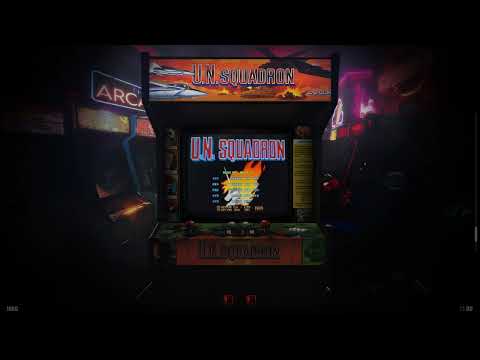
CoinOPS Project · Site Info
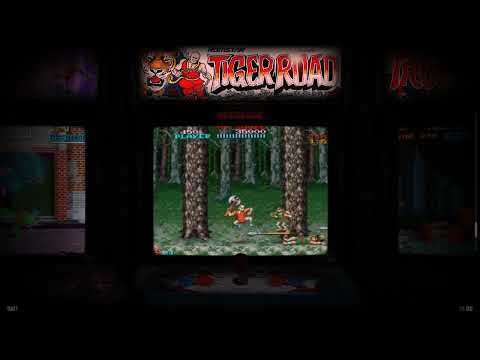
CoinOPS Builds & Generations #

ARISE (2026): CoinOPS ARISE BP Edition, CoinOPS ARISE Micro — the newest generation built on EVO 2 foundations.

Evolution / EVO (2025): CoinOPS EVO 2, EVO 2 Vertical, Forgotten Worlds EVO 2 — 64-bit RetroFE, DirectX 11, hardware-accelerated video.

Deluxe (2025): CoinOPS Deluxe Inspire, Deluxe MAX, Deluxe Universe 2025, Deluxe Mini, Deluxe Play Vert, Deluxe Arcade Edition, Deluxe 4x3 — from 7 GB to 512 GB.

Atarashii (2024): Forgotten Worlds ATARASHII, ATARASHII 2, ATARASHII Play, Forgotten Universe ATARASHII, 1UP Play — first macOS builds.

Forgotten Worlds (2022–2023): Forgotten Worlds, Forgotten Worlds REBORN, Forgotten Universe, Bit Wars, 16Bit Wars, Fight Night — arcade-cabinet focused.

Collections (2022): CoinOPS Collections, Collections ARCADES, Collections LEGENDS — multi-level menus with modular pack support.

Legends (2021–2022): LEGENDS 3, LEGENDS 3 ELITE, LEGENDS 4, LEGENDS 4 MAX, LEGENDS 4 Collector — first Linux and SteamDeck support.

Retro Arcade (2020–2021): Retro ARCADE, Retro ARCADE 2, Arcade Gold+, JukeBOX, BoxOFFICE, ShowTIME, Player 2.

NEXT 2 (2020): CoinOPS Next 2 Standalone R1–R4, Arcade Standalone, Diamonds 1–3 — most popular generation with modular Trusted Packs.

NEXT (2019): CoinOPS NEXT, Arcadia 4–6, Mini, Vertical, 4x3 — the big leap to PC on RetroFE.

Original Xbox (2003–2018): Where it all started. The CoinOPS project on original Xbox was the pioneering retro gaming frontend.

Supported Platforms #

Windows 10/11 PC, Raspberry Pi 5 (Pi5 FWA, Pi5 Deluxe), macOS (ATARASHII Play macOS, 1UP Deluxe macOS, Dynamic Bezels macOS), Linux (FW Atarashii Linux, Legends Linux), SteamDeck (LEGENDS 3 SteamDeck, Legends-4-Deck), arcade cabinets, bartop arcades, vertical TATE cabinets.

Emulated Systems #

MAME, CPS1, CPS2, CPS3, Neo Geo MVS, Neo Geo CD, Sega Model 2, Sega Model 3, Naomi, Atomiswave, Taito, Konami, Cave, Toaplan, Daphne, NES, SNES, Nintendo 64, GameCube, Wii, Master System, Genesis/Mega Drive, Sega Saturn, Dreamcast, PlayStation, PlayStation 2, PlayStation 3, PSP, TurboGrafx-16, 3DO, Atari 2600, Atari 7800, Atari Lynx, Game Boy, Game Boy Color, Game Boy Advance, Game Gear, Neo Geo Pocket, WonderSwan, Amiga, Commodore 64, ZX Spectrum, MSX, DOS, ScummVM, Atari ST, Pinball FX2/FX3.

Features #

Handcrafted artwork for every game, custom logos, HD videos, marquee displays, interchangeable artistic and realistic bezels, selectable glass effects, 33+ visual themes, attract mode with themed transitions, second screen marquee support, LEDBlinky LED control, ServoStik automatic 4-way/8-way gate switching, plug-and-play Xbox 360/Xbox One controller support, save states in arcade games, dynamic bezels, RetroArch integration, modular pack system, theme customization via XML, file-based transparent architecture.

About #

CoinOPS is created by BritneysPAIRS and a dedicated community of developers, designers, and retro gaming enthusiasts. The project started on the original Xbox around 2003 and has evolved through over 300 releases across 10 generations into one of the most recognised retro gaming frontends. CoinOPS and RetroFE are open-source frontend applications licensed under GPLv3. They do not include copyrighted game files. All trademarks are property of their respective owners.

GitHub — RetroFE · CoinOPS Wiki